Running a paid marketplace means every new seller has to end up on a plan somehow. Membership plan selection now happens right inside the WC Vendors Signup registration form, so vendors choose a plan and pay for it as part of applying.
Here is why that matters. A would-be vendor can now pick their plan and move straight toward payment instead of being handed a second job after approval. The moment membership plan selection lives inside the form itself, you stop losing applicants in the awkward gap between “I applied” and “I paid.”
This article walks through what the feature does, the two vendor journeys it creates, and exactly how to switch it on once you have the required plugin versions in place.
What Membership Plan Selection On Signup Actually Does
Before this update, a vendor filled in your application, submitted it, and that was the end of the conversation. Nothing about plans, nothing about pricing. If your marketplace runs on paid memberships, you then had to chase each applicant separately to get them onto a plan and take payment, and plenty of them never came back.
Research from the Baymard Institute shows that around seven in ten online checkouts are abandoned, and that forcing people through extra hoops such as unexpected account steps is one of the most common reasons they leave. Every extra task you push onto a new vendor is another chance for them to drift away. With online marketplaces now accounting for the largest share of online purchases worldwide, the sellers you attract are worth keeping in a single, smooth flow.
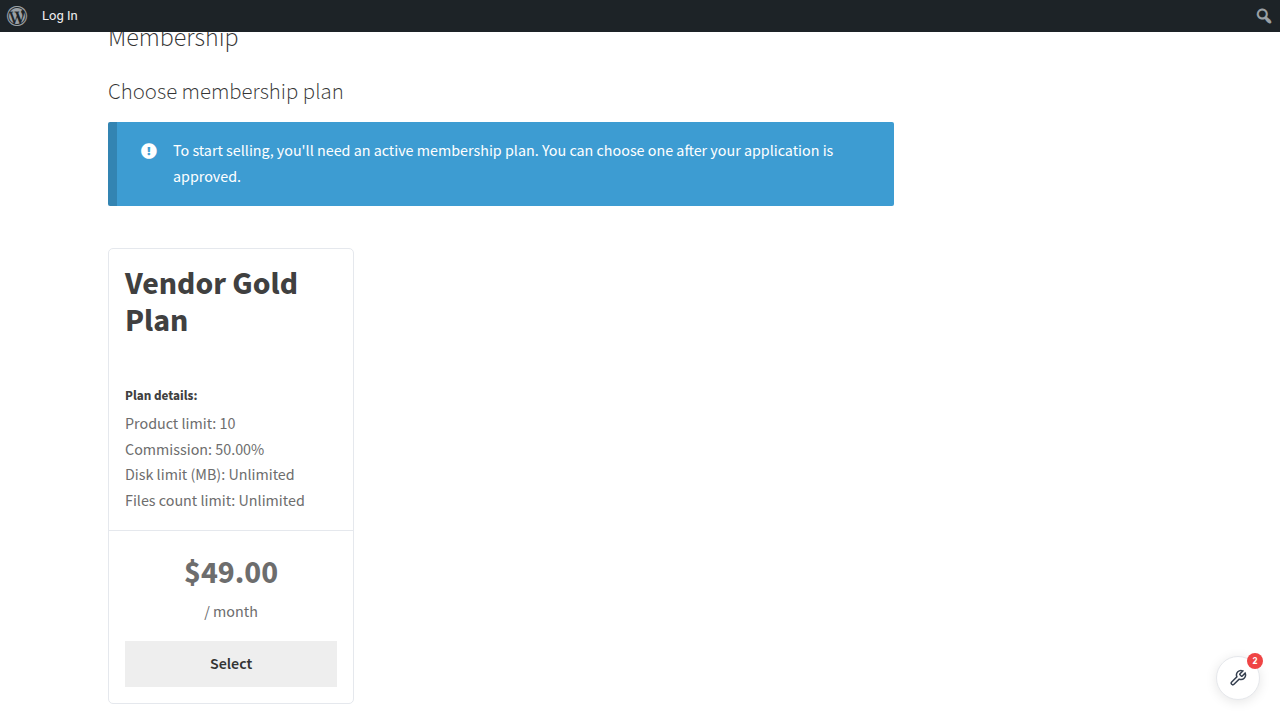
After this update, your plan cards render inside the application form itself, below your own fields and above the submit button. Each card shows the plan name, its description, the price, and what the vendor gets, including the product limit, commission rate, storage allowance, and file count. The vendor clicks Select on the plan they want, then submits the form as usual. It is the same experience buyers already expect, brought into your vendor onboarding.
The Two Vendor Journeys Explained
Once membership plan selection is switched on, the plan a vendor picks is remembered no matter how you handle approvals. The only difference is that: whether you approve vendors automatically or by hand.
If vendor approval is automatic
This is the straight-to-checkout path. The vendor picks a plan and submits the application. Their account is created and approved on the spot, and they are sent to your checkout page with the chosen plan already in the cart, so there is nothing to search for and nothing to add. They pay, and their subscription starts.
If you approve vendors by hand
This is the billed-on-approval path. The vendor picks a plan and submits, but nothing is charged yet. The application sits waiting for you with the chosen plan saved against it. When you approve them from the WC Vendors admin, an order and a subscription are created for the plan they selected, and they are emailed the invoice.
📝 Worth knowing: Approving the same vendor twice used to risk creating a duplicate order and a second subscription. That has been fixed as part of this work. The saved plan is cleared the moment the first order is created, so a re-approval can no longer double-charge anyone. If you want a deeper look at how billing works across plans, our guide on how to charge marketplace vendors with membership subscriptions covers the full picture.
What You Need In Place Before Membership Plan Selection Works
Here is everything that needs to be active:
- WooCommerce (current version): handles products, cart, and checkout.
- WC Vendors (current version): the vendor and approval system, and the home of the approval setting this feature branches on.
- WC Vendors Pro (current version): supplies the plan card layout the Membership plugin draws with.
- WooCommerce Subscriptions (current version): powers recurring billing for the plans.
- WC Vendors Membership (version 1.2.4 or newer): owns everything about the plans themselves.
- WC Vendors Signup (version 1.0.3 or newer): the new application form. Version 1.0.2 or older will not work, because the form has no place to put the plans.
You also need at least one Membership product published. If you have none, the plan section is skipped entirely, and your application form looks exactly as it does today. If you are still setting up your plans, the WC Vendors Membership getting started guide walks through creating them.
How To Turn On Membership Plan Selection Step By Step
Follow these in order. The first two steps are the update itself; steps three through six are the configuration.
Back up your site
This update touches how vendors register and how they get billed, so take a full backup of both files and database before you change anything. If you have a staging copy, try the update there first.
Update both plugins
Go to WP Admin > Plugins, and update WC Vendors Signup to 1.0.3 or newer and WC Vendors Membership to 1.2.4 or newer. Both must be updated together. Membership deliberately checks the Signup version before doing anything, so an out-of-date Signup plugin means no plan cards.
Confirm you have Membership products to sell
Go to Products > All Products, and check that at least one product has the type Membership and is published rather than saved as a draft. The cards appear in the order your products are arranged, so set the menu order on each one if you want a specific left-to-right sequence, such as cheapest first or your recommended plan in the middle.
Switch on the plan selection
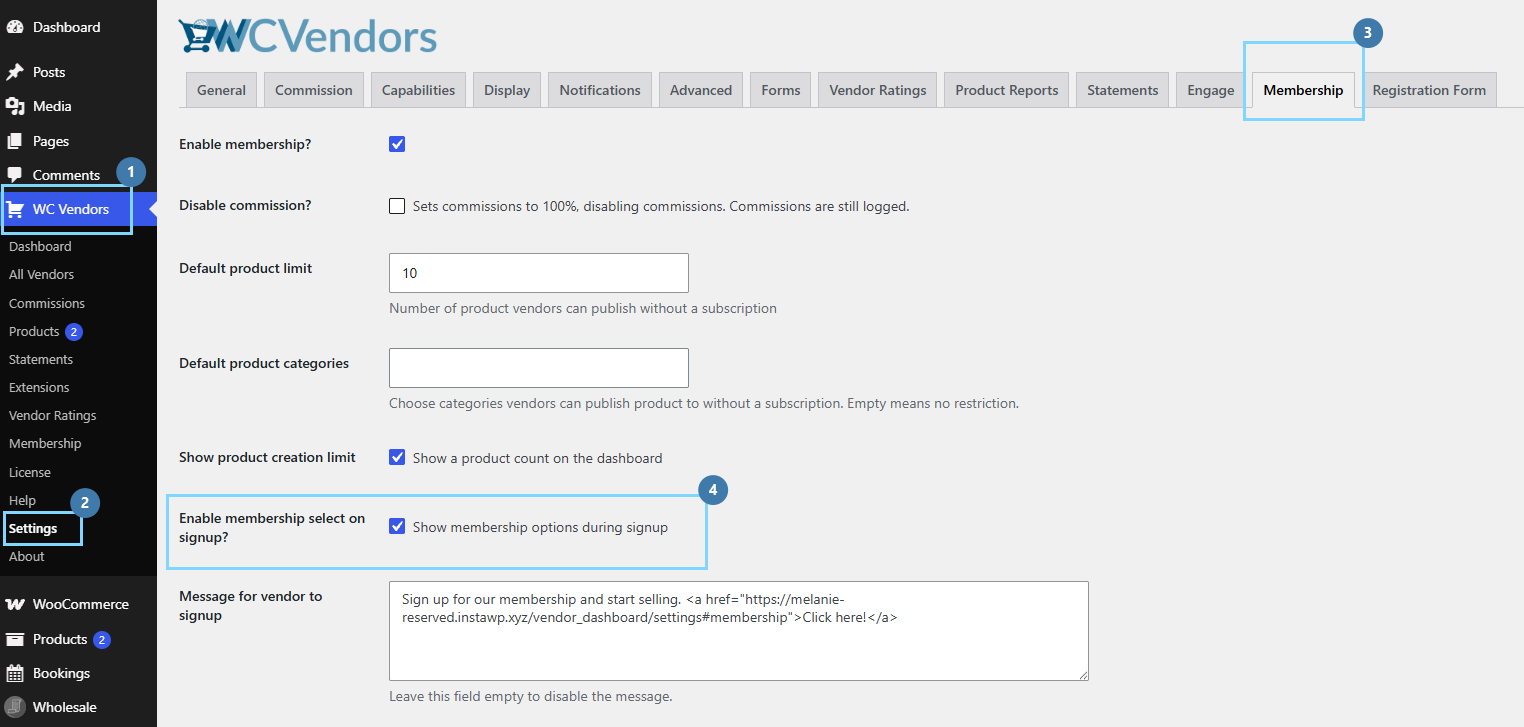
Go to WC Vendors > Settings > Membership. Find the checkbox labeled “Enable membership select on signup?” with the description “Show membership options during signup,” tick it, and Save. This is the master switch for the whole feature. Untick it, and the plan section disappears from both registration forms.
Decide how vendors get approved
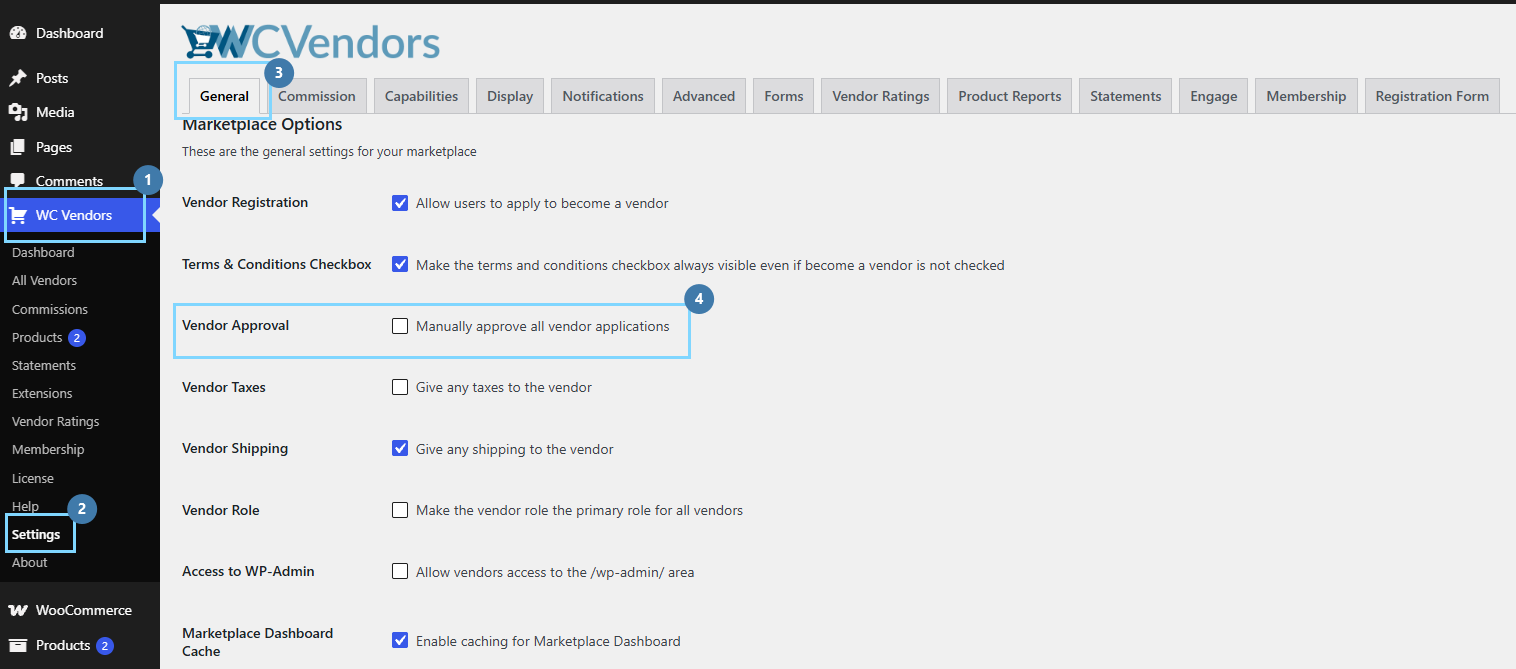
Go to WC Vendors > Settings > General, and look for the Vendor Approval option, “Manually approve all vendor applications.” If left unticked (the default), vendors are approved instantly and go straight to checkout. Ticked, you vet each application first, and the plan is billed when you approve. For a refresher on approval modes, see how to manage the vendor registration and approval workflow.
Add your optional plan message
Still on the Membership settings screen, a text box for a message appears above the plans on the signup form. Use it to explain your pricing, mention a trial, or set billing expectations. Leave it empty to hide the message entirely.

Test it yourself, end to end
Open a private browsing window so you are logged out, then visit the page that displays your WC Vendors Signup form. Confirm that the plan cards appear below your fields and above the Apply button, that clicking Select highlights that card and changes the button to Cancel, and that selecting a different plan un-highlights the first one so only one can be chosen. Submit the form and check that you land where you expect, either at checkout with the plan in the cart or on a pending-approval message.
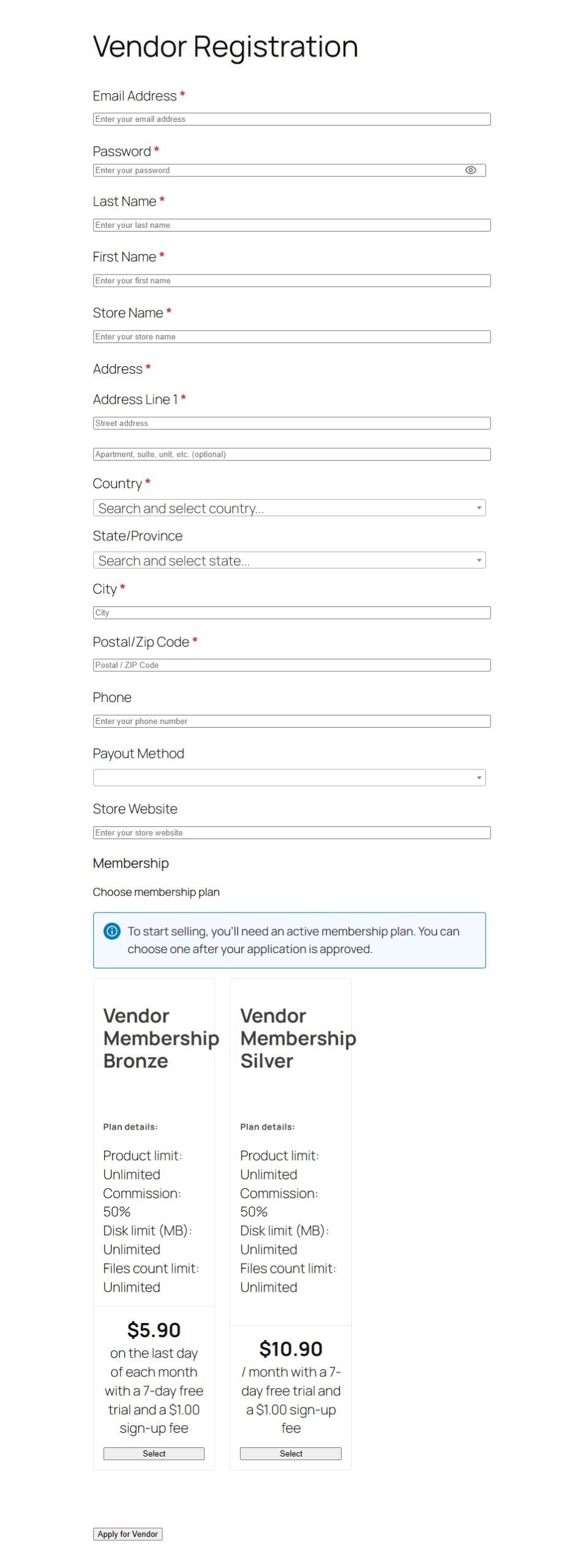
📝 One last thing to sanity-check: Your marketplace may already have a standing discount coupon or promotional pricing on its plans. The price shown on the cards comes straight from the product, so it will reflect whatever is configured. If you run promotions on your plans with a tool like the Advanced Coupons integration for WooCommerce Subscriptions, confirm that the price a vendor sees on the form is the price they are actually charged at checkout.
Best Practices For Membership Plan Selection
A few small choices make this feature convert better once it is live. Order your plans deliberately using the menu order, since the sequence you set is the sequence vendors read, and the middle slot is a natural home for the plan you most want them to choose.
Write a plan message that does real work. A short line about a trial, a billing cycle, or what happens after approval removes hesitation before a vendor commits. Match your approval mode to how much vetting your marketplace truly needs, because manual review adds trust but also adds a wait. Above all, run the private-window test before you announce anything, so the first person to see your new flow is you and not a confused applicant.
Troubleshooting When The Plans Do Not Show Up
Because there is no error message when the feature stays dormant, it simply does nothing quietly. Work through these in order:
- No plan section on the form at all. Check the master switch first: Settings > Membership > “Enable membership select on signup?” It must be ticked. Then confirm WC Vendors Signup is on 1.0.3 or newer, since 1.0.2 and older cannot display the plans no matter what else you do.
- The setting is on, but still nothing appears. You probably have no published Membership products. Go to Products, then All Products, and confirm at least one has the product type Membership and is published, not a draft.
- Cards appear, but clicking Select does nothing. Something is blocking the plugin scripts. Turn off JavaScript minification or combining in your caching or optimization plugin, clear all caches, and reload the page.
- The vendor submits but is not taken to checkout. That is the expected behavior when manual approval is switched on, since they are billed when you approve them. If approval is automatic and they still are not redirected, check that your checkout page is set correctly under WooCommerce > Settings > Advanced.
- You approved a vendor, but no subscription was created. The plan they chose may have been deleted or changed to a different product type since they applied. When the saved plan is no longer a valid Membership product, the system stops rather than creating a broken order, so you will need to set that vendor up manually.
Conclusion
For years, the newer WC Vendors Signup form asked vendors to apply without ever showing them a plan, which left marketplace owners to chase payment in a separate step that many applicants never completed. Bringing membership plan selection into the form itself removes that break in the journey, so a vendor can see your plans, choose one, and head toward payment in a single, natural motion.
The setup rewards a little care. Get the full plugin stack in place, publish at least one plan, pick the approval mode that fits how you run your marketplace, and always test the flow in a private window before you go live. Do that, and membership plan selection quietly becomes one of the most useful upgrades to your onboarding, turning a leaky two-step process into one clean path from application to paid vendor.
Here is what we covered in this article:
- What the new signup feature actually does
- The two vendor journeys explained
- What you need in place before it works
- How to turn it on step by step
- Best practices for selling plans on signup
- Troubleshooting when the plans do not show up
Frequently Asked Questions
Which plugin versions do I need for this feature?
You need WC Vendors Signup 1.0.3 or newer and WC Vendors Membership 1.2.4 or newer, alongside current versions of WooCommerce, WC Vendors, WC Vendors Pro, and WooCommerce Subscriptions. Both WC Vendors Signup and WC Vendors Membership must be updated together, because Membership checks the Signup version before it does anything.
Does the vendor pay right away when they apply?
It depends on your approval setting. With automatic approval, the vendor is created and approved instantly and sent to checkout with the plan already in the cart. With manual approval, nothing is charged until you approve the application, at which point an order and subscription are created and the vendor is emailed the invoice.
Why are my plan cards not showing on the signup form?
Start with the master switch under Settings, then Membership, and make sure “Enable membership select on signup?” is ticked. Then confirm WC Vendors Signup is on 1.0.3 or newer and that you have at least one published Membership product. There is no error message when the feature stays dormant, so it simply shows nothing until every requirement is met.
Can re-approving a vendor accidentally charge them twice?
No. That was possible before, but it has been fixed. The saved plan is cleared as soon as the first order is created, so approving the same vendor again cannot create a duplicate order or a second subscription.
Does membership plan selection change my existing Pro registration form?
The plan cards are shared by both the older WC Vendors Pro form and the new WC Vendors Signup form, and the master switch controls both. If you untick “Enable membership select on signup?” the plan section disappears from both forms, so you can turn the whole feature on or off in one place.