
There might be a time when your vendors need to import or export their products. WC Vendors allows them to do this directly from the Vendor Dashboard. This feature can save a lot of time when setting up or managing products in bulk.
Enabling product import & export for vendors
Before vendors can use this feature, the site admin must enable it:
- Go to WordPress Admin → WC Vendors → Settings → Capabilities → General.
- Scroll down to the Products section.
- Enable Import Products and Export Products.
- Save changes.
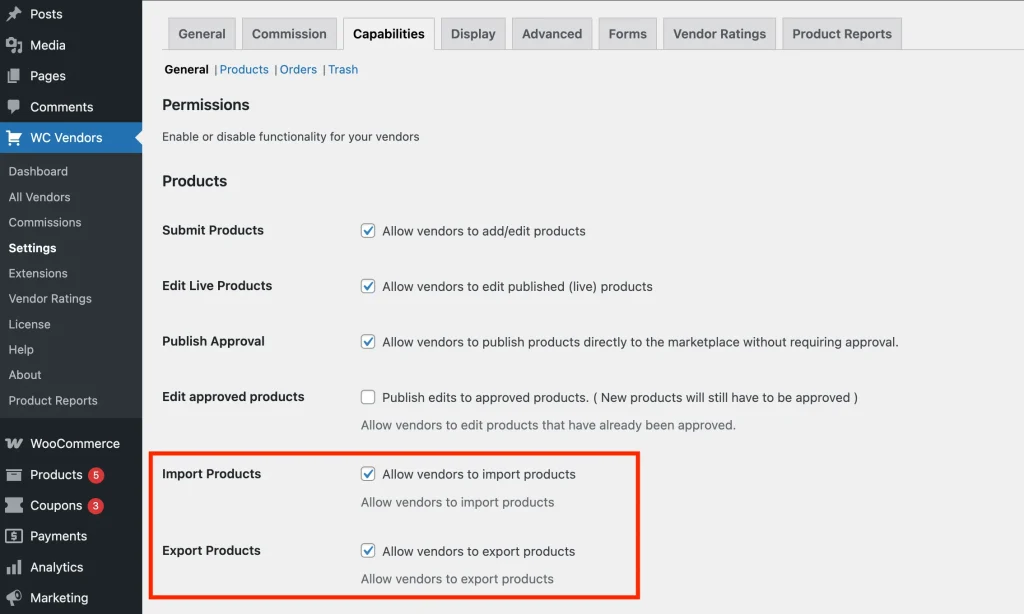
Once enabled, vendors see Import and Export buttons under Vendor Dashboard → Products.
Importing products
You can import products via the product import system by uploading a CSV file. The CSV must follow the correct format.
Tip: The easiest way to get the correct format is to first export a single product and then use that file as a template for your import.
If you’d like to learn more about the column headers you can use in the product CSV file, read the documentation from WooCommerce here.
Steps to import products
To import products, go to Products on your dashboard. From here you will find the Import button.
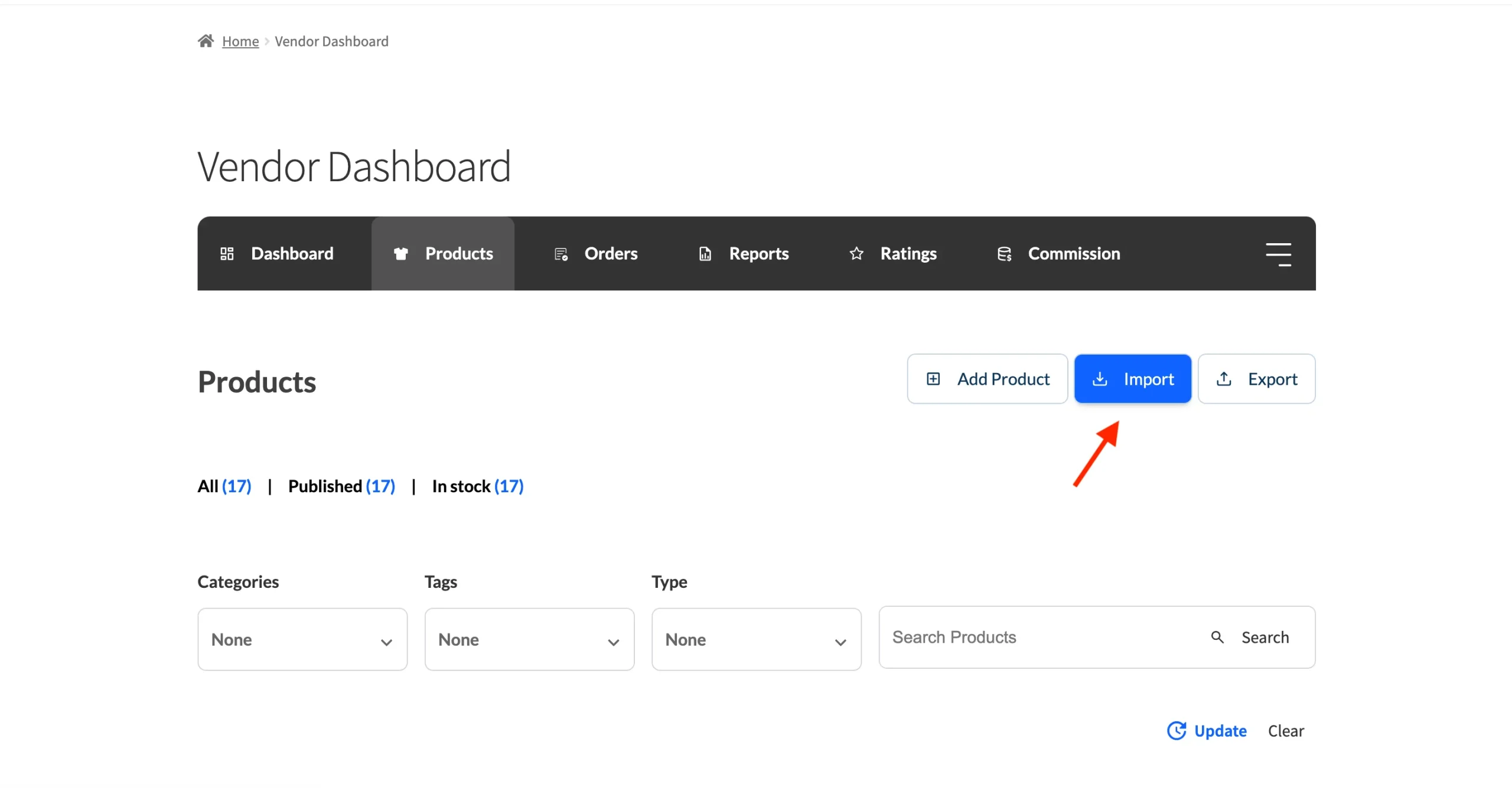
Once you click the import button, the importer guides you through a multi-step process to import your products into the marketplace.
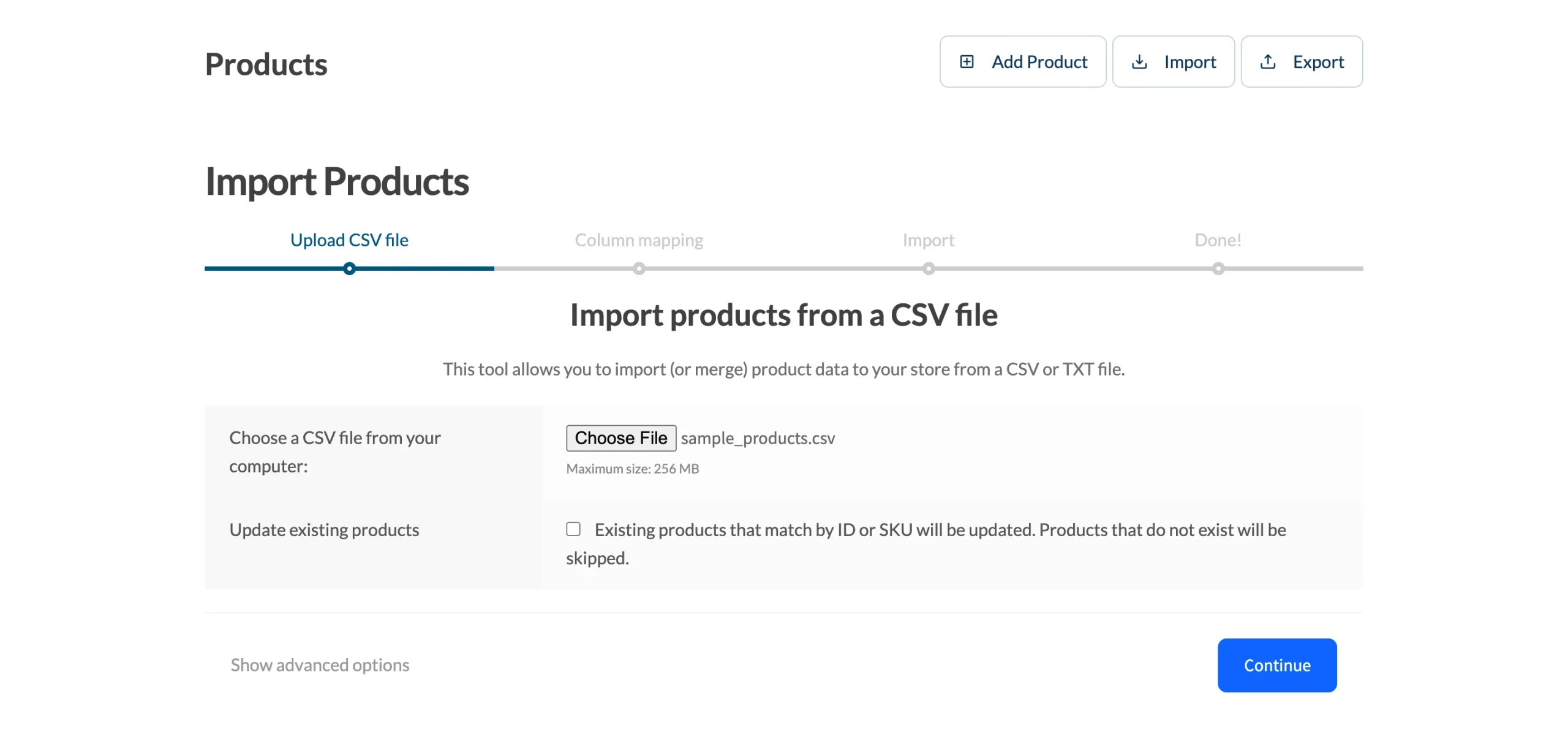
Step 1: Upload CSV file
The first step in the upload process is to upload your import file. This must be in the CSV format. There are advanced options if you require them. The advanced options let you define the CSV delimiter which is a comma by default.
You can also select to use previous column mapping. This means if you have imported products previously and set the column mapping from the second step, the import system will remember these for use next time.
Import mode
Before uploading, choose how the importer should handle rows in your CSV using the Import Mode field:
- Create new products only (default) — skips any row that matches an existing product by ID or SKU. Use this when your CSV contains only new products.
- Update existing products only — updates rows that match an existing product by ID or SKU and skips rows that do not match. Use this to bulk-edit existing products without creating duplicates.
- Update existing and create new products (Hybrid) — updates products that match by ID or SKU and creates new products for rows that do not match. Best suited for a master CSV that represents your full product catalogue.
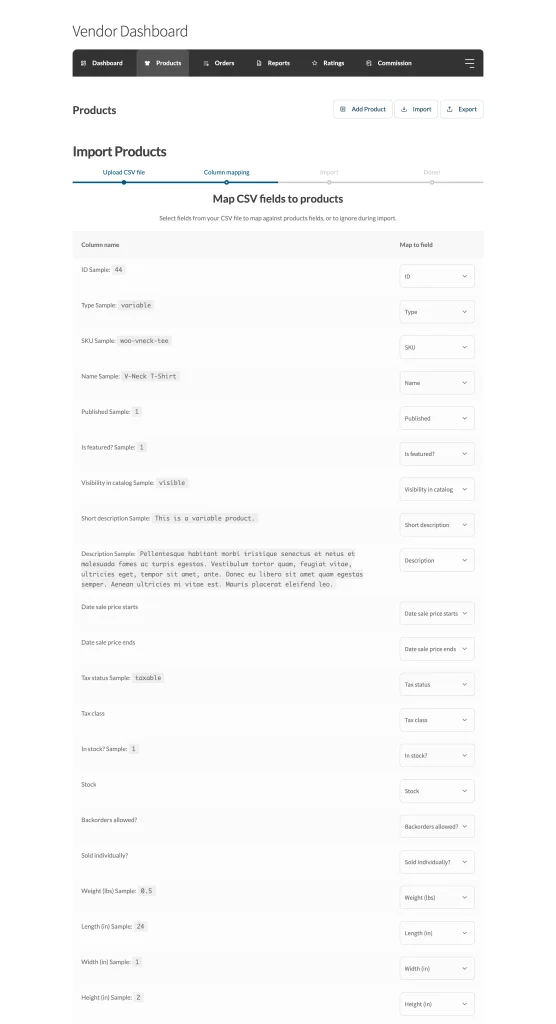
Step 2: Column mapping
The column mapping will read your file and then do its best to map your CSV columns with the ones required by the marketplace to import. You can review and adjust mappings as needed.
⚠️ Note: This was fixed in WC Vendors Pro 2.0.7. If you’re re-importing a CSV that was exported by an older version (or the column mapping screen shows only the ID column), open the file in a plain text editor, delete any blank lines above the first row, and re-upload.

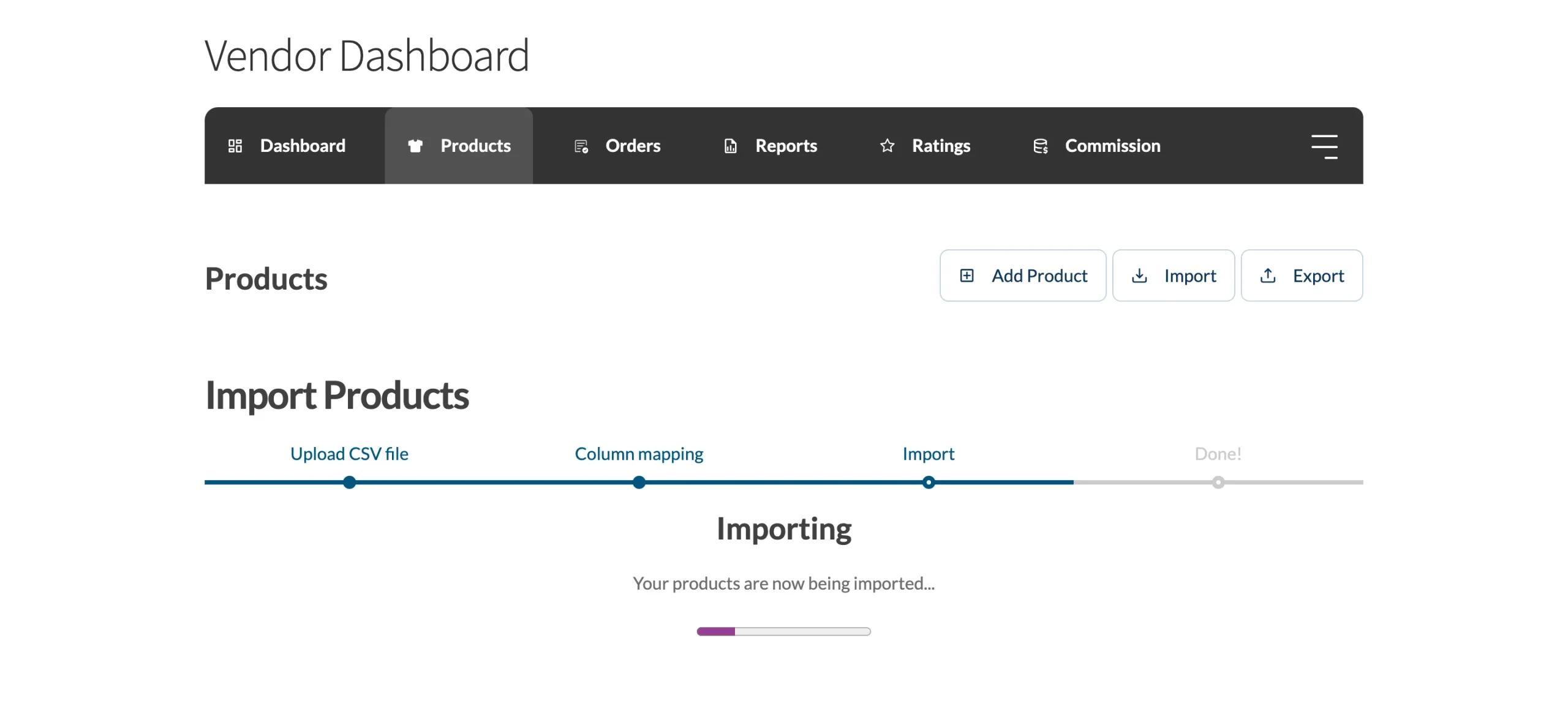
Step 3: Import progress
The import screen shows you progress while it is importing. If you have a lot of products to import this will show the progress bar.
Large product imports may take some time. If the process freezes, try splitting your CSV into smaller files or increase your server’s maximum execution time limit to allow more time for the import to complete.
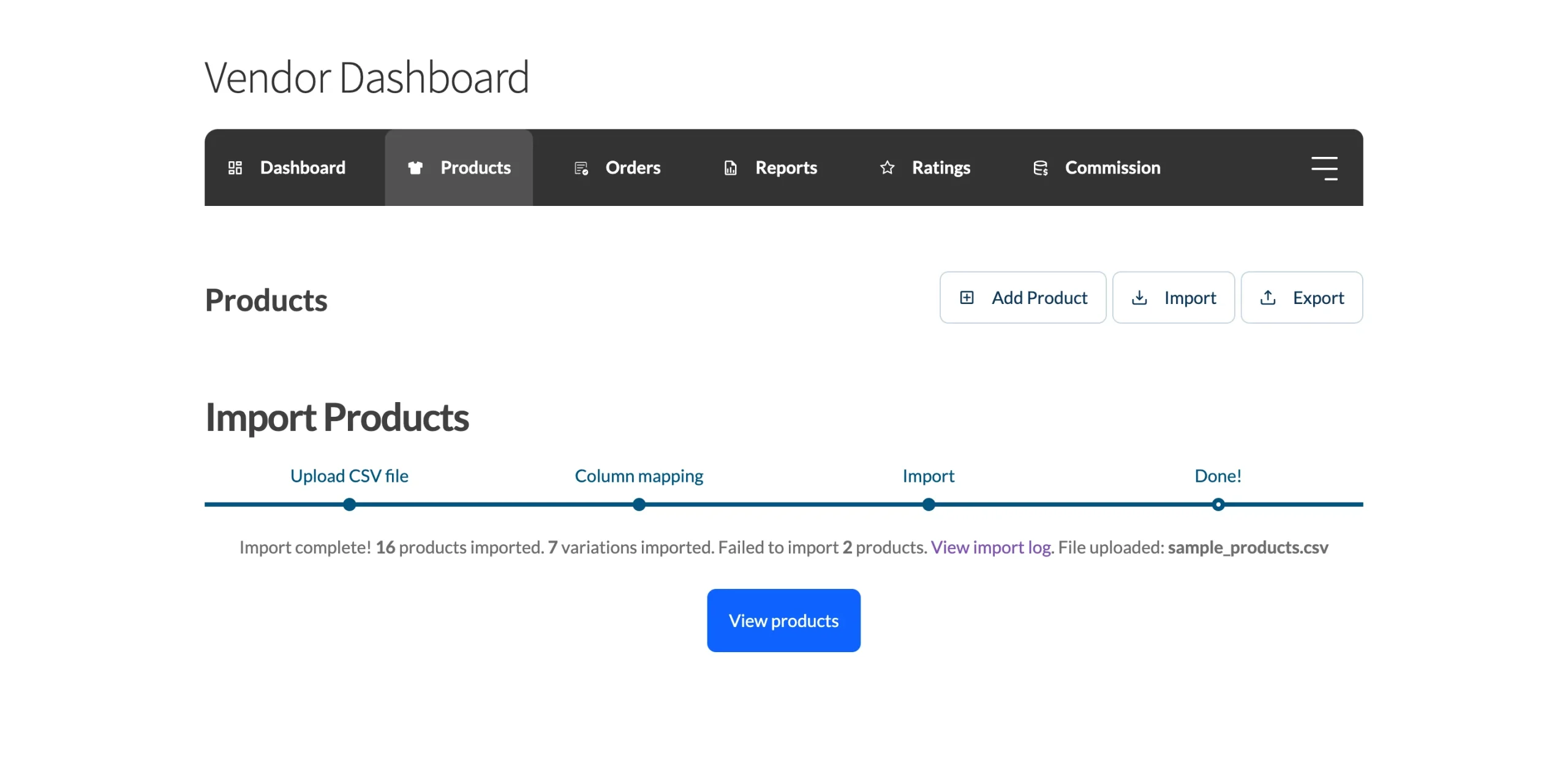
Done!
The final step will show you that the import is complete including details of the import. If there were any errors or products that are not imported you can check the log that is included on this screen.
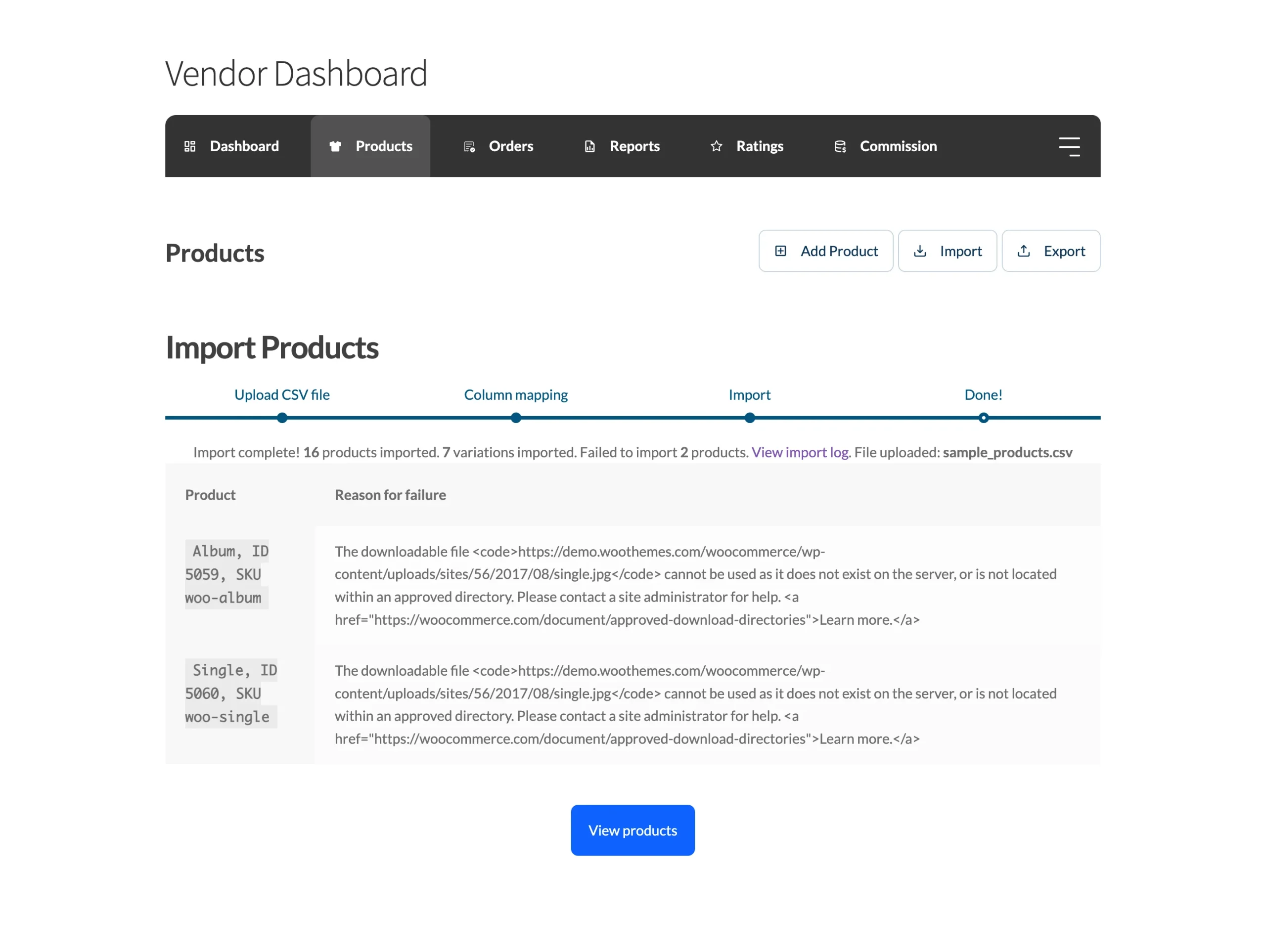
View import log
The following is an example of the product log and reasons for why products might be skipped or not imported.
Exporting products
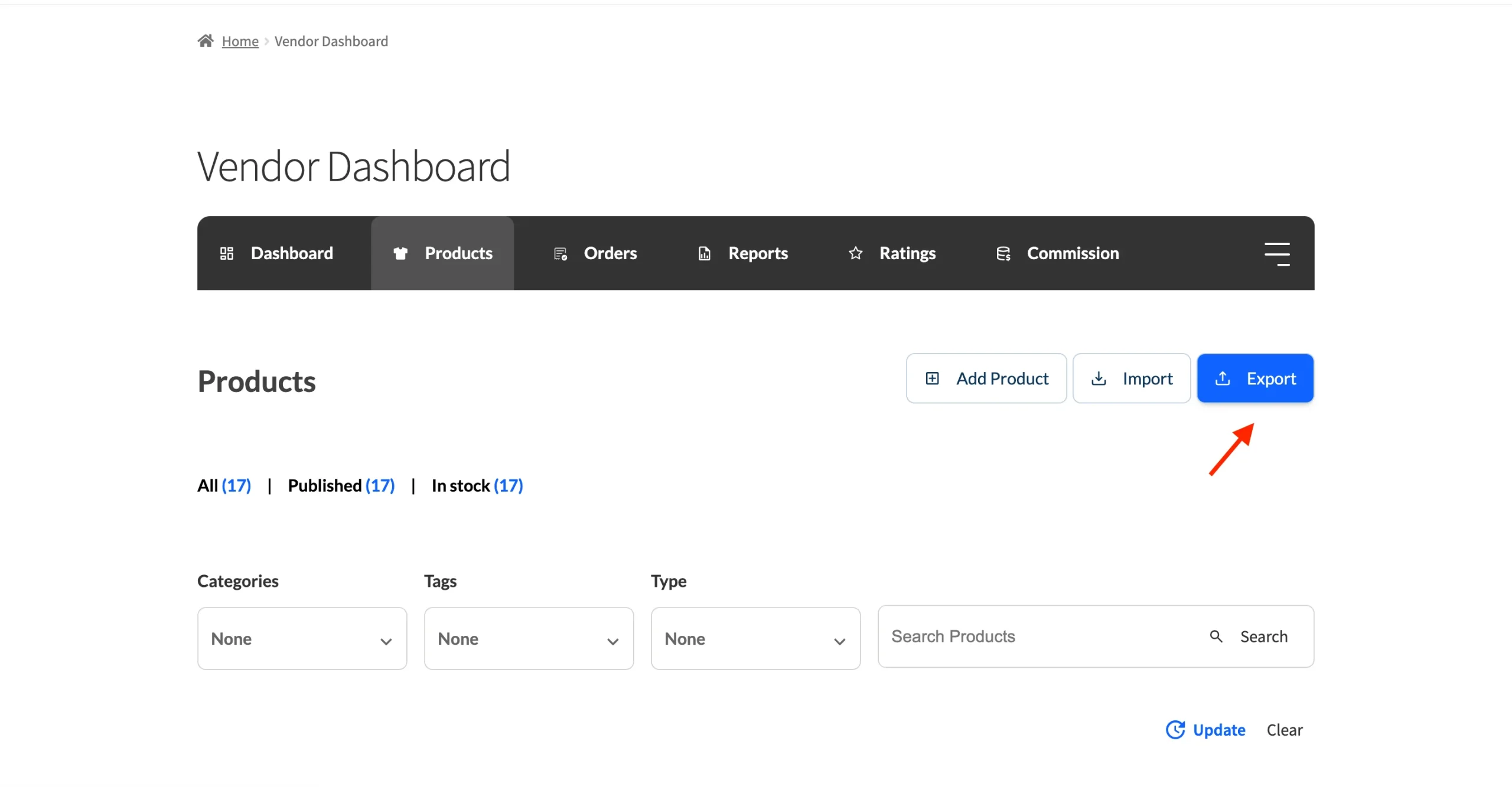
To export products, open Products in your dashboard. From here you will find the Export button.
Export options
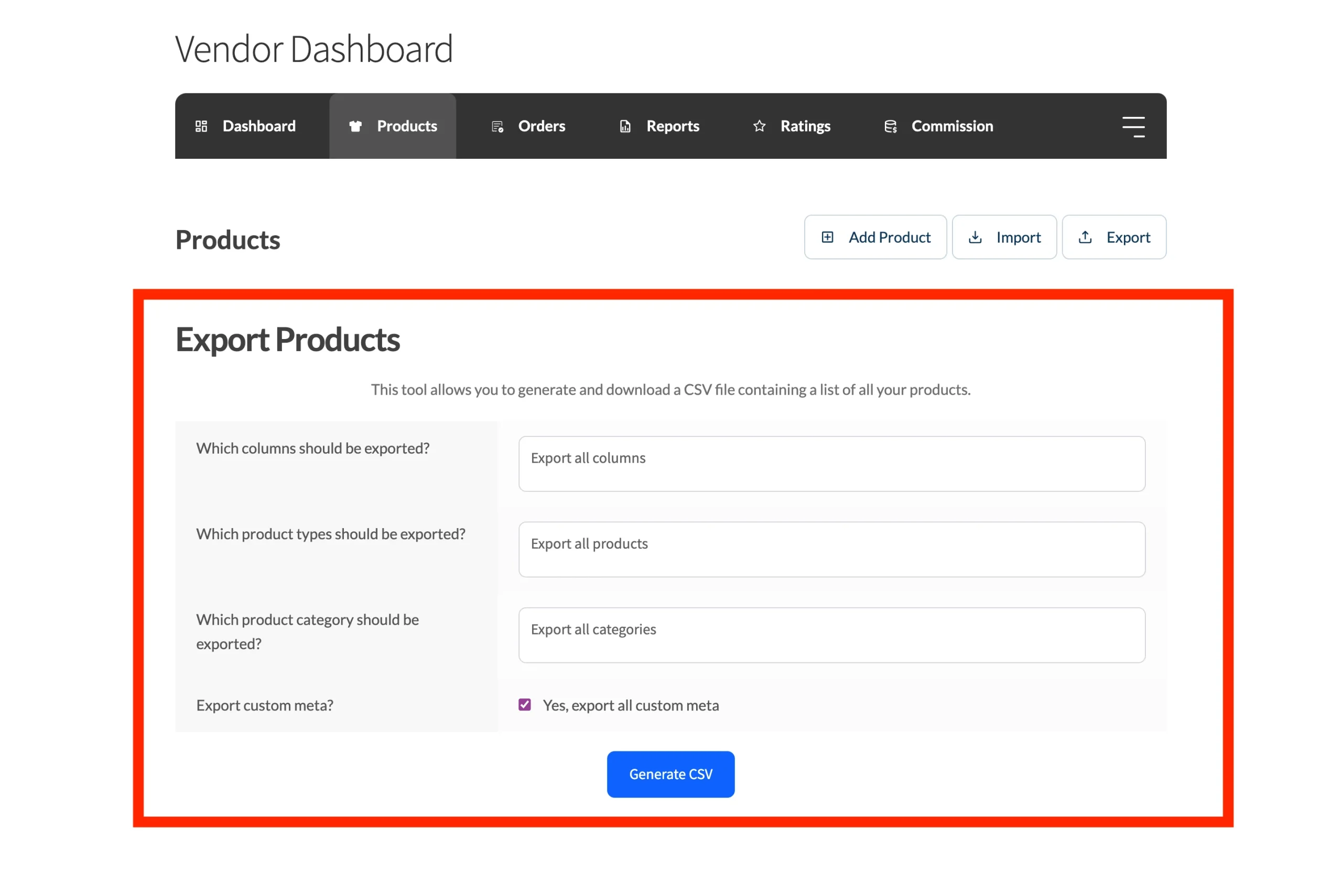
There are four export options available to help you filter your exported products. On screen they appear as questions:
- Which columns should be exported? (choose the columns to include)
- Which product types should be exported? (filter by product type)
- Which product category should be exported? (filter by category)
- Export custom meta? (include custom metadata)
Columns to export
This allows you to specify which columns you want to export. If you want to only export simple product information such as the title and description you can select just those columns.
Product types to export
Depending on which products your marketplace allows, you can select which kinds of products you want to export. Generally speaking, the following product types can be available.
- Simple
- Grouped
- External/Affiliate
- Variable
- Product Variations
- Subscriptions
- Bookings
- Auctions
Categories to export
This allows you to specify specific categories of products to export. This is limited to the product categories that you have used. This allows you to only export products from the categories you require.
Export custom meta
If your products use custom metadata e.g., product-level shipping overrides, you will want to ensure that this box is ticked if you require shipping settings to be imported.
Generate CSV
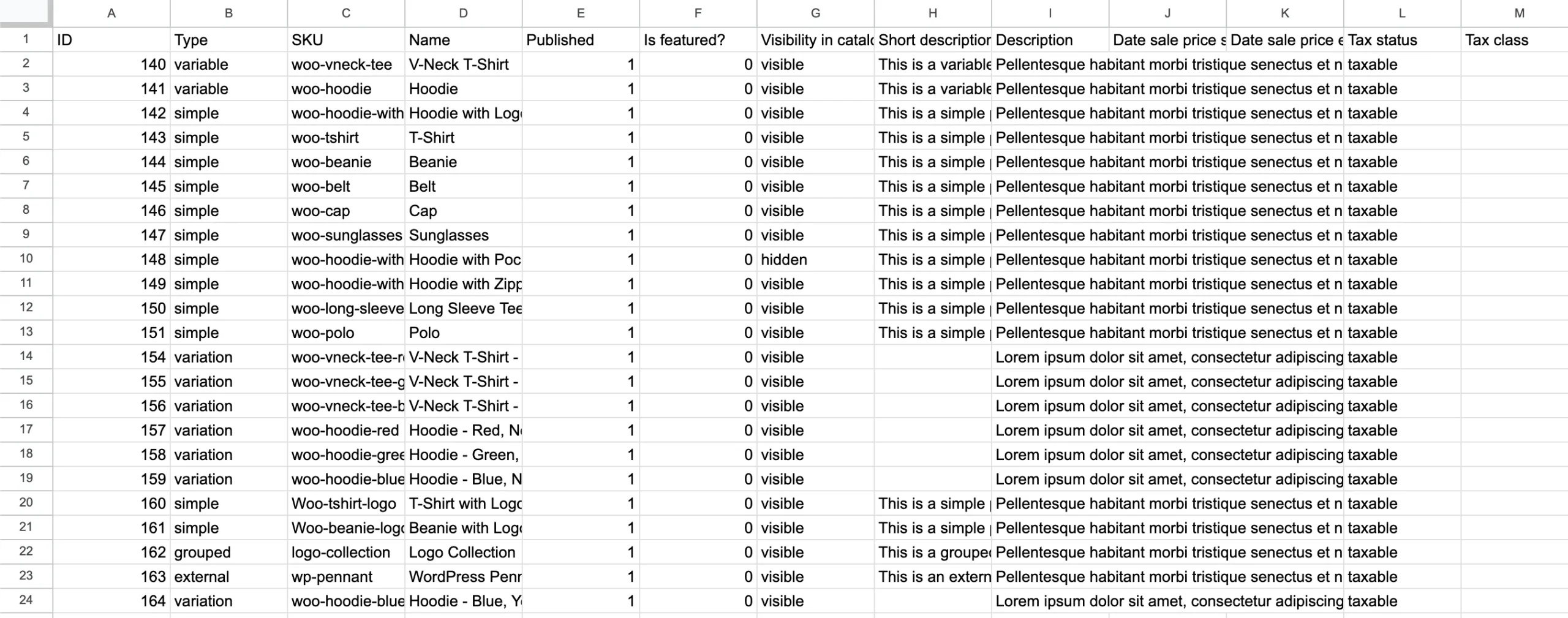
Once you’ve selected your preferences, click Generate CSV. If you don’t change any defaults then all of your products will be exported to a CSV file. You can also use this exported CSV file as a template for importing products.
Troubleshoot with import/export logs
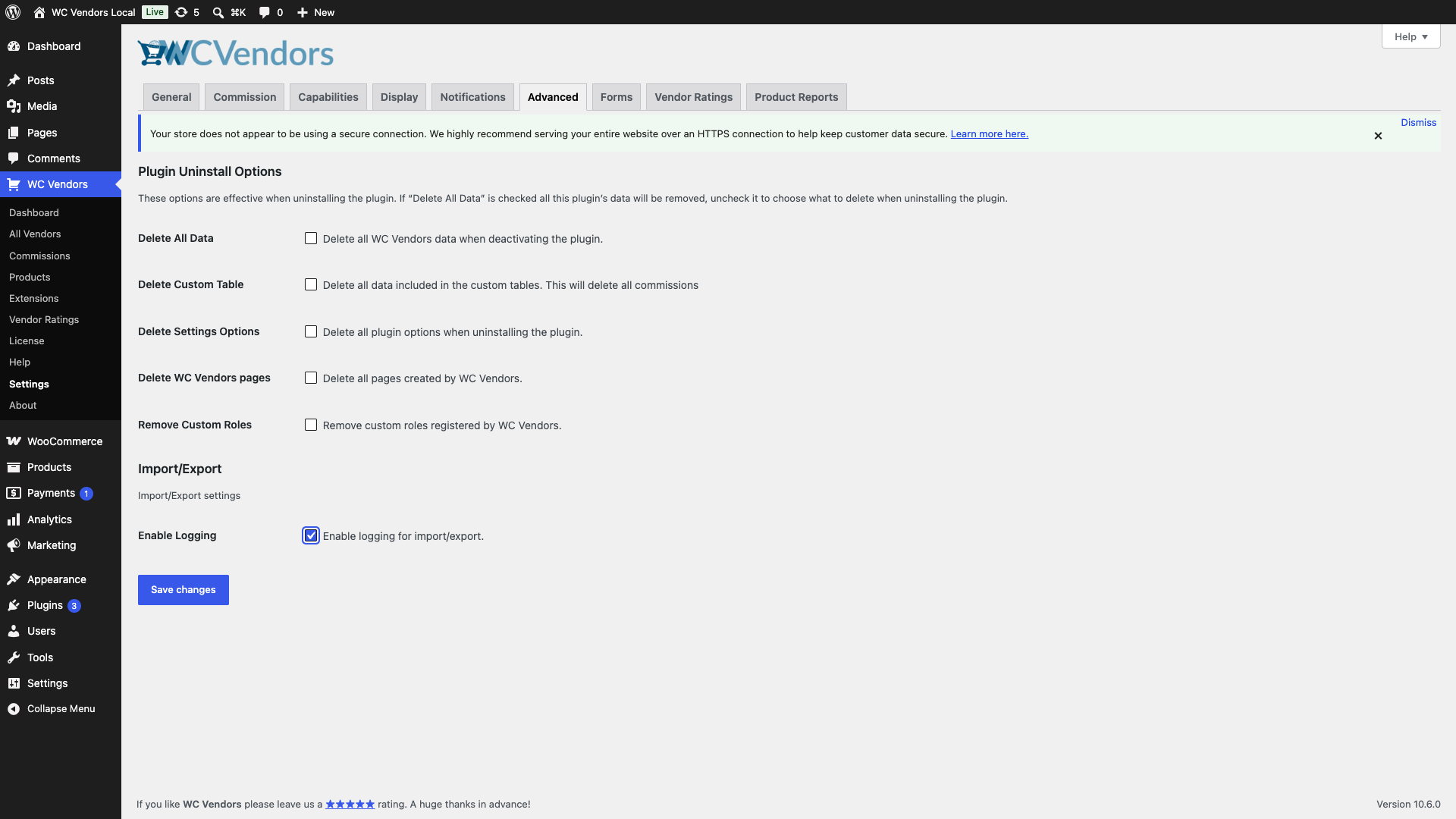
WC Vendors Pro can write detailed logs for every import and export run. This helps admins diagnose failed or skipped products without guessing what went wrong.
To turn logging on, go to WC Vendors Pro → Settings → Advanced → Import/Export and check Enable Logging. Save your settings.
Once enabled, each import or export generates a log entry in the WooCommerce log system. To view the logs, go to WooCommerce → Status → Logs and filter by source:
wcvendors-pro-product-importer-vendor-{user_id}— logs for a specific vendor’s import runwcvendors-pro-product-exporter-vendor-{user_id}— logs for a specific vendor’s export run
Replace {user_id} with the vendor’s WordPress user ID. The log will show which products were processed, any errors, and what caused items to be skipped.
Frequently asked questions
Can vendors import or export products without the admin enabling the capability?
No. The admin must enable Import Products and/or Export Products under WC Vendors → Settings → Capabilities → General before vendors can access the import or export tools from their dashboard.
Will importing a CSV overwrite existing products?
Only if you choose Update existing products only or Update existing and create new products (Hybrid) under Import Mode. The default, Create new products only, skips products that already exist (matched by ID or SKU).
Need help?
- Premium users: submit a support ticket and our team will help you out.
- Free users: post in the WordPress.org support forum.