
If a vendor’s been approved and their store looks ready, but they still haven’t had a single sale, don’t assume something’s broken. There are three places worth checking first: whether they’ve actually set up how they get paid, whether their products are visible to shoppers at all, and whether a recent order has made it all the way through checkout. This article walks through all three on a WC Vendors marketplace, including what each one looks like when it’s the cause.
Before you start
The payout and visibility checks below are settings only a marketplace admin can see and change. For the payout check, you’ll also need the vendor to confirm what they’ve entered on their own Store Settings page, since you won’t be able to see those fields from your own admin account.
The vendor hasn’t finished setting up how they get paid
What’s happening
The vendor is live and has products, maybe even an order sitting in WC Vendors, but nothing’s actually been paid out, or they haven’t told the plugin how they want to be paid at all.
Why it happens
Every vendor chooses a payout method on their own Store Settings → Payouts tab, under Commission Payout Method: either PayPal or Bank Transfer. If they’ve never visited that tab, or started filling it in and never saved, there’s nothing on file to pay them with.
- Choosing PayPal reveals a further choice between a PayPal Address or a Venmo ID, depending on which wallet they pick.
- Choosing Bank Transfer reveals a Bank Details table: Bank account name, Bank account number, Bank name, Bank routing number, Bank IBAN, and Bank BIC/SWIFT, all shown together.
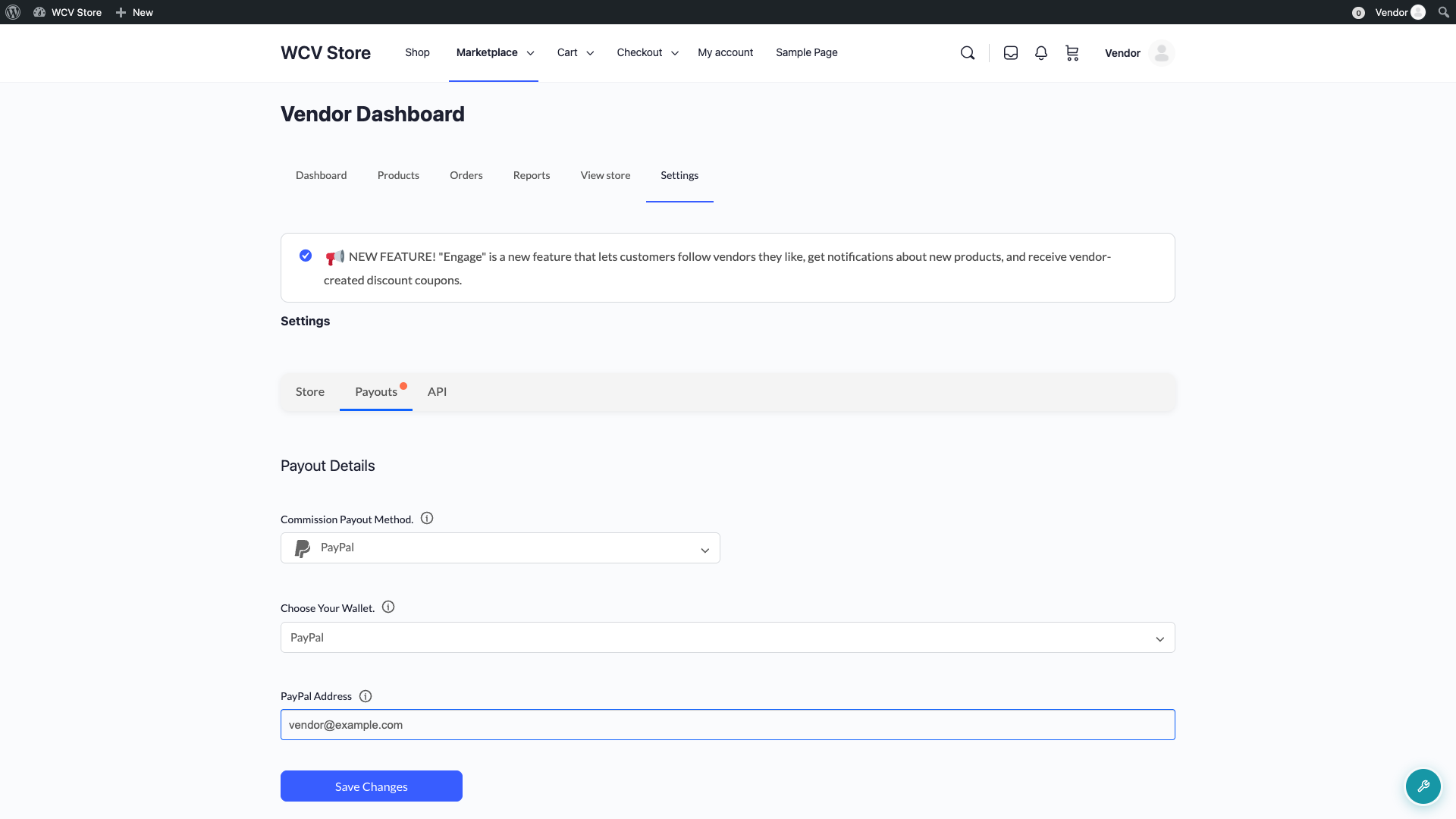
If your marketplace also has the WC Vendors Stripe Connect addon active, there’s a separate Connect with Stripe button on this same tab. Until the vendor clicks it and finishes Stripe’s own onboarding, it keeps showing “Your account is not yet connected with Stripe.” Once connected, it switches to “Your account is currently connected to Stripe.”, with a link to disconnect if they ever need to.
How to fix it
- Ask the vendor to open their Store Settings page and check the Payouts tab.
- Confirm a Commission Payout Method is actually selected, and that the fields under it (PayPal Address, Venmo ID, or bank details) are filled in.
- If Stripe Connect is active on your marketplace, confirm they’ve clicked Connect with Stripe and completed Stripe’s onboarding, not just seen the button.
Their products aren’t actually visible to shoppers
What’s happening
The vendor has products in the system, but a shopper browsing the store can’t find or buy them.
Why it happens
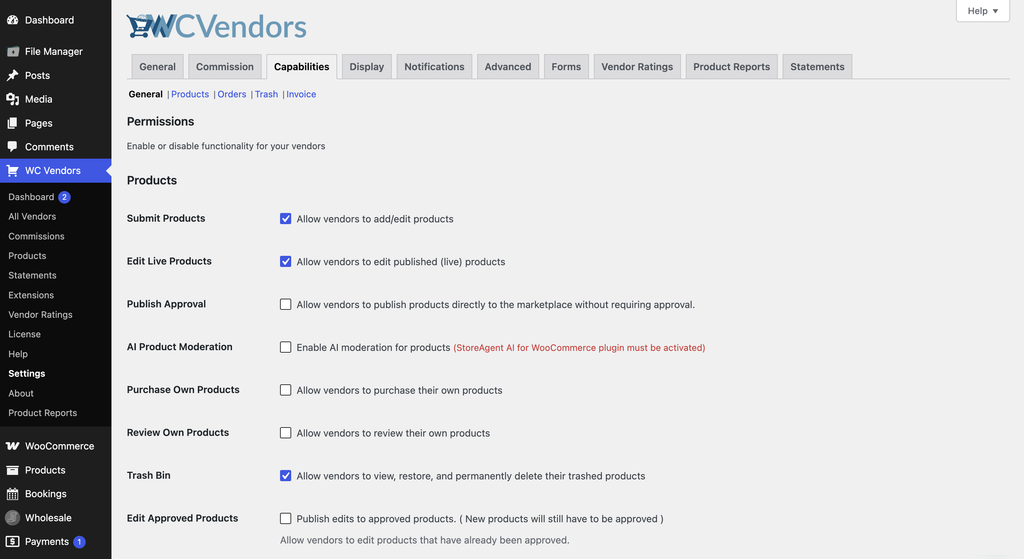
By default, WC Vendors lets vendors publish products straight to the marketplace with no review. That’s controlled by the Publish Approval setting under WC Vendors → Settings → Capabilities (in the Products section), and it’s turned on by default. If someone’s turned it off, every new or edited product a vendor submits goes to a pending status instead of publishing immediately, and it sits there until an admin manually approves it.
A vendor flagged as a Trusted Vendor bypasses this entirely and keeps publishing directly even while Publish Approval is off for everyone else, so don’t assume the setting alone tells you the whole story for one specific vendor.
The reverse also exists: a vendor flagged as an Untrusted Vendor always gets a pending status on new products, even while Publish Approval is on for everyone else. If one specific vendor’s products keep landing in pending despite the global setting looking fine, check whether they’re flagged this way.
AI Product Moderation is a separate checkbox (off by default) that only takes effect if StoreAgent AI for WooCommerce is installed, active, and connected. The checkbox itself is never disabled in the UI, so a vendor admin can check it and save even without that plugin ready; when the dependency isn’t met, WC Vendors silently resets it back to unchecked. When the dependency is met and it saves successfully, it automatically turns Publish Approval off for the whole marketplace, and that change is one-way: deactivating StoreAgent afterward does not turn Publish Approval back on by itself.
How to fix it
- Go to WC Vendors → Settings → Capabilities and check whether Publish Approval is on or off.
- If it’s off and you don’t know why, check whether AI Product Moderation was recently turned on under the same Products section.
- Either way, check your WordPress Products list for that vendor’s items filtered to Pending, and approve the ones that are ready.
Turning on AI Product Moderation switches Publish Approval off automatically for every vendor, and the change is one-way: deactivating StoreAgent afterward does not turn Publish Approval back on, so re-check it yourself.
A recent order hasn’t actually gone through yet
What’s happening
A shopper added the vendor’s product to their cart, maybe even reached the order confirmation screen, but the vendor still doesn’t see it as a sale.
Why it happens
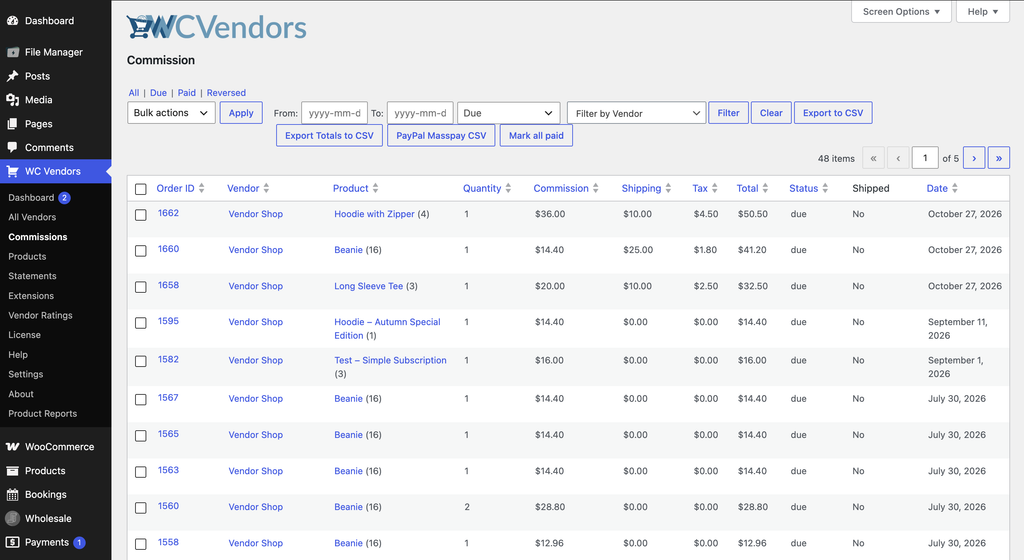
WC Vendors only logs a commission once the WooCommerce order itself reaches Processing or Completed. An order sitting at Pending payment, On hold, or Failed (a declined card, an unconfirmed bank transfer, an abandoned PayPal checkout) hasn’t triggered a commission yet, so there’s genuinely nothing for the vendor to be paid on yet. If an order that already counted gets refunded or cancelled afterward, its commission flips from Due to Reversed on the WC Vendors → Commissions page, not back to zero.
How to fix it
- Open the order in WooCommerce → Orders and check its actual status, not just whether the customer reached checkout.
- If it’s stuck on Pending payment or On hold, that’s a payment issue to resolve with the customer or your payment gateway, not a WC Vendors problem.
- Once the order reaches Processing or Completed, go to WC Vendors → Commissions and filter by Due to confirm the commission showed up.
Frequently asked questions
Does marking a commission “Paid” actually send the vendor their money?
No. Mark paid on the WC Vendors → Commissions page only updates the record to show it’s been settled. It doesn’t move any money itself. For PayPal payouts there’s a separate PayPal Masspay CSV export (see How to Set Up Vendor Commission Payout Schedules) you upload to PayPal’s own payout tool, you send bank transfers manually, and Stripe Connect splits the payment automatically when the charge goes through, so there’s no separate send step for that one.
Does turning Publish Approval off change products a vendor already has live?
No. It only affects products from the point you change the setting onward. Anything already published stays published.
Need help?
- Premium users: Open a support ticket
- Free users: Visit our community forum