
Want to test plugin updates before they reach your live marketplace? You can activate your WC Vendors license on up to 3 staging sites per license key, on top of the sites your plan covers. This guide shows which staging addresses are recognised, how to activate a staging site so it receives plugin updates, and how to free up a staging slot.
Prerequisites
- An active license for the WC Vendors plugin you want to use, for example WC Vendors Pro, Stripe Connect, Membership, Tax or WC Vendors Engage.
- Access to your account on wcvendors.com.
- A staging site on an address that matches one of the patterns below.
- Administrator access to the WordPress admin of your staging site.
Supported staging addresses
Our licensing system treats a site as staging only when its web address matches one of these patterns. The match starts at the beginning of the address, so the shape of the address matters. In the list, * stands for any text, such as your domain or subdomain. A site on any other address counts as a normal site and uses one of your paid activations.
localhost127.0.0.1*.dev*.local*.test*.staging*.example*.invaliddev.*(for exampledev.yourstore.com. One digit is allowed, sodev2.yourstore.comalso works)local.*(for examplelocal.yourstore.com. One digit is allowed)test.*(for exampletest.yourstore.com. One digit is allowed)staging.*(for examplestaging.yourstore.comorstaging1.yourstore.com)stage.*(for examplestage.yourstore.com. One digit is allowed)preprod.*(for examplepreprod.yourstore.com)*staging.wpengine.com(WP Engine)*stg.wpengine.com(WP Engine)*dev.wpengine.com(WP Engine)dev-*.pantheonsite.io(Pantheon)test-*.pantheonsite.io(Pantheon)staging-*.kinsta.com(Kinsta)staging-*.kinsta.cloud(Kinsta)env-*.kinsta.cloud(Kinsta)*.cloudwaysapps.com(Cloudways)*.sg-host.com(SiteGround)*.myftpupload.com(GoDaddy)*.instawp.xyz(InstaWP)*.preload.site*.tempurl.host*-staging.wpdns.site*-staging.onrocket.site*staging.astahosting.com.au*staging.leserviceweb.com*-dev.ksysweb.com*-stg.ksysweb.com*.ngrok.io
If your staging host is not on the list, open a support ticket or contact us and ask us to add its address pattern. Web hosts that provide staging sites can reach out the same way.
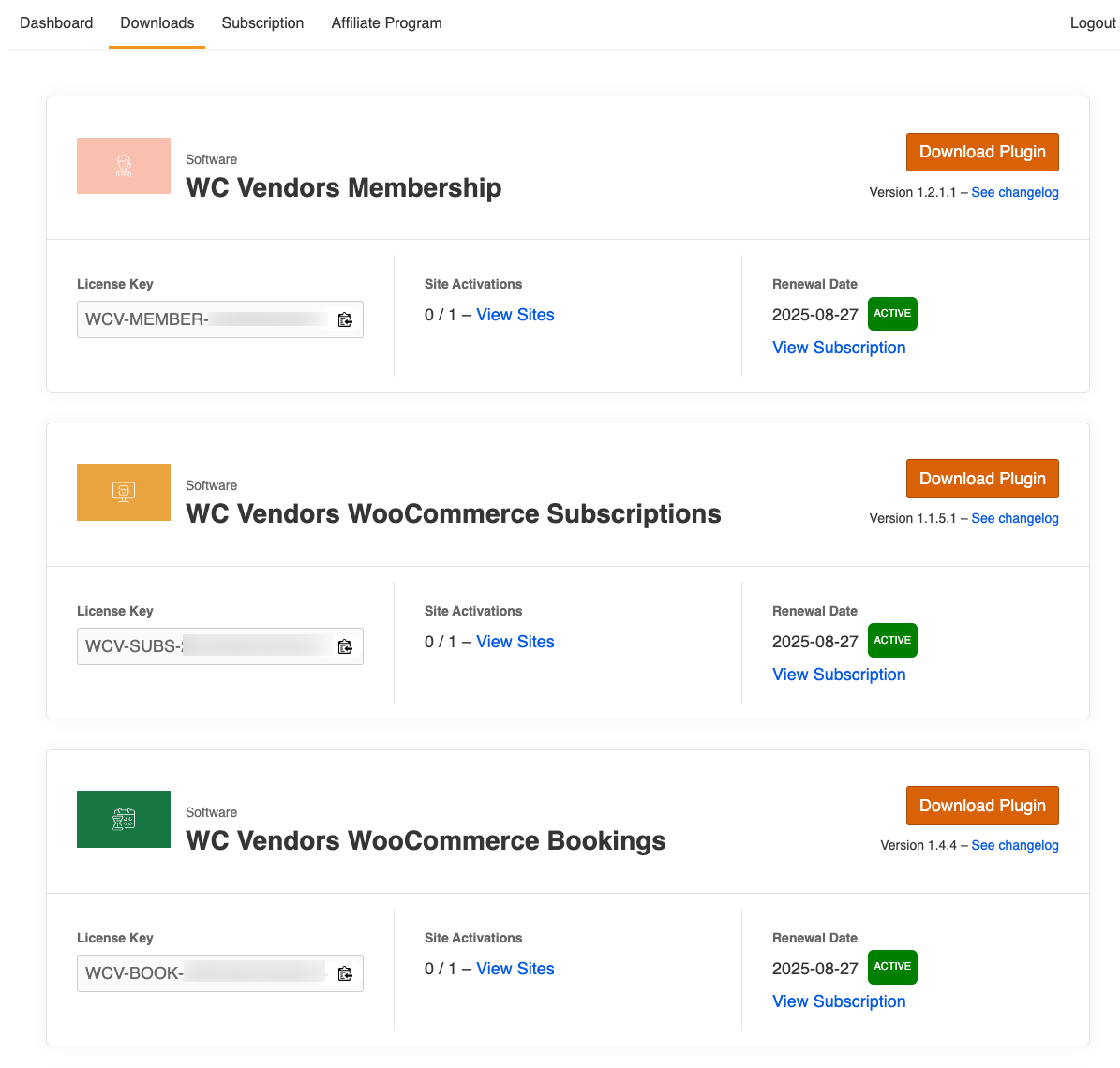
Step 1: Find your license key
- Sign in to your account at wcvendors.com.
- Click the Downloads tab.
- Find the plugin you want to activate.
- Copy the value under License Key.
Each plugin has its own license key.
Step 2: Find your activation email
The license screen also asks for your activation email. This is the email address your license key is registered to. It can be different from the email you use to sign in to your account.
- Open the order confirmation email you received when you bought the license.
- Find the License Keys table.
- Copy the address in the Activation Email column.
The same table also shows on the order confirmation page you see right after checkout. If you can’t find the email, open a support ticket and we will confirm the activation email for your license key.
Step 3: Activate the license on your staging site
- On your staging site, sign in to the WordPress admin.
- Go to WC Vendors → License.
- Select the tab for the plugin you’re activating, for example WC Vendors Pro, Stripe Connect, Membership, Tax, Subscriptions, Simple Auctions, Bookings or WC Vendors Engage.
- Paste your license key into the License Key field.
- Enter your activation email in the Activation Email field.
- Click Activate.
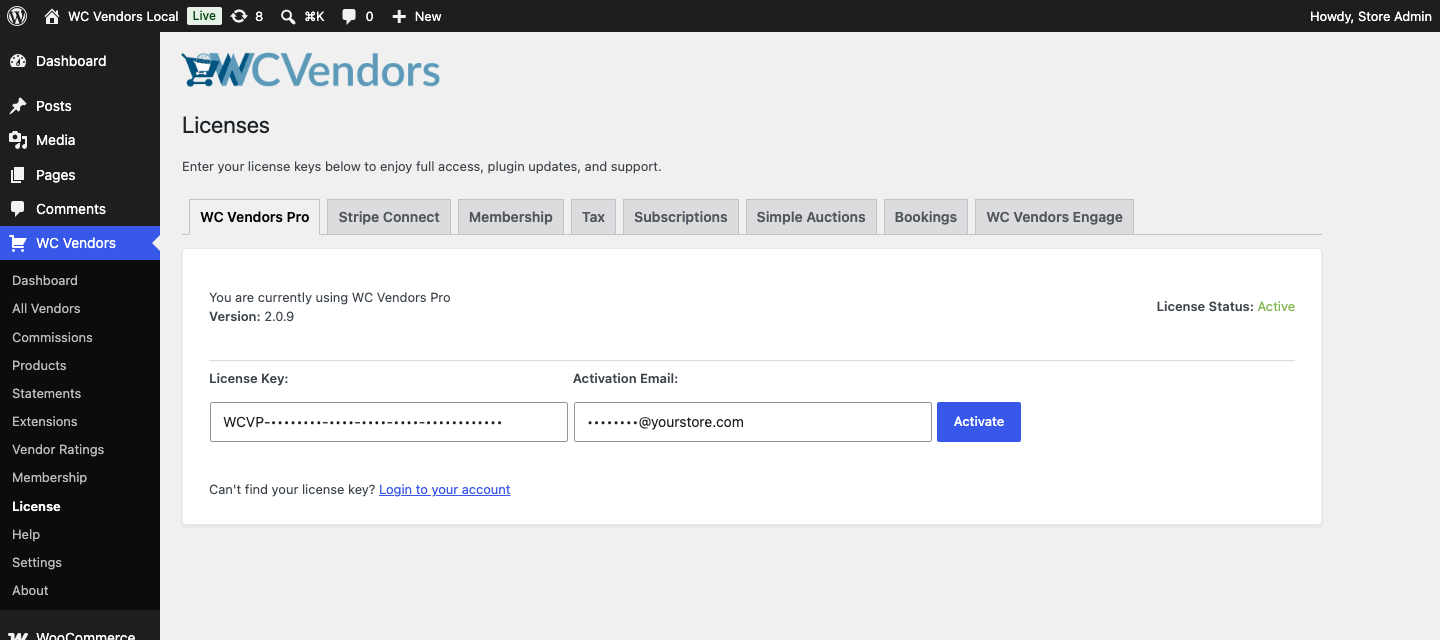
The page confirms that the license is active. The staging site uses one of your 3 staging slots and receives plugin updates the same way your live site does.
Remove a staging site from your license
If you no longer use a staging site, remove it to free up its slot for a new one.
- Sign in to your account at wcvendors.com.
- Click the Downloads tab.
- Find the plugin you want to change.
- Click View Sites under Site Activations.
- Click the red cross next to the staging site you no longer need.
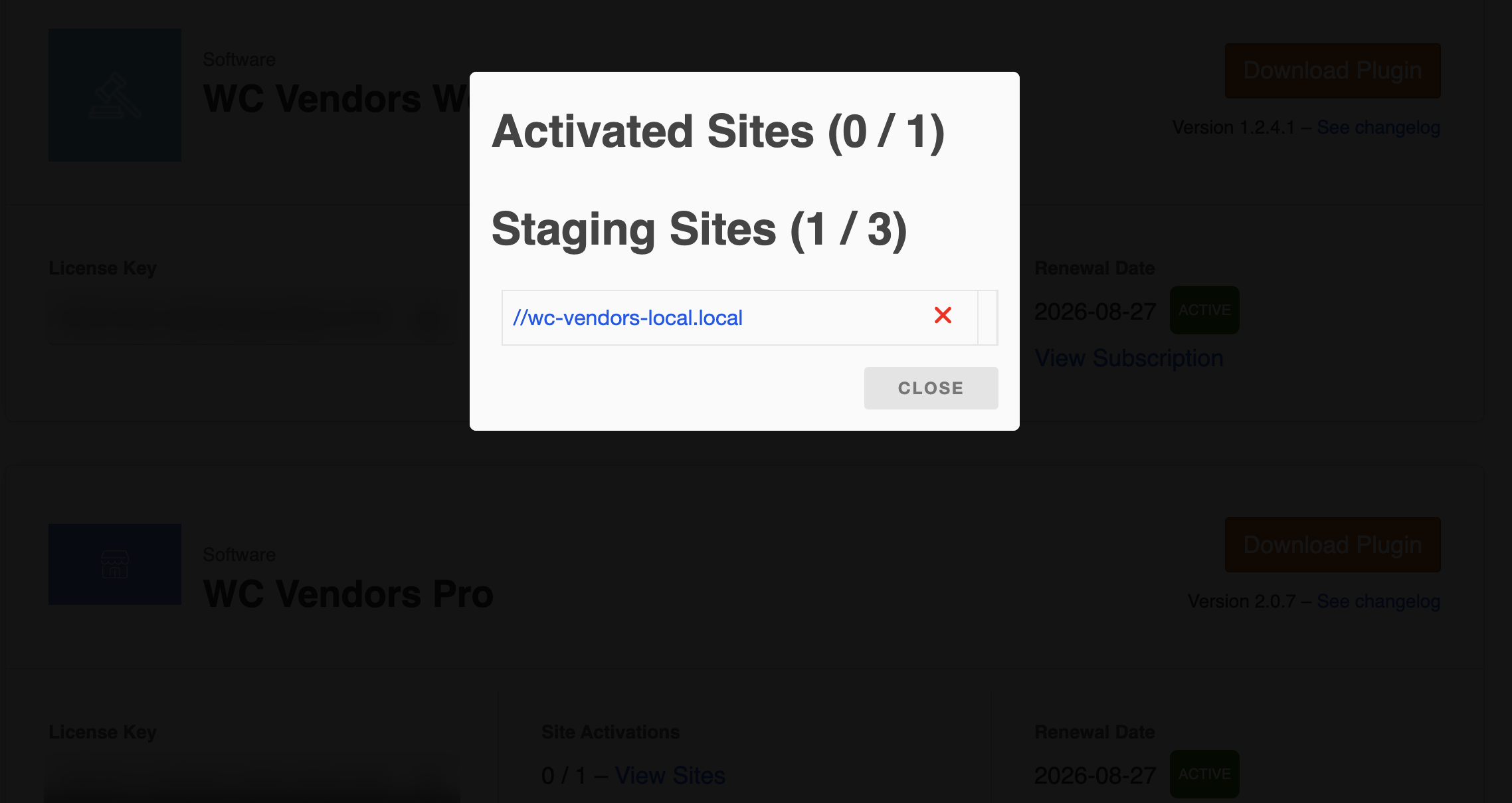
The window lists your activated sites and your staging sites separately, with a count for each.
Troubleshooting
The license won’t activate on your staging site
Check that your staging address matches one of the patterns in Supported staging addresses above. If it doesn’t, the licensing system treats the site as a normal site, and the activation fails once all your paid activations are in use.
Generic domain endings like .com, .net or .xyz are not recognised as staging on their own, because real production sites use them. Put a recognised staging prefix in front of your domain instead, for example staging.yourstore.com.
Activation fails with an error about the activation email
Check that you entered the address from the Activation Email column of your order confirmation email (see Step 2), not your sign-in email. If it still fails, open a support ticket and we will confirm the activation email for your license key.
Your host’s staging address pattern isn’t on the list
Contact our support team with your host’s staging address pattern. If the host is a managed WordPress provider with a fixed staging address format, we will look at adding it to the licensing system.
You’ve used all 3 staging slots
Remove a staging site you no longer use from Downloads → View Sites on wcvendors.com (see Remove a staging site from your license above). The limit of 3 staging sites applies to each license key, so removing an old staging site frees a slot at once.
Frequently Asked Questions
Can I use a domain ending like .com or .xyz as a staging domain?
No. Real production sites all over the world use these endings, so we can’t treat a whole domain ending as staging. Use a recognised staging prefix on your existing domain, for example staging.yourstore.com or dev.yourstore.com.
Does a staging site use one of my paid site activations?
No. Each license key has its own allowance of up to 3 staging sites, separate from your paid site activations. Staging activations don’t reduce the number of live sites you can run on the same key.
Need help?
If you have a question or run into any issues, we’re here to help.
- Premium users: Open a support ticket
- Free users: Visit our community forum