
Flat-per-item shipping stops making sense once an order has ten or twenty items. Most carriers charge by total weight or by quantity bracket, not by multiplying a single fee. The Tiered Rate shipping system in WC Vendors Pro lets you and your vendors set those brackets directly. Below, you set tiers at the global, vendor and product level, and see the tier table that customers get on the product page. If you sync your catalog to Google Merchant Center, use a feed plugin that reads Vendor Shipping rates, for example Product Feed PRO for WooCommerce by AdTribes version 13.5.8 or later.
Prerequisites
- WC Vendors Pro must be installed and active.
- If using weight-based shipping, ensure your products have accurate weights assigned in their Product data settings.
- Vendor Shipping is turned on: the Standalone Method box under WooCommerce → Settings → Shipping → Vendor Shipping is ticked. It is ticked by default. If you turned it off on purpose, read the warning in Why does the shipping rates table not show on a product page? before you tick it again.
- The vendor shipping system is not disabled: the Vendor shipping box (“Disable the Vendor shipping system completely.”) under WC Vendors → Settings → Capabilities → General is not ticked.
- If you want vendors to choose Tiered Rate themselves on the vendor dashboard, the Shipping type box (“Allow vendors to select the shipping type they want to apply to their store or products.”) under WC Vendors → Settings → Forms → General is ticked. It is not ticked by default.
💡 To learn how to add weight to standard products, refer to the WooCommerce Product Documentation.
Enabling the global tiered shipping system
To enable incremental shipping across your entire marketplace, you first need to activate the Tiered Rate system globally. This serves as the “fallback” rule if a vendor hasn’t set their own rates.
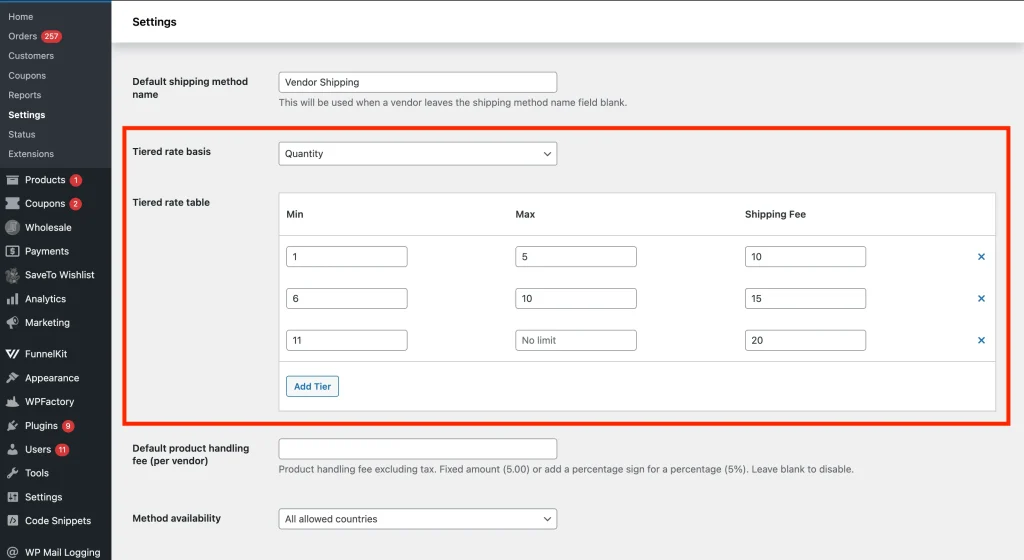
- Navigate to WooCommerce → Settings → Shipping → Vendor Shipping.
- Find the Shipping system dropdown and select Tiered Rate.
- Choose your Tiered rate basis:
- Quantity: Calculate costs based on the number of items.
- Weight: Calculate costs based on the total weight of the items.
- Add your Tiers: Click the Add Tier button on the Tiered rate table to define your price brackets.
- Example (Quantity): 1 to 5 items = $10.00
- Example (Quantity): 6 to 10 items = $15.00
- Click Save changes.
💡 The last tier in your table acts as a catch-all. If a total is above your highest maximum, below the first tier’s Min, or in a gap between two tiers, the customer pays the fee of the last tier. You can also leave the Max field of the last tier blank. The placeholder reads “No limit”, so that tier has no upper limit.
Customizing tiered rates for specific vendors
You may have some vendors who ship bulky furniture and others who ship small jewelry. You can customize these tiers for individual vendor accounts to ensure their specific logistics are covered.
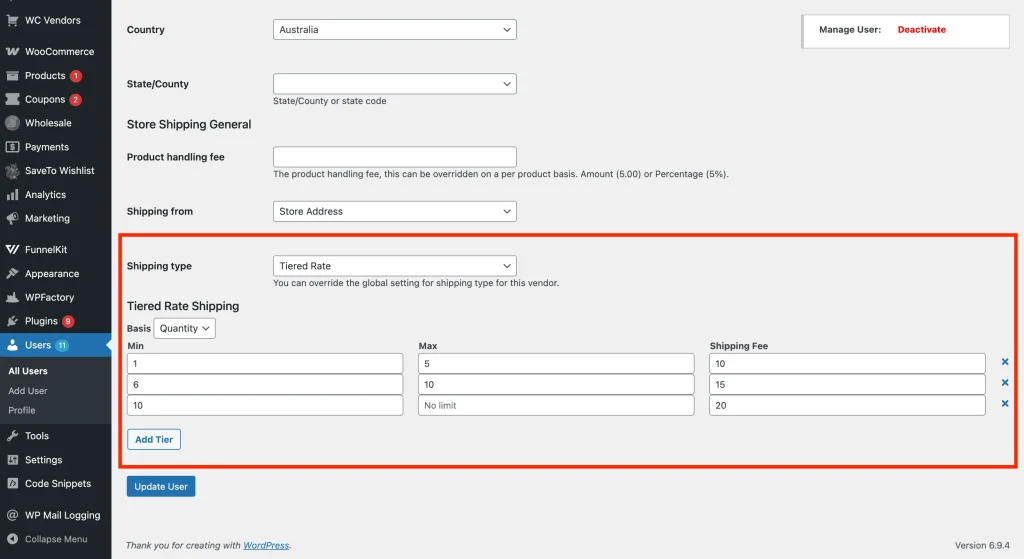
- Navigate to Users → All Users and click Edit on a vendor’s profile.
- Scroll to the Store Shipping General section.
- Set the Shipping type to Tiered Rate.
- In the Tiered Rate Shipping section, choose Weight or Quantity from the Basis dropdown.
- Click Add Tier and enter the ranges and fees that apply only to this vendor’s products.
- Click Update User.
You can also set a vendor’s tiers from WC Vendors → All Vendors. Click Edit on the vendor, open the Shipping tab, set Shipping Type to Tiered Rate, add the tiers, and click Save Changes.
How vendors manage their own tiers
If you’re a vendor, you can also configure your own tiered shipping rates directly from your dashboard. The Shipping type dropdown shows only when the admin ticks the Shipping type box under WC Vendors → Settings → Forms → General.
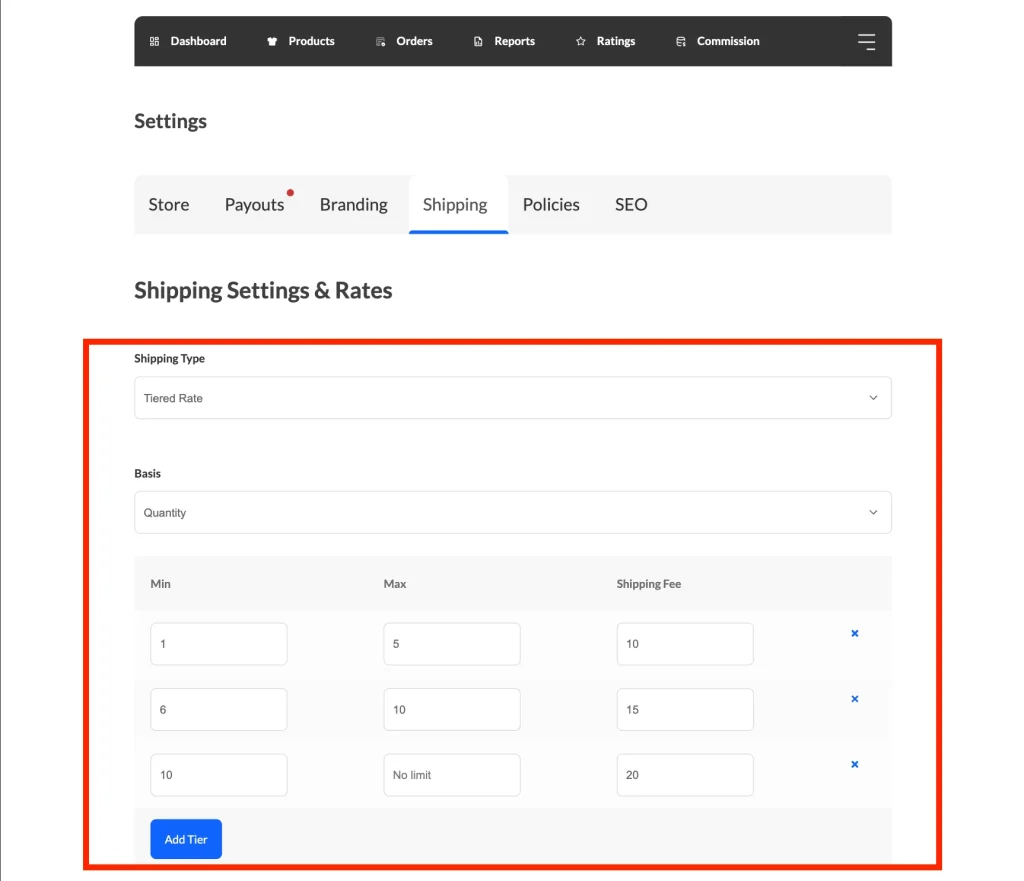
- Navigate to your Vendor Dashboard → Settings → Shipping.
- Select Tiered Rate from the Shipping type dropdown. If you do not see this dropdown, your marketplace admin sets the shipping type for you. The tier table then shows only when the admin chose Tiered Rate.
- Choose either Weight or Quantity as the tier type from the Basis dropdown.
- Click Add Tier to create and manage your own weight-based or quantity-based tiers.
- Save your settings to apply the rates to your products.
Overriding shipping at the product level
For specific products that are exceptionally heavy or require special white-glove handling, you can set tiers directly on the product edit screen.
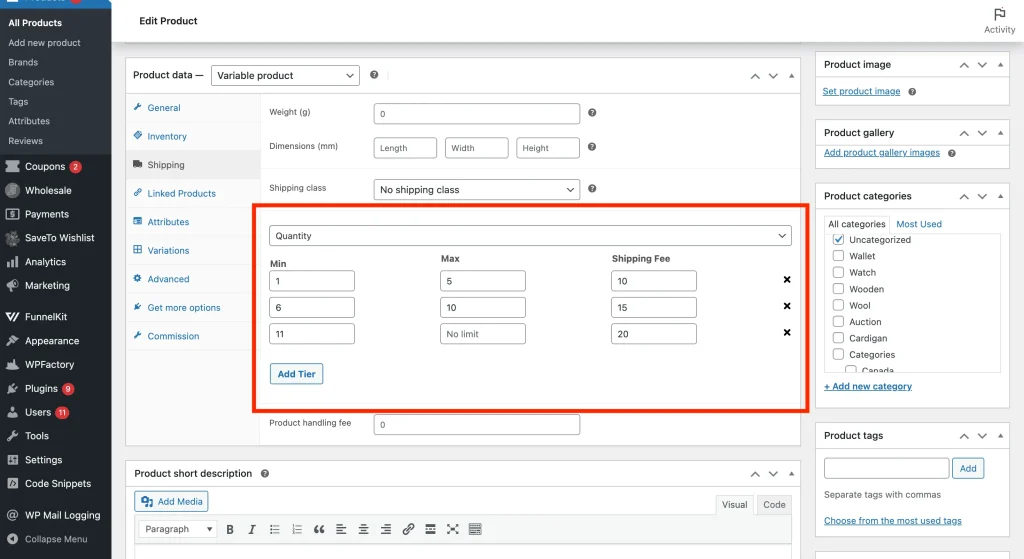
💡 The tiered-rate fields appear on the Shipping tab only when the vendor’s (or global) shipping is already set to Tiered Rate.
- Open a product in Edit mode.
- Go to the Product data box.
- Click the Shipping tab.
- Choose either Weight or Quantity as the tier type from the Basis dropdown.
- Click Add Tier and enter the tier ranges and costs for this specific product.
- Click Update to save the product.
💡 Tiered rate sources are checked per product. Products with their own tiers use those; everything else falls back to the vendor’s tiers (or the global setting if the vendor hasn’t set any). The matched fees from each group are added to give the final shipping cost.
What customers see on the product page
When a product uses tiered shipping, customers can check the shipping cost before they add anything to the cart. The Shipping tab on the product page shows a Shipping Rates table with one row for each tier.
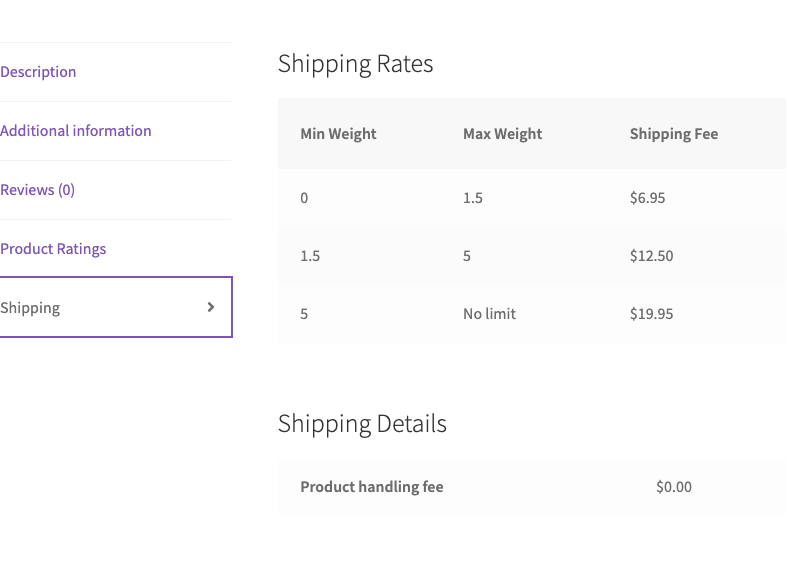
The table has these columns:
- Min Qty and Max Qty when the tiers use the Quantity basis, or Min Weight and Max Weight when they use the Weight basis.
- Shipping Fee, shown in your store currency.
A tier with an empty Max field shows No limit.
The table lists the same tiers that checkout uses for that product. If the product has its own tiers, the table shows those. If not, it shows the vendor’s tiers. If the vendor has no tiers, it shows your global tiers.
The table shows when Vendor Shipping is turned on and the vendor’s Shipping type is Tiered Rate, or when the vendor has no shipping type set and your global Shipping system is Tiered Rate. Vendor Shipping is turned on when the Standalone Method box is ticked and the Vendor shipping capability is not disabled (see Prerequisites). The product must also need shipping. There is no extra setting just for the table. To change what customers see, edit the tiers at the product, vendor or global level.
Verify your tiered rates work
To verify your new setup:
- Create a test product with a weight of 1kg.
- Choose Weight as the basis. Then set a tier for 0 to 2kg at $10 and 2 to 5kg at $15.
- Add three of these products to your cart (Total 3kg).
- Check that the shipping at checkout shows $15, not $30.
Frequently asked questions
Why is the shipping cost falling back to the global rate?
Check if the vendor has their own tiers defined. If a vendor or product does not have specific tiered rates set up, WC Vendors will automatically look at your global settings to ensure a shipping fee is still charged.
Why isn’t the weight-based shipping calculating correctly?
Ensure that every product in the cart has a weight assigned. If a product has a weight of “0” or is left blank, it won’t contribute to the total weight calculation, potentially landing the customer in a lower (cheaper) shipping tier.
If no item in the cart has a weight and no product has its own tiers, Vendor Shipping shows no rate for that vendor’s items.
Why does my Google Merchant Center feed show shipping errors?
WC Vendors Pro does not send data to Google Merchant Center. Feed plugins that read only WooCommerce shipping zones do not see Vendor Shipping rates. Google then gets a shipping cost that does not match checkout. Use a feed plugin that reads vendor rates, for example Product Feed PRO for WooCommerce by AdTribes version 13.5.8 or later.
If a customer buys from two different vendors, how is the fee calculated?
WC Vendors Pro splits the cart into one shipping package for each vendor. At checkout, each vendor’s items get their own shipping line, calculated from that vendor’s tiers, or a product’s own tiers when it has them. The order shipping total is the sum of those lines.
Can I use decimals for weight-based tiers?
Yes. The Min and Max fields accept decimal values, for example “0 to 1.5kg” and “1.51 to 5kg”.
Tiers are checked from top to bottom, and the first tier that matches the total sets the fee. If a total falls between two tiers, for example 1.505kg in the ranges above, it matches no tier and the customer pays the fee of the last tier. To avoid this, start each tier at the same value where the previous tier ends, for example “0 to 1.5kg” and “1.5 to 5kg”. A total of exactly 1.5kg then uses the first tier.
Why does the shipping rates table not show on a product page?
⚠️ If you turned off the Standalone Method box on purpose, ticking it again changes your checkout. Vendor Shipping cannot be added to a WooCommerce shipping zone. When the box is ticked, checkout offers a Vendor Shipping rate for each vendor’s items. Your zone Flat rate options no longer show for those items. Other zone methods, such as Free shipping and Local pickup, still show.
The Shipping tab on the product page holds the table. It shows only when all of these are true:
- The Standalone Method box under WooCommerce → Settings → Shipping → Vendor Shipping is ticked. Its label reads “Enable WC Vendors Pro Shipping as a standalone shipping method”.
- The Vendor shipping box (“Disable the Vendor shipping system completely.”) under WC Vendors → Settings → Capabilities → General is not ticked.
- The product needs shipping. The tab does not show for virtual products, external products, or variable products where every variation is virtual.
To fix the settings, tick the Standalone Method box and click Save changes. Then untick the Vendor shipping box on the Capabilities page and save it.
If the tab shows the message “No shipping rates are available for this product.”, no tiers are set at the product, vendor or global level. Add tiers in one of those places.
If the tab shows flat or country rates in place of the table, the vendor’s Shipping type (or your global Shipping system) is not Tiered Rate.
Need help?
If you have a question or run into any issues, we’re here to help.
- Premium users: Open a support ticket
- Free users: Visit our community forum