
When you run a multi-vendor marketplace, consistency matters. Global vendor policies let you write a single set of privacy terms, store terms, shipping rules, and return rules that apply across your entire marketplace. You decide whether vendors can write their own store policies on top of these defaults—or whether your global policies are the final word for everyone.
Requirements
- WC Vendors Pro installed and active
- WC Vendors (free) installed and active
- WooCommerce installed and active
Step 1: Open the Global Policies settings
- Log in to your WordPress admin.
- Go to WC Vendors → Settings.
- Click the Forms tab.
- Scroll down to the Global Policies section.
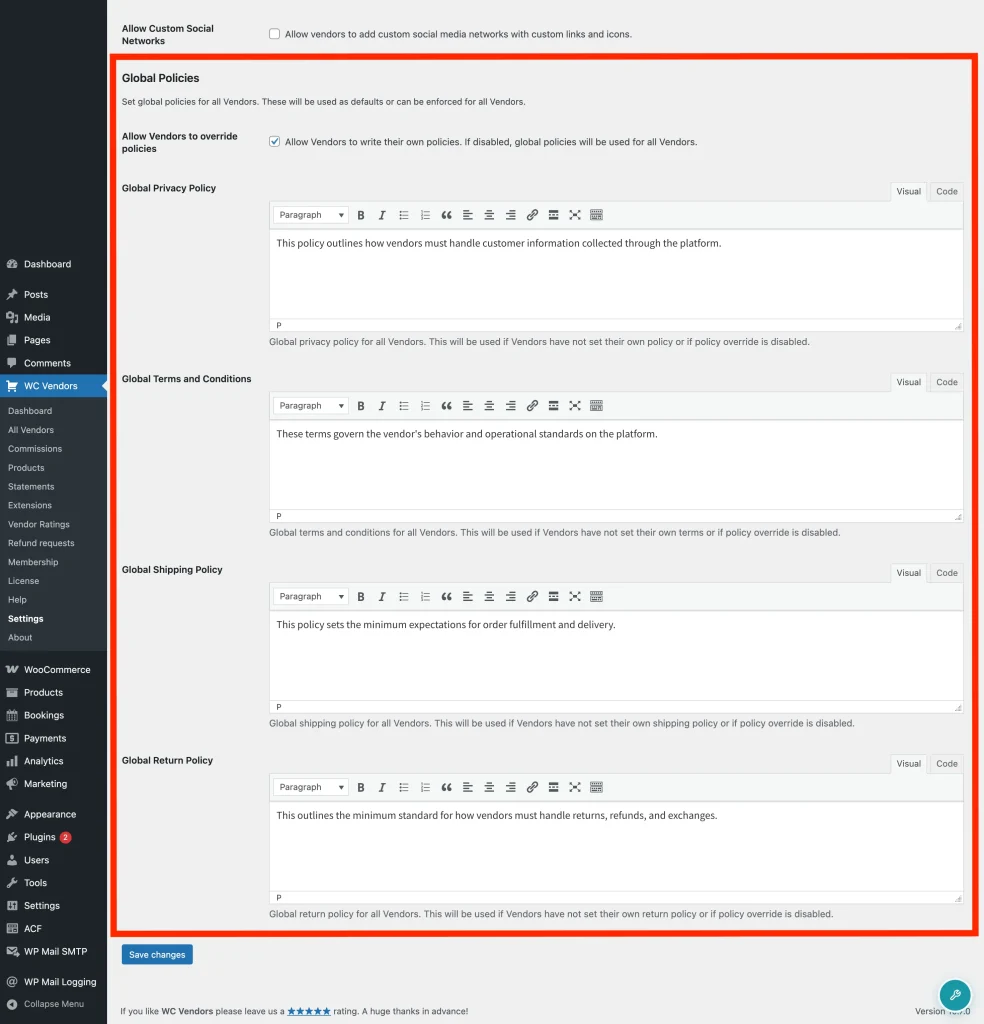
Step 2: Write your marketplace policies
There are four policy fields in this section. Fill in whichever ones apply to your marketplace, you don’t have to complete all four.
Global Privacy Policy covers how your marketplace handles customer and vendor data. This appears as the vendor’s privacy policy if they haven’t written their own.
Global Terms and Conditions sets the general terms customers agree to when shopping at vendor stores on your marketplace.
Global Shipping Policy explains how orders are shipped—lead times, carriers, or anything customers need to know before they buy.
Global Return Policy describes the return and refund rules for your marketplace. This is one of the most commonly checked policies, so it’s worth writing clearly.
Each field is a rich text editor, so you can format your policies with headings, bullet points, or links.
Once you’ve written your policies, click Save changes.
Step 3: Choose whether vendors can override
At the top of the Global Policies section, you’ll see a checkbox: Allow vendors to override policies. This is enabled by default. If you’ve renamed ‘vendors’ to something else in your settings, the label reflects that name — for example, ‘Allow sellers to override policies’.
When override is enabled: vendors can write their own store policies from their vendor dashboard. If a vendor sets their own policy for a field, customers see that version. If they leave a field blank, your global policy fills in automatically as the fallback.
When override is disabled: your global policies apply to every vendor on your marketplace, no exceptions. Vendors can still see the policy fields in their dashboard, but anything they enter is ignored—customers always see your global version.
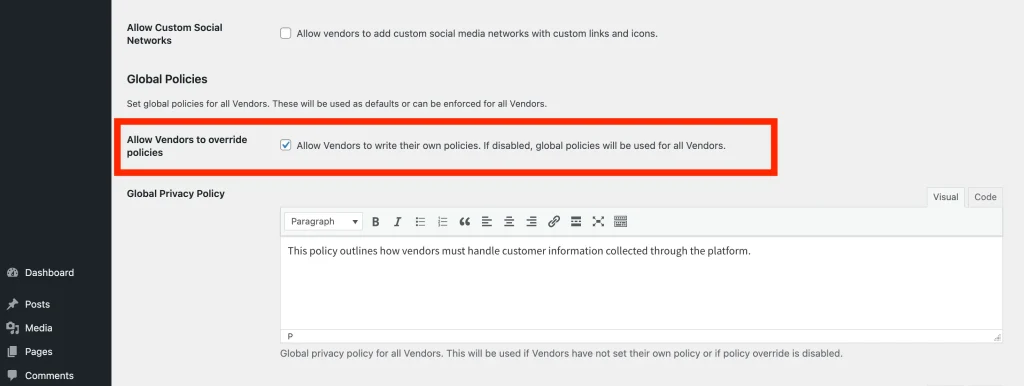
Click Save changes after adjusting this setting.
How vendors set their own policies
If you’ve kept Allow vendors to override policies enabled, vendors can customise any of the four policies from their store dashboard.
- The vendor goes to their Vendor Dashboard.
- They click Settings, then select the Policies tab.
- They fill in any of the four fields: Privacy policy, Terms and conditions, Shipping policy, or Return policy.
- They click Save settings.
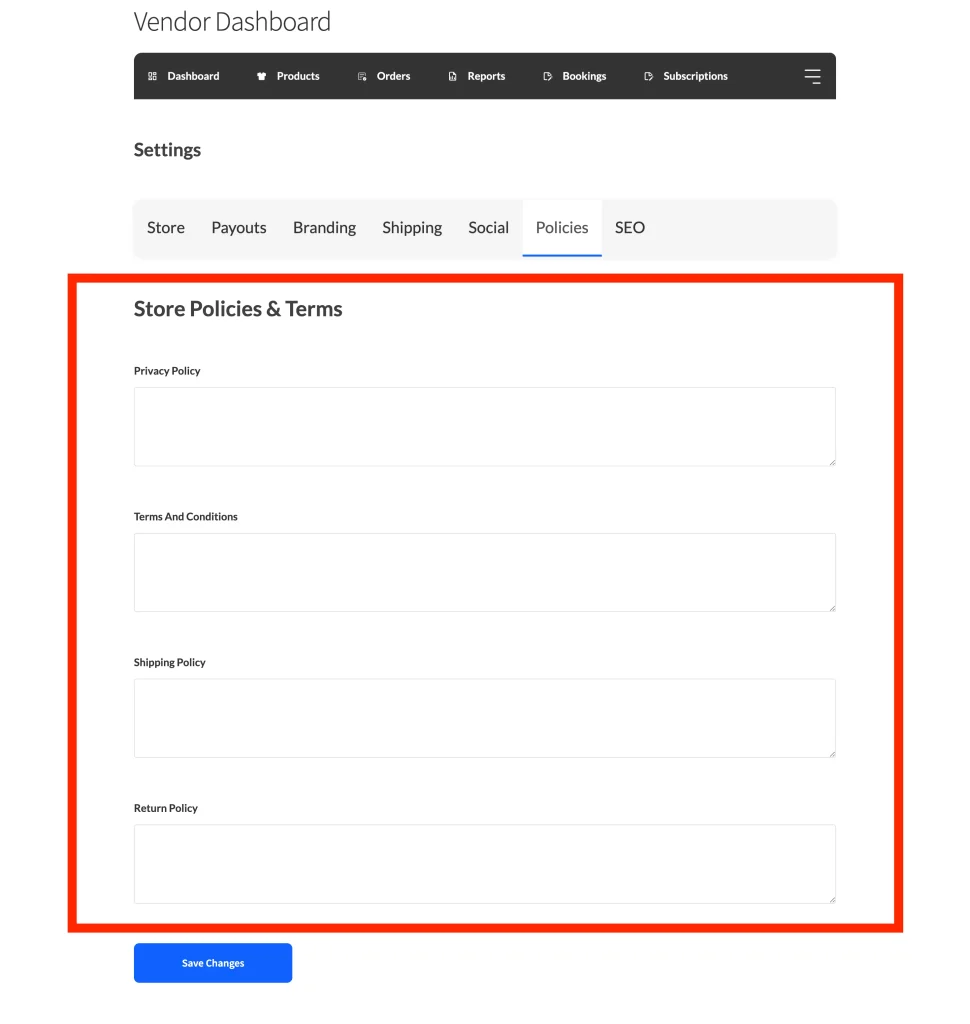
Any field a vendor leaves empty will automatically show your global policy instead. If you haven’t set a global policy for that field either, no policy is displayed for it.
What customers see
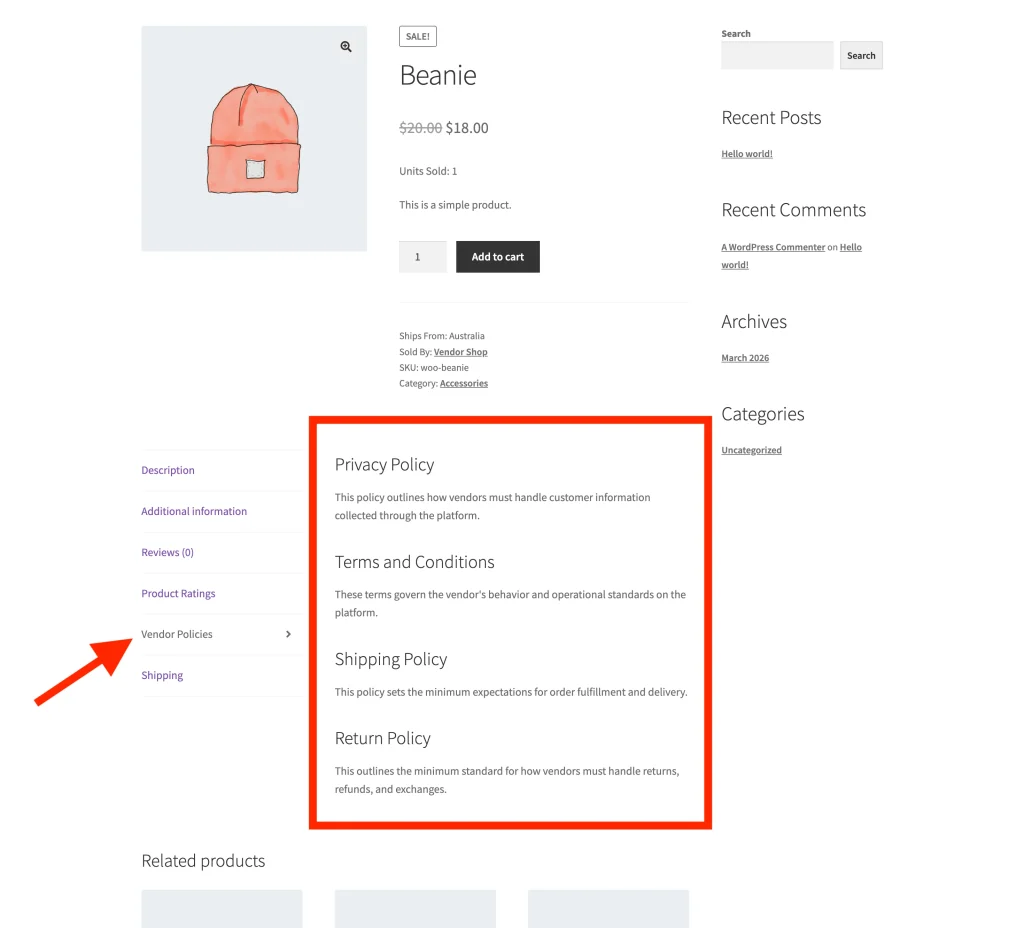
Customers see vendor policies on the individual product page, under a tab labelled Vendor Policies. The tab label also reflects your vendor naming — on a site that uses ‘Sellers’ it will appear as ‘Seller Policies’. The tab only appears when at least one policy has content—if no policies are set for a vendor’s product and there are no global policies either, the tab is hidden.
Frequently asked questions
What happens to a vendor’s existing policies if I disable override?
Their policies stay saved in the database but won’t be shown to customers. As soon as override is disabled, all vendor product pages switch to your global policies. If you re-enable override later, the vendor’s saved policies will appear again automatically.
Does the Vendor Policies tab appear on every product page?
Only when there’s something to show. If a vendor hasn’t set any policies and no global policies are configured, the tab stays hidden. Once at least one policy has content—either the vendor’s own or the global fallback—the tab appears on that vendor’s product pages.
Can I set different global policies for different vendors?
No, global policies apply to the whole marketplace. For vendor-specific policies, keep override enabled so each vendor can manage their own from their dashboard. There’s no admin-level option to assign different global policies to individual vendors.
Need help?
If you have a question or run into any issues, we’re here to help.
- Premium users: Open a support ticket
- Free users: Visit our community forum