
WC Vendors Engage adds a follow system to your marketplace. Customers can follow vendors, see their new products, and receive exclusive offers. These settings let you control which features are active on your store, how the customer My Account feeds behave, and what happens to your data if you uninstall the plugin.
What you’ll need
- WooCommerce and WC Vendors (free or Pro) installed and configured
- WC Vendors Engage installed and active
To access these settings, go to WC Vendors → Settings → Engage.

General
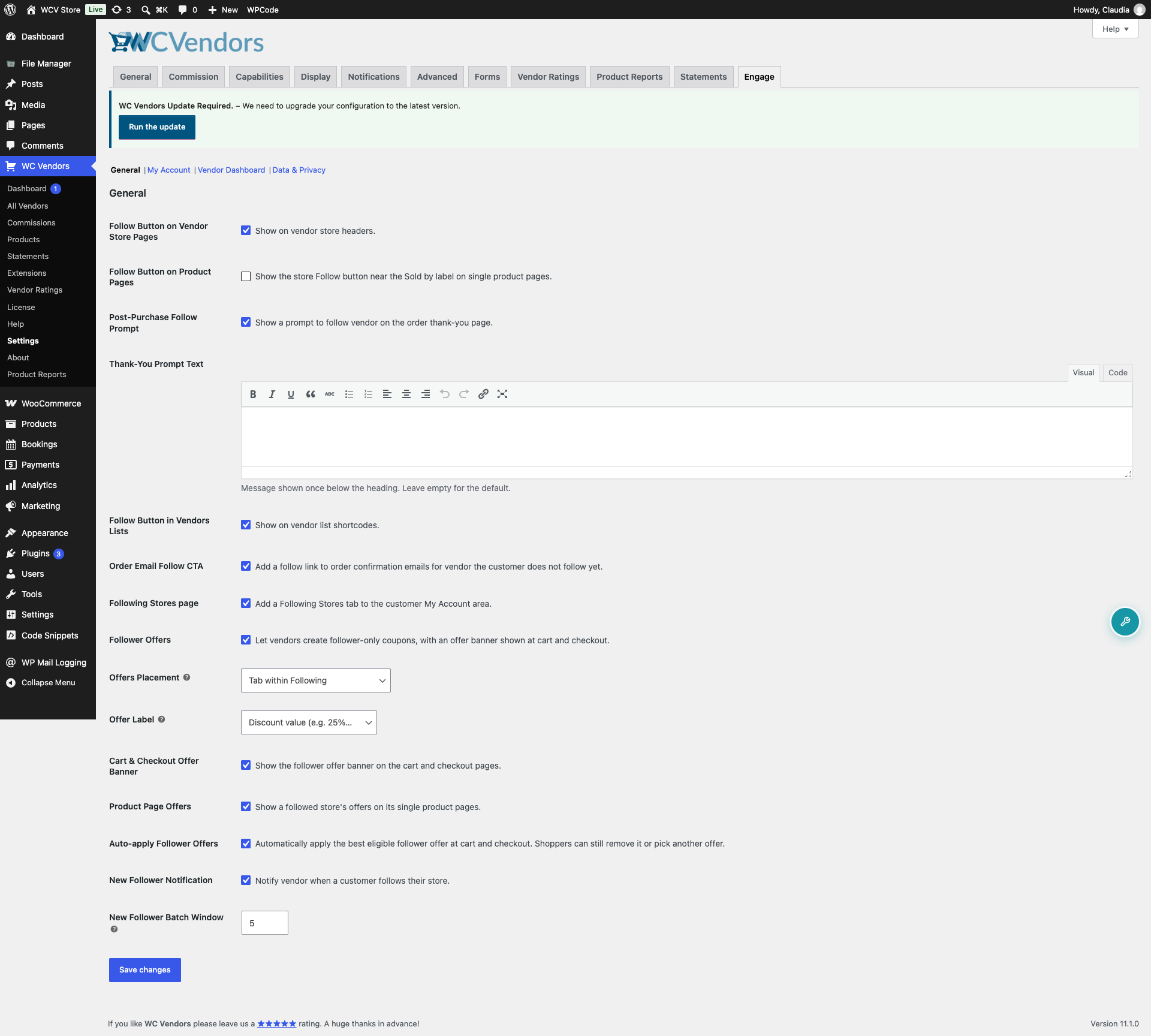
These settings control which parts of the Engage feature set are visible on your store, how vendors are notified about new followers, and where follower offers appear. Most are toggles; Offers Placement and Offer Label are dropdowns, and New Follower Batch Window is a number field. Disabling a toggle removes that feature from the frontend, while the Cart & Checkout Offer Banner and Product Page Offers toggles let you hide individual offer surfaces without turning off Follower Offers entirely.
| Setting | Description | Default |
|---|---|---|
| Follow Button on Vendor Store Pages | Shows a follow button in the store header on each vendor’s storefront page. | Enabled |
| Follow Button on Product Pages | Shows the store’s follow button next to the “Sold by” line on single product pages. | Disabled |
| Post-Purchase Follow Prompt | Shows a prompt asking the customer to follow the vendors they just bought from, on the order thank-you page. Only appears to logged-in customers who don’t already follow those vendors. | Enabled |
| Thank-You Prompt Text | Custom message shown once below the prompt heading. Leave blank to use the default message, “Follow to get exclusive discounts on your next order.” Only appears when Post-Purchase Follow Prompt is enabled. | Blank (uses default message) |
| Follow Button in Vendors Lists | Shows a follow button on vendor list shortcodes. | Enabled |
| Order Email Follow CTA | Adds a follow link to the customer’s order confirmation email for each vendor in the order they don’t already follow. Also requires Follow Button on Vendor Store Pages to be enabled, and never appears on guest orders. | Enabled |
| Following Stores page | Adds the Following tab to the customer My Account page, where shoppers can see and manage the vendors they follow. | Enabled |
| Follower Offers | Lets vendors create follower-only coupons and shows an offer banner at cart and checkout for customers who follow that vendor. | Enabled |
| Offers Placement | Where follower offers appear in the customer My Account area. Choose Tab within Following to show offers as a tab inside the Following page, or Top-level My Account menu item to give offers their own entry in the My Account menu. | Tab within Following |
| Offer Label | What the follower offer banner and offer feed show as each offer’s label. Choose Discount value (e.g. 25% off) to show the amount, or Offer name set by the vendor to show the vendor’s own label. | Discount value (e.g. 25% off) |
| Cart & Checkout Offer Banner | Shows the follower offer banner on the cart and checkout pages. | Enabled |
| Product Page Offers | Shows a followed store’s offers on its single product pages. | Enabled |
| Auto-apply Follower Offers | Automatically applies the best eligible follower offer at cart and checkout. Shoppers can still remove it or pick another offer. | Enabled |
| New Follower Notification | Notifies vendors by email when a customer follows their store. Vendors also get an in-app notification if your site runs BuddyBoss. | Enabled |
| New Follower Batch Window | Minutes to wait before combining new followers into one notification email. Set to 0 to send a separate email for every follow. Accepted range: 0–1440. | 5 minutes |
My Account
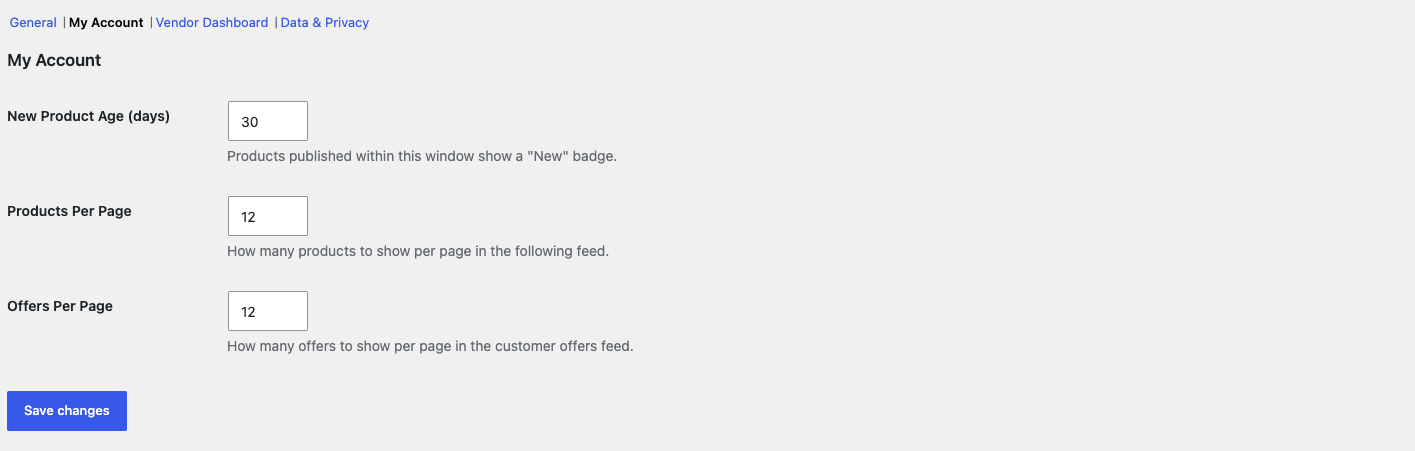
These settings control the customer-facing feeds in the My Account area: the following feed of products from vendors the customer follows, and the offers feed of follower-only offers.
| Setting | Description | Default |
|---|---|---|
| New Product Age (days) | Products published within this number of days show a “New” badge in the following feed. | 30 |
| Products Per Page | How many products appear per page in the following feed. Accepted range: 1–100. | 12 |
| Offers Per Page | How many offers appear per page in the customer offers feed. Accepted range: 1–100. | 12 |
Vendor dashboard
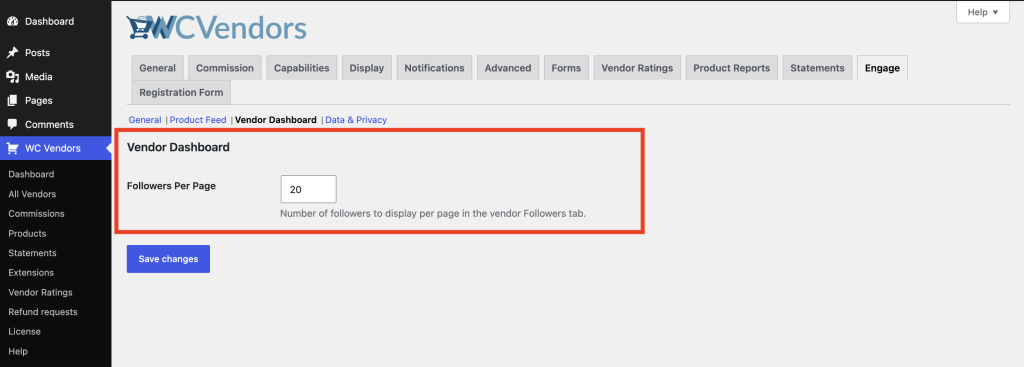
Controls pagination in the Follower List section of the Engage tab on the vendor dashboard.
| Setting | Description | Default |
|---|---|---|
| Followers Per Page | How many followers appear per page in the Follower List section of the Engage tab. Accepted range: 1–100. | 20 |
Data & privacy
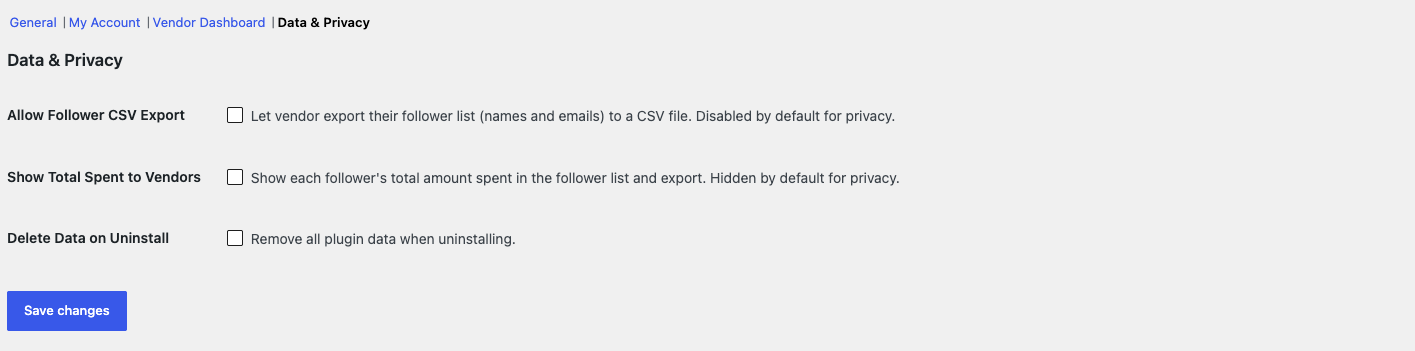
These settings control what follower data vendors can see and export, and what happens to plugin data when you uninstall the plugin.
| Setting | Description | Default |
|---|---|---|
| Allow Follower CSV Export | Lets vendors export their follower list (names and emails) to a CSV file. Disabled by default for privacy. | Disabled |
| Show Total Spent to Vendors | Shows each follower’s total amount spent in the follower list and export. Hidden by default for privacy. | Disabled |
| Delete Data on Uninstall | Removes all plugin data when the plugin is uninstalled. Leave this disabled if you plan to reinstall later. | Disabled |
Saving your changes
Click Save changes after updating any setting. Changes take effect immediately.
Troubleshooting
The Thank-You Prompt Text field isn’t showing
This field only appears when Post-Purchase Follow Prompt is enabled. Turn that toggle on to reveal it.
The follow link isn’t appearing in order confirmation emails
Check that both Follow Button on Vendor Store Pages and Order Email Follow CTA are enabled. The link also never appears on guest orders, since there’s no customer account to check a follow status against.
Frequently asked questions
If I disable a General toggle, do I lose the follow data?
No. Disabling a toggle hides that feature from the frontend. It removes the button, tab, or offer banner depending on which toggle you turn off. The follow relationships in the database stay intact. Turn the toggle back on and everything reappears.
What happens if I enable “Delete Data on Uninstall” and then uninstall the plugin?
The plugin removes all of its data when you uninstall it. This cannot be undone. If you might reinstall the plugin later, leave this setting disabled.
Is there a setting for rate limiting follow actions?
No. Follow actions are rate limited in the plugin’s code at 10 requests per minute per IP address as spam protection. There is no setting to change this.
Need help?
- Premium users: Open a support ticket
- Free users: Visit our community forum