
If you’ve been following stores on this marketplace, the Following Stores page in your account brings everything together. With WC Vendors Engage, you can see which stores you’re following, browse their latest products, view any follower-only offers, and unfollow stores you’re no longer interested in.
What you’ll need
- WooCommerce and WC Vendors (free or Pro) installed and configured
- WC Vendors Engage installed and active
Finding the Following Stores page
Log in to your account and look for Following in the My Account navigation menu. It appears after Orders by default.
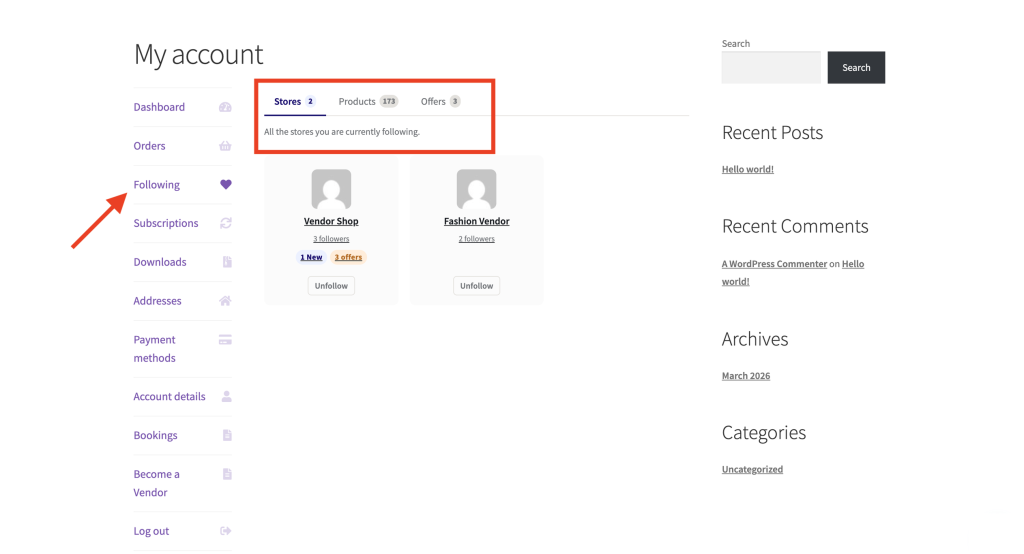
The page always shows two tabs, Stores and Products. A third Offers tab appears only when you have active follower-only offers and the marketplace shows offers as a tab. If the marketplace lists offers as a separate My Account item instead, or you have no active offers, you’ll see only the Stores and Products tabs.
The Stores tab
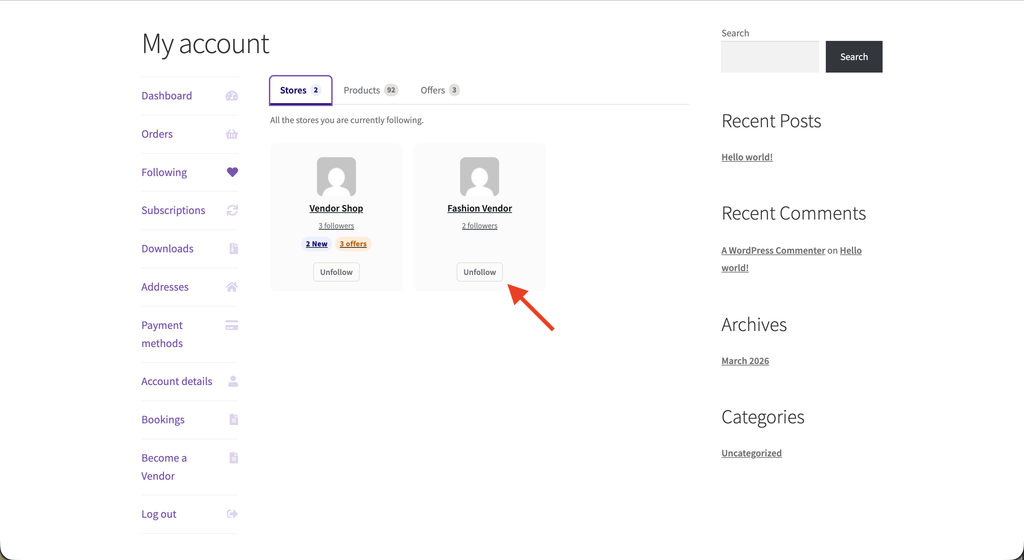
The Stores tab is open by default. Each store you follow appears as a card with the store logo and name, a follower count (for example “1.2K followers”), and two optional badges:
- 3 New, the badge shows the count of recently published products (within a window set by the marketplace admin; 30 days by default).
- 2 offers, the badge shows the number of active follower-only offers available to you (for example “2 offers”).
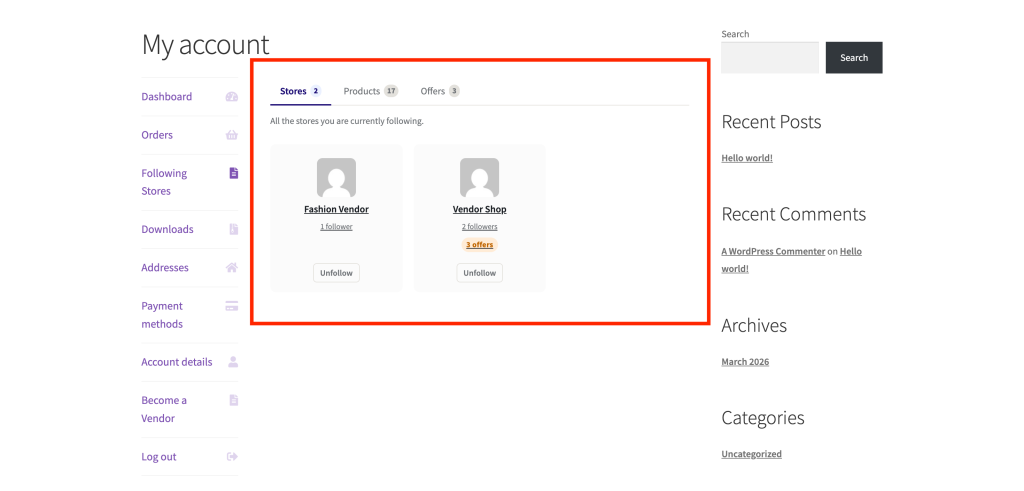
Click a store logo or name to visit that store’s page. If you’re following more than eight stores, the first eight are shown initially and a Show more button appears below the list, with the number of hidden stores in brackets (for example “Show more (5)”). Click it to reveal the rest.
If you haven’t followed any stores yet, you’ll see a short message and a Browse Vendors button to help you find stores to follow.
The Products tab
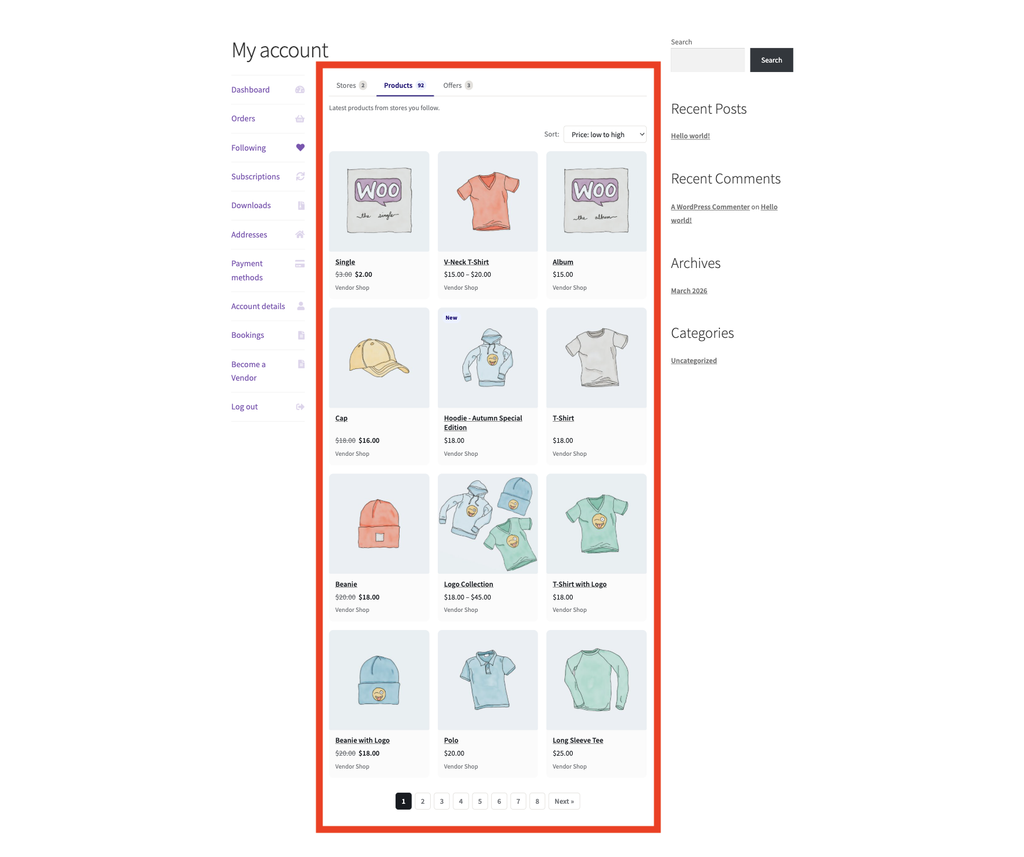
Click Products to see products published by the stores you follow. Products load automatically when you open the tab and are shown in pages. Use the Sort dropdown to change the order: Random (the default), Newest, Price: low to high, or Price: high to low. A product card shows a New badge if it was published within the same recency window as the Stores tab’s New badge (30 days by default, set by the marketplace admin). Use the pagination controls at the bottom to browse further.
The Offers tab
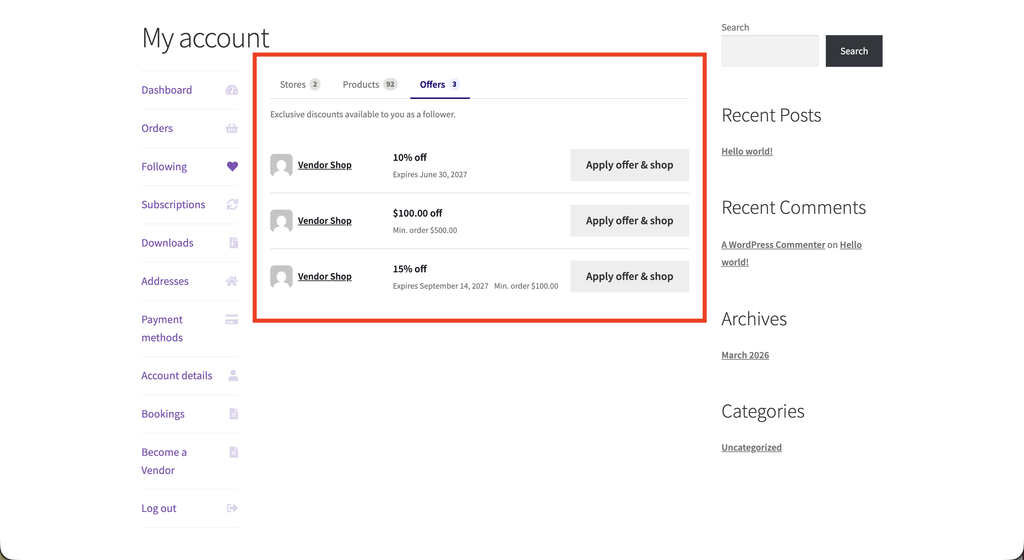
The Offers tab shows only when you have active follower-only offers and the marketplace displays offers as a tab rather than a separate menu item. Click Offers to see any follower-only discounts that are active right now. Each offer shows the discount amount, an expiry date if one is set, and the minimum order value required to use it.
If there are no active offers from the stores you follow, the tab shows “No exclusive offers right now. Check back later!”
How to unfollow a store
- Go to My Account → Following.
- On the Stores tab, find the store card you want to remove.
- Click Unfollow. The card disappears straight away. No confirmation required.
If the unfollow request fails, the card reappears and a short error message is shown below it. Try again or refresh the page.
Unfollowing the last store triggers an empty-state message and the Browse Vendors button so you can start building your list again.
Troubleshooting
A store card shows a generic image instead of the vendor’s logo. The card shows the vendor’s uploaded store icon first, then their store banner if they haven’t set an icon (or banner first, if your marketplace has changed that priority). If they haven’t uploaded either, the card falls back to their WordPress avatar. That’s expected, not a bug.
A store I follow just published a product, but its New count on the Stores tab hasn’t updated yet. That count is cached for up to an hour, so it can take a little while to catch up after a new product goes live. The New badge on an individual product card in the Products tab isn’t cached. It shows up as soon as the product publishes.
The Products tab isn’t showing the newest items first. The default sort order is Random, not Newest. Use the Sort dropdown and choose Newest to see the most recently published products first.
Frequently asked questions
What does the New badge mean?
On the Stores tab, it means the store has published at least one product within a recent window. On the Products tab, the same badge appears on an individual product card when that product was published within the window. The exact timeframe is set by the marketplace admin (30 days by default). Once a product ages out of that window, the badge disappears automatically.
I don’t see a Following link in My Account.
The marketplace admin may have disabled this feature in their WC Vendors settings. Contact the site owner if you think it should be available.
Do I need to be logged in to access this page?
Yes. If you try to visit the page while logged out, you’ll be redirected to the login screen.
Need help?
- Premium users: Open a support ticket
- Free users: Visit our community forum