
Customers who follow a vendor on your marketplace get exclusive discounts that show up right on the cart and checkout pages, no coupon code needed. WC Vendors Engage shows the offers in a banner. Here’s where it appears, what it shows, and how the discounts get applied.
What you’ll need
- WooCommerce and WC Vendors (free or Pro) installed and configured
- WC Vendors Engage installed and active
Enable Follower Offers
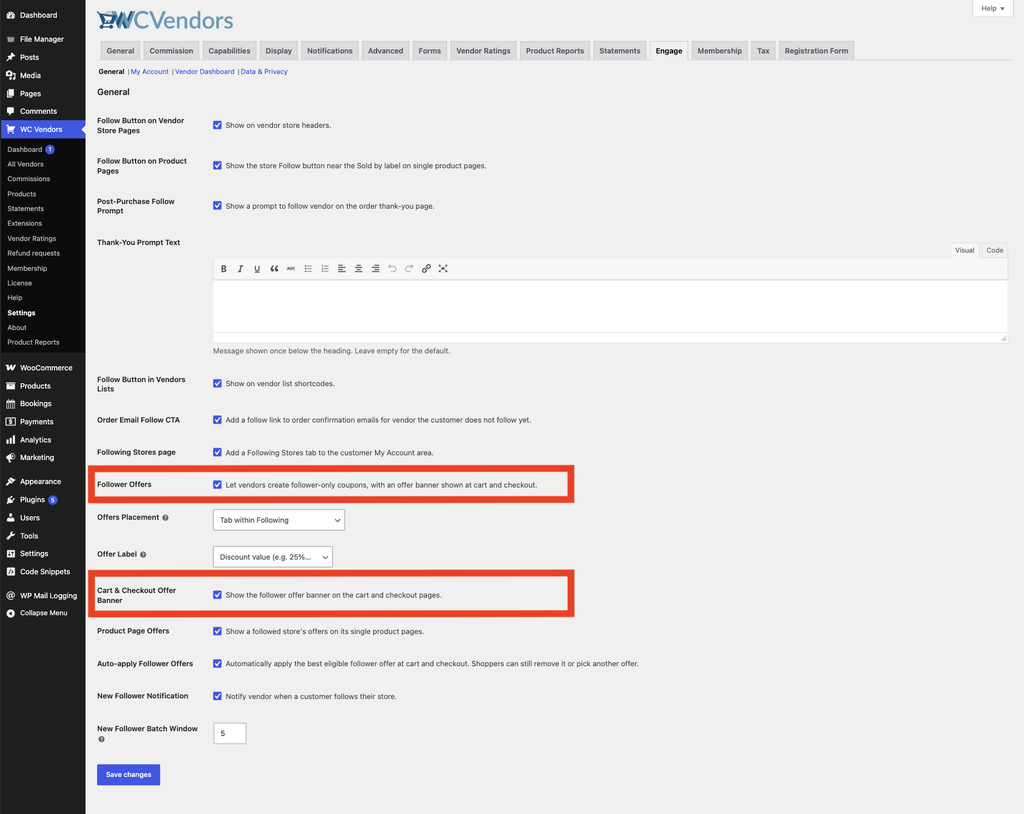
Follower Offers and its cart/checkout banner are both enabled by default when WC Vendors Engage is activated, but it’s worth confirming both settings are on.
- In your WordPress admin, go to WC Vendors → Settings.
- Click the Engage tab.
- The General section opens by default. Make sure Follower Offers is ticked. This is the master toggle for the feature.
- Also make sure Cart & Checkout Offer Banner is ticked. This separate setting controls whether the banner itself shows on the cart and checkout pages.
- Click Save changes.
What customers see
When a logged-in customer who follows one or more vendors visits the cart or checkout, a banner appears above the page, one banner per followed vendor with active offers.
Classic cart and checkout pages. The banner renders above the cart table or checkout form.
Cart and Checkout Blocks. The banner mounts above the block. Both layouts use the same structure and styles, so the experience looks identical either way.
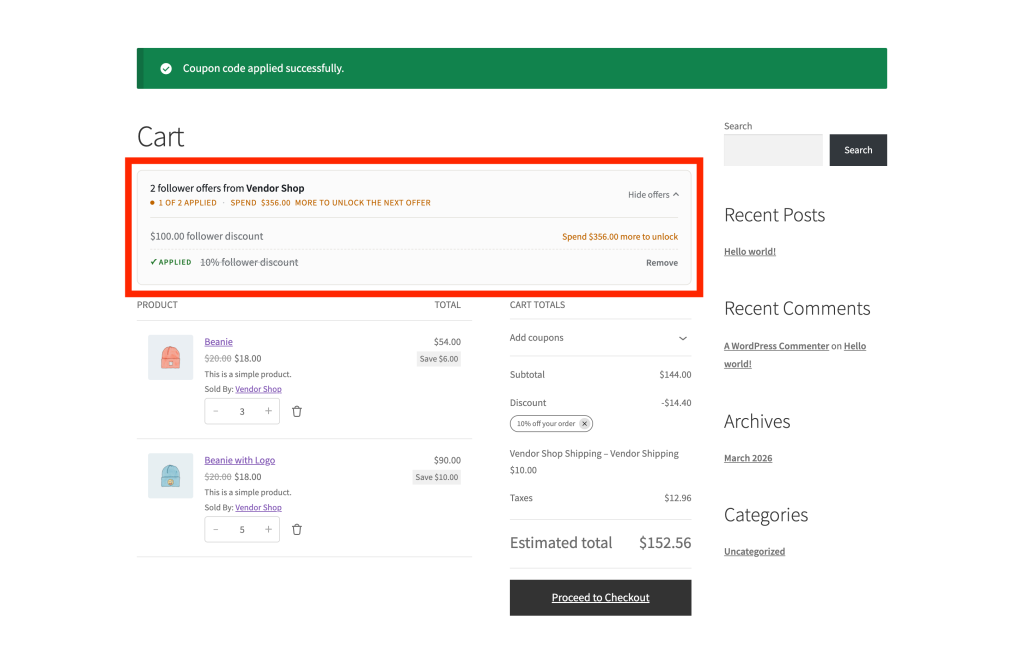
Each banner shows the vendor’s name and how many offers they have, for example “2 follower offers from Garden Supply Co”, along with a hint line reflecting the current status, such as “1 of 2 applied” or “Spend $10.00 more to unlock the next offer”. A Show offers toggle button expands the list.
Clicking Show offers reveals the individual offers for that vendor. Each item in the list shows:
- The discount description, for example “10% follower discount” or “$5 follower discount”
- A Best offer badge on the highest-value unlocked offer not yet applied
- An Applied badge if the offer is already applied to the cart
- An Apply button for offers that are unlocked but not yet applied
- A Remove button on an applied offer, to drop it from the cart
- A “Spend $X more to unlock” message for offers with a minimum spend amount the customer hasn’t reached yet
What that discount description actually shows depends on the store’s Offer Label setting. By default it’s the discount description, for example “10% follower discount”. If the store owner has set Offer Label to show vendor names instead, and the vendor has given the offer a custom name in their vendor dashboard’s Offer name field, that name shows instead, for example “Back to School Sale”. If the vendor left the offer name blank, the discount description shows regardless of the setting. The same label also replaces the discount line in the cart and checkout order summary once the offer is applied.
A vendor’s offer list only ever shows one badge at a time: once an offer is applied, no other offer from that vendor is marked Best offer. The applied offer is already the best one.
How offers are applied
By default, WC Vendors Engage applies the best eligible follower offer automatically. As soon as a followed vendor’s items in the cart meet an offer’s minimum spend, the discount applies with no click needed.
Customers can still change what’s applied. Clicking Apply on a different unlocked offer switches to that offer instead. Clicking Remove drops the applied offer, and auto-apply won’t reinstate it until the customer’s cart contents for that vendor change.
This behavior is controlled by the Auto-apply Follower Offers setting at WC Vendors → Settings → Engage → General. It’s on by default; turning it off switches every vendor’s offers to fully manual, where customers apply each one themselves with the Apply button.
The banner refreshes automatically whenever the cart changes. If the customer adds more items and their subtotal for a vendor’s products reaches an offer’s minimum spend, the offer applies automatically, or, if auto-apply is turned off, the “Spend $X more to unlock” message switches to an Apply button, without a page reload.
Only followers can apply these offers. WC Vendors Engage verifies follow status each time an offer is applied, so the discount won’t go through for customers who aren’t following the vendor, even if they have a code from elsewhere.
Troubleshooting
The banner isn’t showing on the cart or checkout.
Check each of these in order:
- Follower Offers is enabled. Confirm the master toggle is ticked at WC Vendors → Settings → Engage → General.
- Cart & Checkout Offer Banner is enabled. This is a separate setting from Follower Offers, in the same WC Vendors → Settings → Engage → General screen. Confirm it’s ticked too.
- The customer is logged in. Guest customers don’t see the banner.
- The customer follows the vendor. If they haven’t followed the vendor, no banner appears for that vendor.
- The vendor has active offers. Vendors create follower offers from their Engage tab in the vendor dashboard. If the vendor hasn’t set up any offers yet, there’s nothing to show. See How to create follower offers in your vendor dashboard.
An offer appears in the list but there’s no Apply button.
The offer has a minimum order amount. The customer’s subtotal for that vendor’s products hasn’t reached the threshold. The banner shows “Spend $X more to unlock” until the subtotal qualifies. The Apply button appears automatically once it does.
A customer tried to apply an offer but the discount didn’t go through.
Check whether the offer has a per-customer usage limit or a total usage limit that’s been reached. Once limits are exhausted, the offer won’t apply. The vendor can review and adjust usage limits from their Engage tab.
An offer shows a discount amount instead of the vendor’s name.
This is expected unless two things are both true: the Offer Label setting at WC Vendors → Settings → Engage → General is set to show vendor names, and the vendor has filled in Offer name for that specific offer. If either isn’t set, the discount description shows instead.
Frequently asked questions
Do customers need to enter a coupon code to use a follower offer?
No. By default, the best eligible follower offer applies automatically once a followed vendor’s items in the cart meet the offer’s minimum spend. No coupon code and no click needed. If the store owner has turned off auto-apply, customers click Apply in the banner instead.
Does the banner work with the WooCommerce Cart and Checkout Blocks?
Yes. WC Vendors Engage supports both classic cart/checkout pages and the Cart and Checkout Blocks. The banner appears above the block in both setups.
Can customers apply more than one follower offer from the same vendor?
No. Only one follower offer per vendor applies at a time. If a customer applies a different offer from the same vendor, it replaces the one that was active. Offers from different vendors can stack, with one offer applied per vendor.
Why is one offer highlighted as “Best offer”?
WC Vendors Engage automatically identifies the unlocked, not-yet-applied offer with the highest effective discount value and highlights it with a Best offer badge, but only when no offer for that vendor is applied yet, since the applied offer is already the best one.
Why does an offer show a custom name instead of a discount amount?
The store owner has set the Offer Label setting to show vendor names, and the vendor has given that offer a custom name in their vendor dashboard. If a vendor doesn’t set a name, the discount description shows instead, even with this setting on.
Need help?
- Premium users: Open a support ticket
- Free users: Visit our community forum