
Want customers to keep coming back to their favorite vendors? With WC Vendors Engage, they can follow the vendors they like right from the store page, a product page, a vendor list, or after checkout, and see everything they follow in one place from their My Account page. This article walks through the full customer experience: following, unfollowing, and the follower count badge.
What you’ll need
- WooCommerce and WC Vendors (free or Pro) installed and configured
- WC Vendors Engage installed and active
- The Follow button enabled by the marketplace admin. See the WC Vendors Engage Settings Reference
- A customer account. Guests cannot follow vendors
How to follow a vendor
- Visit a vendor’s store page on the marketplace.
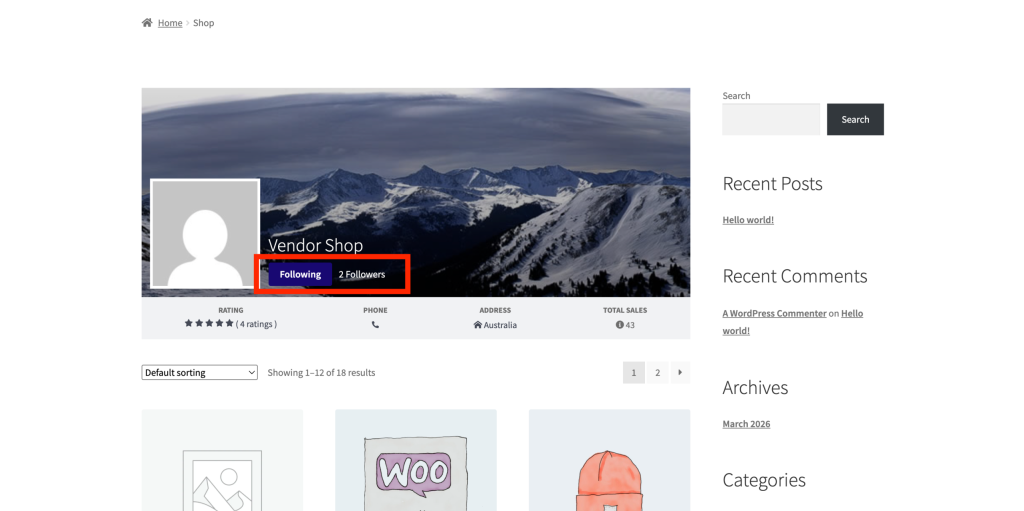
- Find the Follow button in the vendor store header.
- Click Follow.
The button switches to Following immediately, no page reload needed. The follower count badge next to the button updates right away to reflect your follow.
How to unfollow a vendor
There are two ways to unfollow a vendor.
From the vendor’s store page: Click the Following button. It toggles back to Follow immediately.
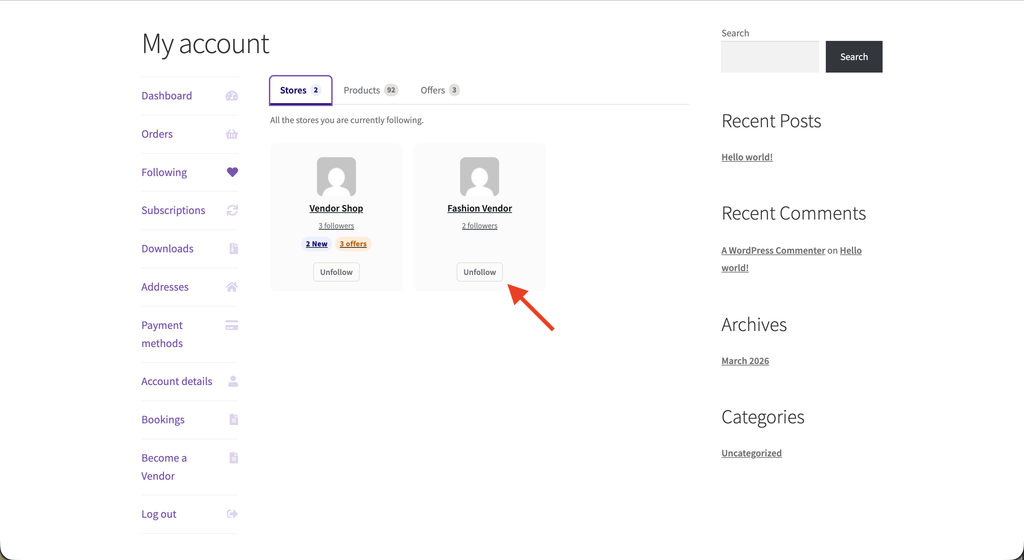
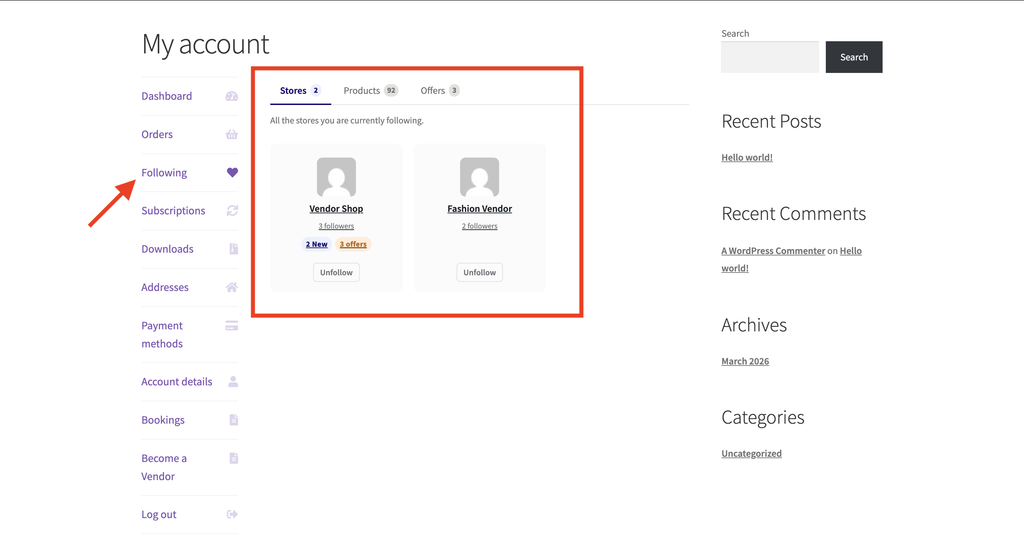
From My Account: Go to My Account → Following and click Unfollow next to any vendor in the Stores tab, which is selected by default.
Following a vendor from a product page
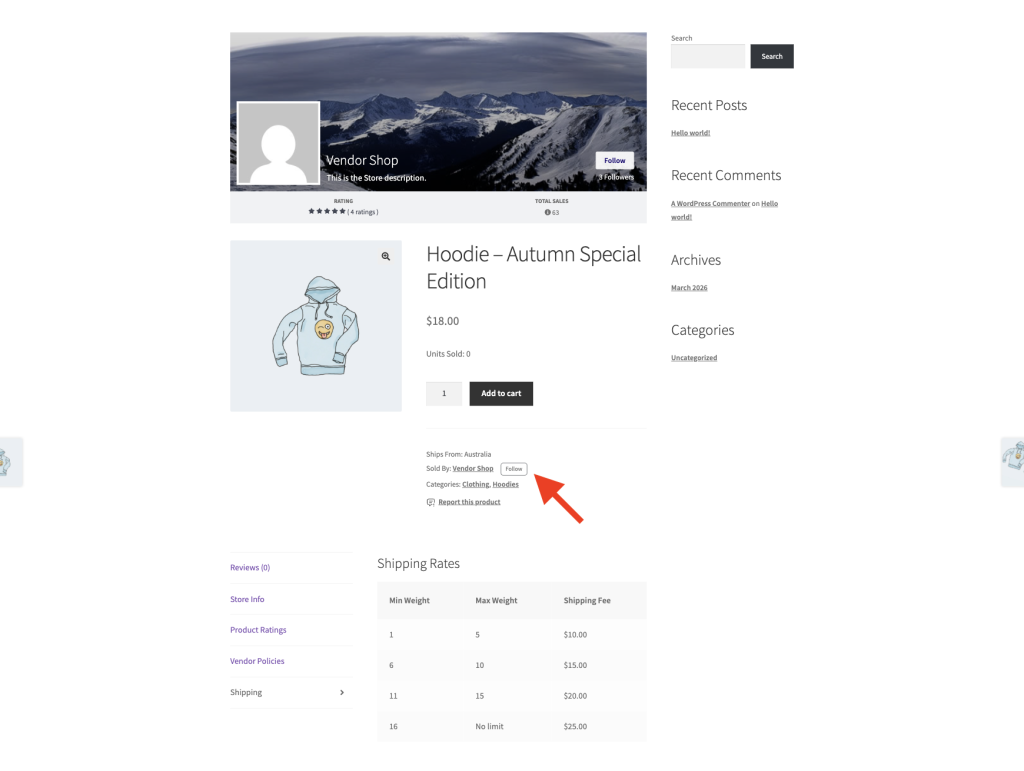
When the marketplace admin turns on the Follow Button on Product Pages setting, a Follow button also appears on single product pages, next to the Sold by line. If the marketplace doesn’t show a Sold by line, the button appears near the top of the product details instead.
Click Follow the same way you would on a vendor’s store page. The follower count badge isn’t shown here, only the button, to keep the product page uncluttered.
If your store header is also set to show on product pages, you may see a second Follow button near the top of the page, that’s the same feature, just a different placement.
The post-purchase follow prompt
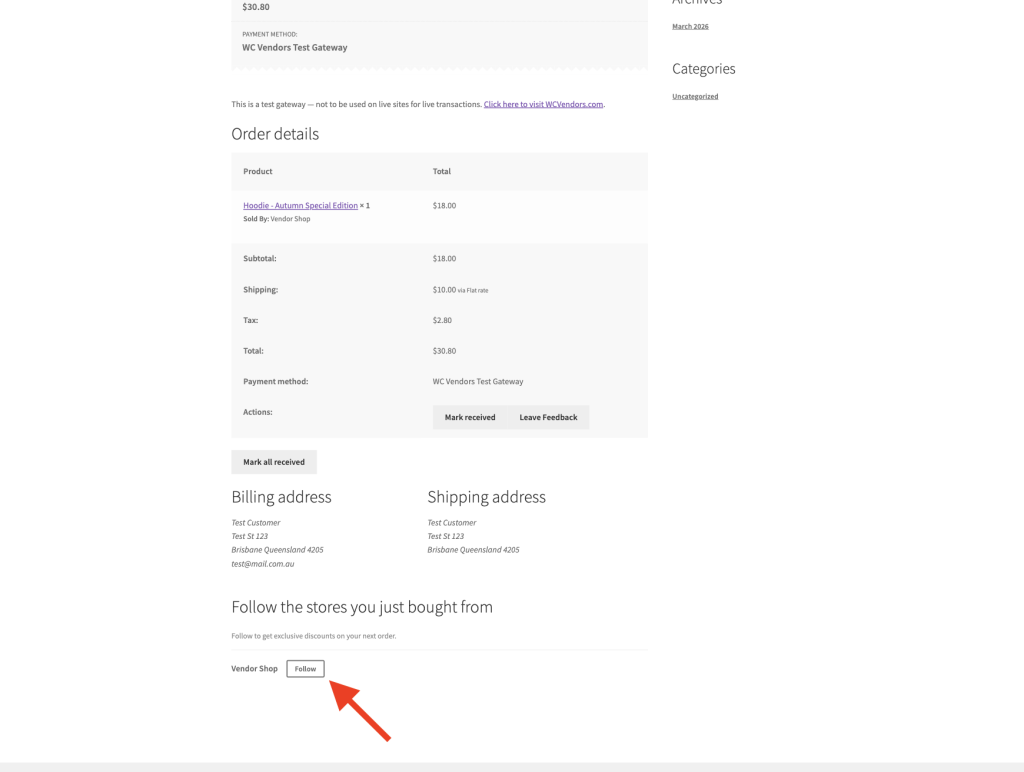
After a customer checks out, the order thank-you page can show a Follow the stores you just bought from prompt. It lists each vendor from that order the customer isn’t already following, with a Follow button next to each one. The follower count badge is hidden here too.
The prompt only appears for logged-in customers, and only for vendors from that specific order. If the customer already follows every vendor in the order, or checked out as a guest, the prompt doesn’t show.
The follower count badge
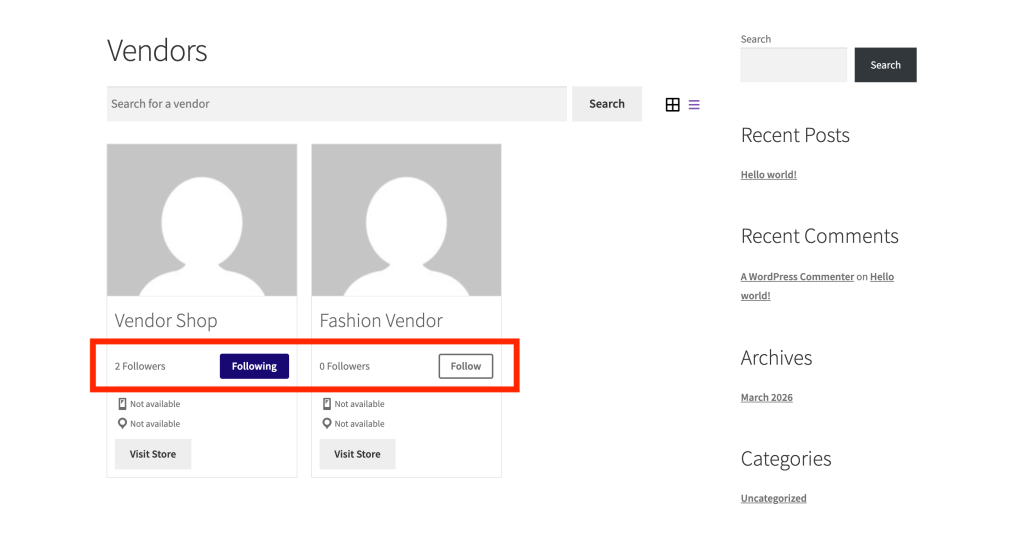
Next to the Follow button, a small badge shows the vendor’s current follower count. It appears in the vendor’s store header when the marketplace admin has enabled the Follow Button on Vendor Store Pages setting. It appears in vendor list shortcodes when the Follow Button in Vendors Lists setting is enabled.
The count updates instantly when you follow or unfollow. Updates from other customers’ actions show the next time the page loads.
Managing vendors you follow
Logged-in customers can see all followed vendors in one place: My Account → Following. From the Stores tab on this page you can review every vendor you currently follow and unfollow any you no longer want to track. The Following tab appears in My Account once you follow your first store.
For marketplace admins: enabling the Follow button
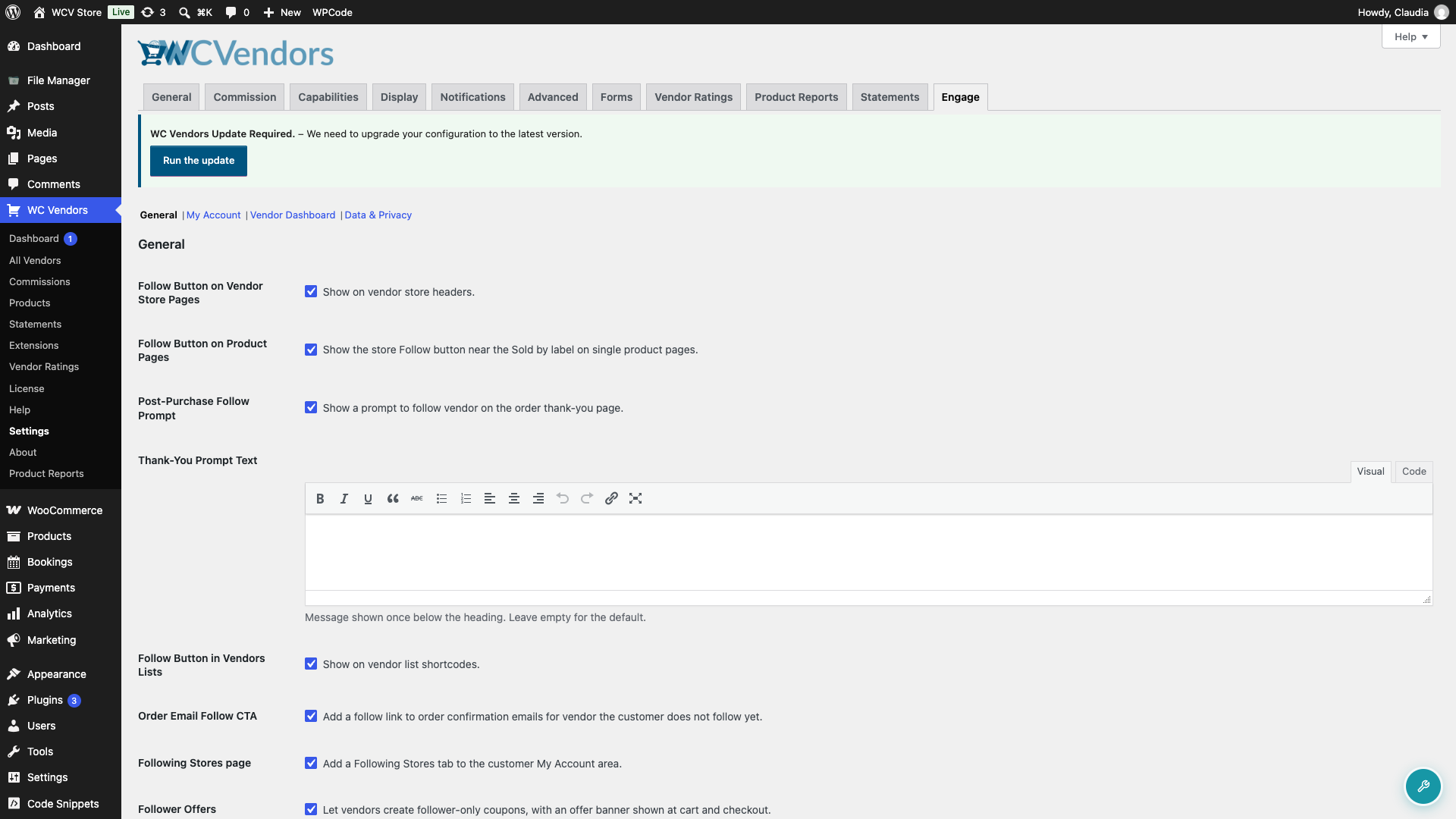
The Follow button is on by default when WC Vendors Engage is active. To control where it appears, go to WC Vendors → Settings → Engage → General and toggle the relevant settings:
- Follow Button on Vendor Store Pages: shows the button in the store header on each vendor’s storefront page
- Follow Button in Vendors Lists: shows the button on vendor list shortcodes
- Follow Button on Product Pages: shows the button near the Sold by line on single product pages. Off by default.
- Post-Purchase Follow Prompt: shows the follow prompt on the order thank-you page. On by default, but only takes effect while Follow Button on Vendor Store Pages is also enabled.
- Following Stores page: adds the Following tab to the customer My Account area, where customers manage the vendors they follow. On by default.
For full details on all Engage settings, see the WC Vendors Engage Settings Reference.
Troubleshooting
I don’t see the Follow button on a product page.
Ask the marketplace admin to confirm the Follow Button on Product Pages setting is enabled in WC Vendors → Settings → Engage → General. It’s off by default. The button also only shows for products sold by an active vendor, not for admin-owned products.
The post-purchase follow prompt didn’t show up after I checked out.
This is expected if you already follow every vendor in that order, or if you checked out as a guest, since the prompt only shows to logged-in customers. It can also be off entirely if the marketplace admin has disabled the Post-Purchase Follow Prompt setting, or the Follow Button on Vendor Store Pages setting it depends on.
Frequently asked questions
Can guests follow vendors without logging in?
No. Customers must be logged in to follow or unfollow a vendor. If a guest clicks the Follow button, they’re taken to the login page and return to the page they were on after logging in.
I clicked Follow but nothing happened. What’s wrong?
Confirm you’re logged in. The Follow button only works for authenticated customers. If you’re already logged in and the button isn’t responding, refresh the page and try again. If the Follow button isn’t visible at all, contact the marketplace admin to confirm WC Vendors Engage is active and the Follow button setting is enabled.
Why did the Follow button temporarily stop working?
Clicking the button very rapidly triggers a rate limit. This is normal spam protection. Wait about a minute without clicking, then try again.
Why don’t I see the Follow button on my own store page?
The plugin hides the Follow button and follower count from the store owner, so you never see it on your own store page. This is expected behavior, not a bug. Visit another vendor’s store page, or view your store while logged out, to see the button.
Need help?
- Premium users: Open a support ticket
- Free users: Visit our community forum