
If your marketplace is losing money on Stripe fees, the cause is usually which charge mode you picked. This guide explains who pays Stripe’s processing fee in each mode of WC Vendors Stripe Connect, and how to shift that cost to vendors if you need to.
Requirements
To use the settings in this article, you’ll need:
- WC Vendors Marketplace (the free plugin) installed and active
- WC Vendors Stripe Connect installed and active
- A Stripe platform account connected to your marketplace (see setting up Stripe Connect)
The Separate Charges and Transfers mode is available for platforms in the US, UK, EU, and Australia. If your Stripe platform account is based outside these regions, only Direct Charges is available.
The two charge modes
WC Vendors Stripe Connect supports two ways of processing customer payments. The key difference is whose Stripe account gets charged, and therefore who Stripe debits its processing fee from.
Direct Charges (default)
In Direct Charges mode, each vendor’s Stripe account is charged directly when a customer places an order. Stripe debits its processing fee from the vendor’s account automatically. Your platform collects its commission as an application fee that Stripe routes to you from the vendor’s payment.
For a customer buying from two vendors in a single cart, their card will be charged once per vendor with two separate charges on their bank statement. This per-vendor charge behavior applies to the standard WC Vendors Stripe Connect card gateway. The hosted Stripe Checkout option supports only one vendor per order and rejects multi-vendor carts.
For a single-vendor order paid through the hosted Stripe Checkout option, the plugin uses a destination charge on your platform account, which can change which side pays the Stripe fee for that path. For a single-vendor order paid through hosted Stripe Checkout, the plugin uses a destination charge on your platform account, so the platform (not the vendor) pays the Stripe fee on that path.
Separate Charges and Transfers (SC&T)
In SC&T mode, the customer’s card is charged against your platform Stripe account for the full order total, one charge for the entire cart, regardless of how many vendors are in it. Your platform then transfers each vendor’s commission to their connected Stripe account.
Because the charge hits your platform account, Stripe debits its processing fee from your platform, not from the vendors. Unless you enable fee splitting (covered below), your platform absorbs the full Stripe fee for every order.
Fee responsibility at a glance
| Mode | Who pays Stripe fees | What the customer sees |
|---|---|---|
| Direct Charges | Vendor | One charge per vendor in the cart |
| SC&T (Split Fee off, default) | Platform | One charge total |
| SC&T (Split Fee on) | Split proportionally between platform and vendors | One charge total |
| SC&T + commission adjusted to cover Stripe fees | Platform (offset by higher commission) | One charge total |
How to switch charge modes
The charge mode is controlled by a single checkbox in your Stripe Connect settings.
- Go to WooCommerce → Payments → Stripe Connect.
- Find the Use Stripe Separate Charges and Transfers (US/EU) option.
- Leave it unchecked for Direct Charges (the default), or check it to enable SC&T.
- Click Save changes.
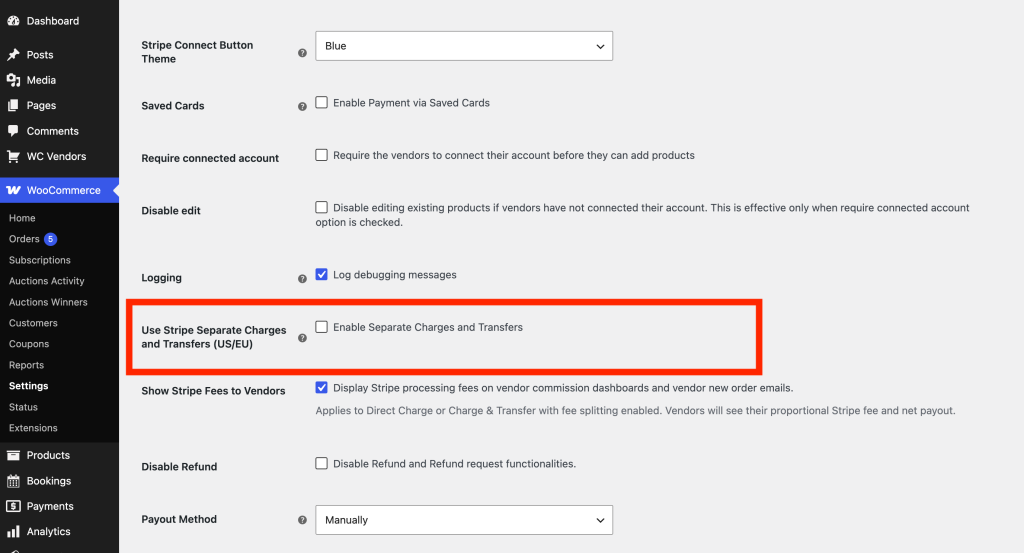
The checkbox label reads “Use Stripe Separate Charges and Transfers (US/EU)”, but the setting also applies to UK and Australia platforms, so the label understates the supported regions. If your Stripe platform account is outside the supported regions (the US, UK, EU, and Australia), this checkbox has no effect since the plugin uses Direct Charges automatically regardless of this setting.
Options for SC&T platforms that want vendors to cover Stripe fees
If you’re using SC&T and want the Stripe fee to come out of vendor payouts rather than your platform, there are three approaches. Each involves a different trade-off.
Enable Split stripe fee
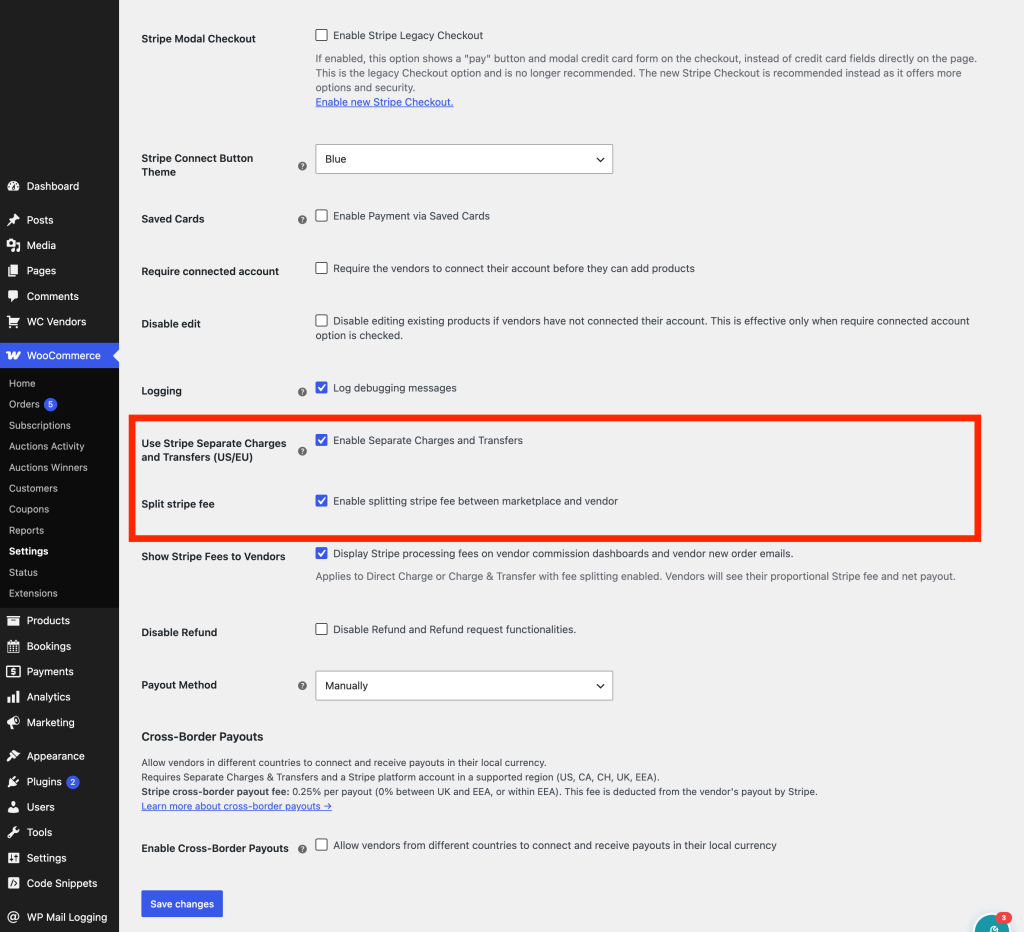
The plugin can deduct each vendor’s proportional share of the Stripe fee from their transfer amount automatically. To enable this, go to WooCommerce → Payments → Stripe Connect and check Split stripe fee. The deduction is calculated proportionally where each vendor’s share of the Stripe fee is based on their share of the order total, so the split reflects how much each vendor contributed to the transaction.
Vendors will see a slightly reduced payout compared to their quoted commission. If you want them to understand why, also enable Show Stripe Fees to Vendors. This displays the Stripe processing fee and the vendor’s net payout on their commission dashboard and in new order emails.
Switch to Direct Charges
Direct Charges is the cleanest approach for fee responsibility: Stripe debits its fee from each vendor’s account automatically, so there’s nothing to split or configure. The downside is that customers with multi-vendor carts will see a separate card charge for each vendor. For some stores this is acceptable; for others it creates a confusing checkout experience.
Adjust your commission rate to cover Stripe fees
Instead of deducting the Stripe fee from vendor payouts, you can raise your platform commission rate to absorb it upfront. For example, if your standard commission is 5% and Stripe charges 2.9% + $0.30 per transaction, setting your commission to 7.9% + $0.30 means your platform collects enough to cover Stripe’s cut each time.
One thing to be aware of: Stripe only charges its flat per-transaction fee (the $0.30 part) once per payment, regardless of how many vendors are in the cart. If your commission structure includes a flat-fee component that you collect from each vendor separately, you’ll over-collect on multi-vendor orders. This approach works best for single-vendor orders, or where the flat-fee component is small enough that the difference doesn’t matter.
The percentage plus fixed fee commission structure in this example is a WC Vendors Pro commission type. WC Vendors Pro is not required for the charge mode and fee splitting settings covered in this article, only for this style of commission. Commission configuration in WC Vendors Pro
A common misconfiguration to watch for
The most frequent source of unexpected losses is enabling SC&T without turning on Split stripe fee. In this configuration, your platform account absorbs the full Stripe processing fee for every order. If the Stripe fee is larger than your commission margin, which can happen on low-margin or high-volume stores, your platform will lose money on every transaction.
This is expected behaviour, not a bug. The fix is to enable fee splitting, switch to Direct Charges, or adjust your commission rate as described above.
A note on Stripe Accounts v2
Stripe’s documentation references a setting called controller.fees.payer that lets you assign fee responsibility at the account level. This feature requires Stripe Accounts v2, which WC Vendors Stripe Connect does not currently support as the plugin uses Standard Connected Accounts via OAuth. The options covered in this article are the supported approaches within the current plugin architecture.
Troubleshooting
Platform is losing money on every transaction
You’re likely running SC&T with Split stripe fee disabled. Go to WooCommerce → Payments → Stripe Connect and either enable fee splitting or switch back to Direct Charges by unchecking Use Stripe Separate Charges and Transfers (US/EU).
“Use Stripe Separate Charges and Transfers (US/EU)” has no effect
This setting applies to platform accounts registered in the US, UK, EU, and Australia. If your Stripe account is based in another country, SC&T isn’t available and the plugin defaults to Direct Charges regardless of this checkbox.
Vendors are asking why their payouts are lower than their quoted commission
If Split stripe fee is enabled, a proportional Stripe fee is being deducted from their transfer. Enable Show Stripe Fees to Vendors so vendors can see the breakdown on their commission dashboard and in order emails.
Frequently asked questions
Can I use SC&T if my Stripe account is in Australia?
Yes. SC&T is available for marketplace platforms with Stripe accounts registered in the US, UK, EU, and Australia. Platforms in other regions must use Direct Charges.
Does enabling “Split stripe fee” change what the customer pays?
No. The customer pays the same amount either way. The fee split only affects how vendor payouts are calculated on the backend. The customer’s card charge and their receipt are unchanged.
Do I need to enable SC&T to use Cross-Border Payouts?
Yes. Cross-Border Payouts, which let your platform pay out vendors whose bank accounts are in a different country from your platform, require Separate Charges & Transfers. If you enable Cross-Border Payouts in settings, SC&T is activated automatically, you don’t need to enable it separately. Cross-Border Payouts
Can I split the Stripe fee in Direct Charges mode?
No. In Direct Charges mode, Stripe debits its fee from the vendor’s account automatically. There’s nothing to split, because the platform never absorbs the fee in the first place. The Split stripe fee setting only applies when SC&T is enabled.
Need help?
If you have a question or run into any issues, we’re here to help.
- Premium users: Open a support ticket
- Free users: Visit our community forum