
Want certain products to stand out across your marketplace? With WC Vendors, you don’t have to manage that yourself. Turn on the Featured Product setting and your vendors can mark their own products as featured, right from their product editor. Here’s how to switch it on, and what vendors will see once it’s live.
Before you begin
No extra plugin is required for this. You just need admin access to your WooCommerce store’s settings, and WC Vendors active on your site.
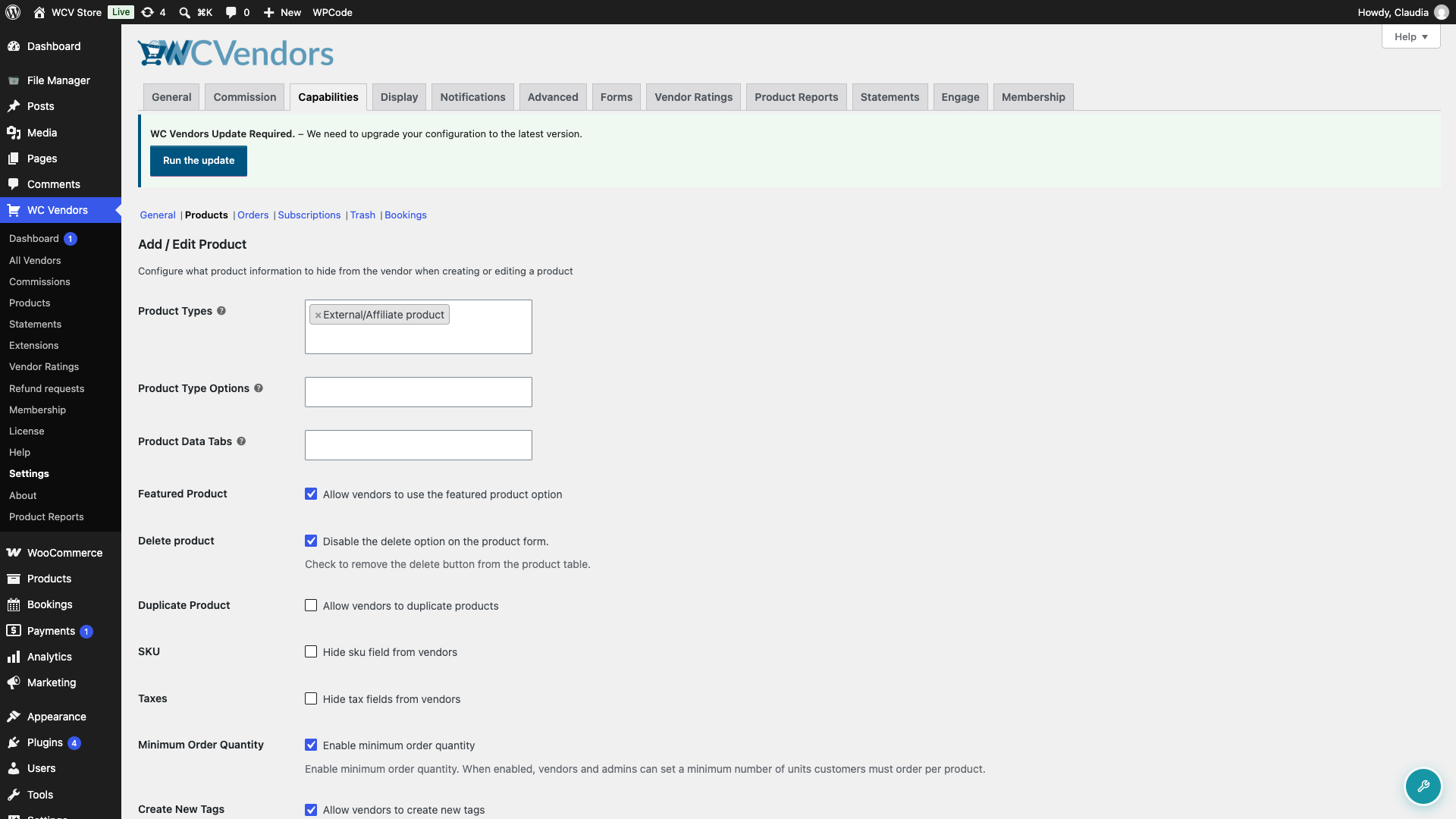
Step 1: Turn on the Featured Product setting
This part happens in your WordPress admin, not the vendor dashboard. Only admins can turn this setting on or off; vendors can’t change it themselves.
- Go to WC Vendors → Settings.
- Select the Capabilities tab (see the full details here at Capabilities Settings Overview), then the Products section.
- Turn on Featured Product.
- Click Save changes.
Step 2: How vendors mark a product as featured
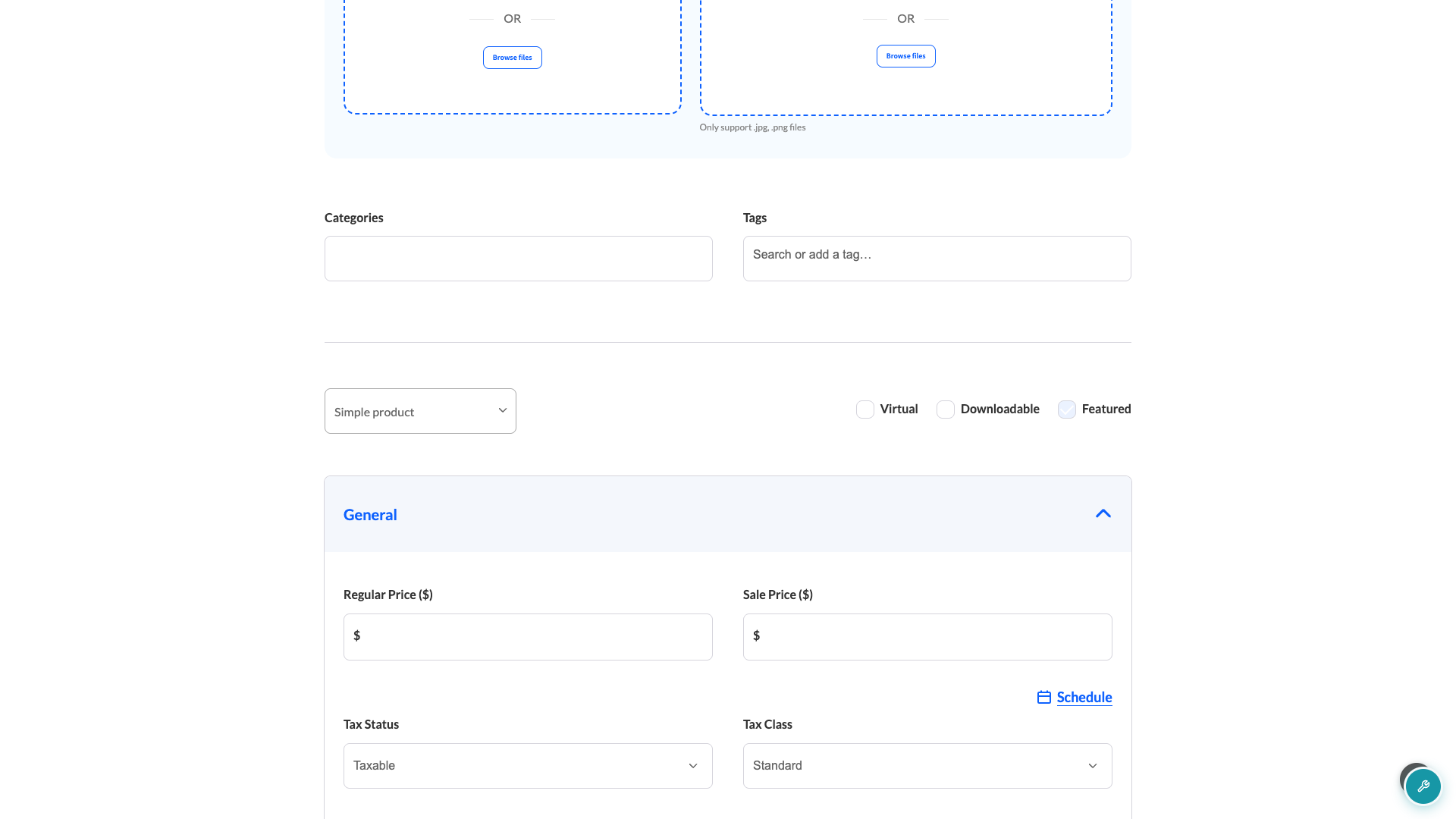
Once the setting is on, vendors will see a new Featured checkbox next to the product type dropdown when they add or edit a product (see the full details here at Product Management Overview), right alongside the existing Virtual and Downloadable checkboxes.
- From the vendor dashboard, open a product to add or edit.
- Check the Featured box next to the product type dropdown.
- Save the product as usual.
A featured product carries the same status WooCommerce uses everywhere else in your store, so any theme, widget, or shortcode that highlights featured products, including WC Vendors’ own [wcv_featured_products] shortcode, will pick it up automatically.
Troubleshooting
A vendor can’t find the Featured checkbox in their product editor
This almost always means the Featured Product setting is still off. Check WC Vendors → Settings → Capabilities → Products and confirm Featured Product is turned on. If it’s already on and the checkbox is still missing, make sure WC Vendors is updated to the latest version.
Products stay featured after you turn the setting off
Turning this setting off only removes the checkbox from vendors’ product editor going forward. It doesn’t automatically un-feature products vendors already marked as featured. To remove Featured status from a specific product, edit that product’s status yourself from your WooCommerce product list.
Frequently asked questions
Can I limit how many products a vendor marks as featured?
No. WC Vendors doesn’t cap the number of products a vendor can mark as featured once you’ve turned this setting on.
Does this affect products that are already marked as featured?
No. Turning the setting on or off only controls whether vendors can change a product’s featured status going forward; it won’t change the status of existing products.
Can vendors feature a product from the WordPress admin instead of their dashboard?
If a vendor has access to edit products directly in the WordPress admin dashboard, WooCommerce’s native Featured checkbox there is also tied to this setting, so it only appears when you’ve turned Featured Product on.
Need help?
- Premium users: Open a support ticket
- Free users: Visit our community forum