
As your marketplace grows, the global attribute list gets long, and most of it is irrelevant to any one vendor. The Vendor Attribute Library in WC Vendors Pro lets each vendor create their own product attributes, like “Fabric” or “Scent”, and reuse them across their products without adding anything to your store-wide list. This guide shows you how to turn it on and how vendors use it.
Before you begin
- WC Vendors Pro 2.0.8 or later
- WC Vendors 2.5.2 or later. This version includes the new vendor dashboard. There is no setting to turn on.
- The Attributes field must not be hidden on the vendor product form (see Troubleshooting)
Step 1: Turn on the Vendor Attribute Library
- In your WordPress admin, go to WC Vendors → Settings.
- Click the Forms tab.
- Click Product in the section links below the tabs.
- Scroll to the Product Form block and tick Vendor Attribute Library.
- Click Save changes.
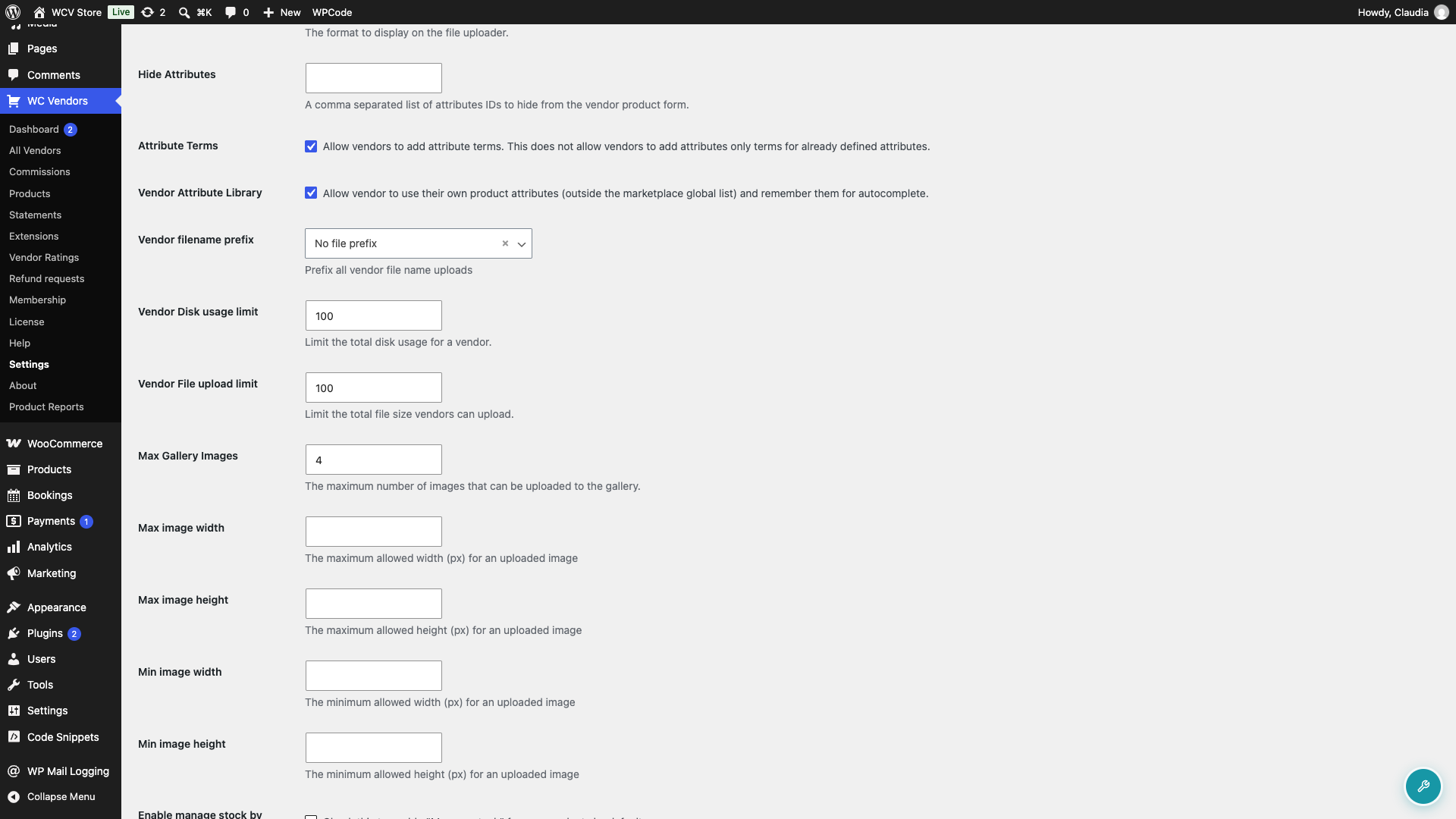
The setting is off by default. Once it’s on, every vendor gets their own private library. One vendor can never see or use another vendor’s attributes.
Step 2: How vendors add a custom attribute
Vendors build their library by using custom attributes on their products. There’s nothing to set up in advance.
- In the vendor dashboard, the vendor opens a product to add or edit it.
- In the attributes section, they click Add custom attribute. The button sits next to the Select an attribute dropdown.
- They type a name for the attribute, such as “Fabric”.
- In Value(s), they enter the values separated by a pipe character, for example
Cotton | Linen | Wool. - They tick Visible On The Product Page.
- For variable products, they also tick Used For Variations if needed.
- They save the product.
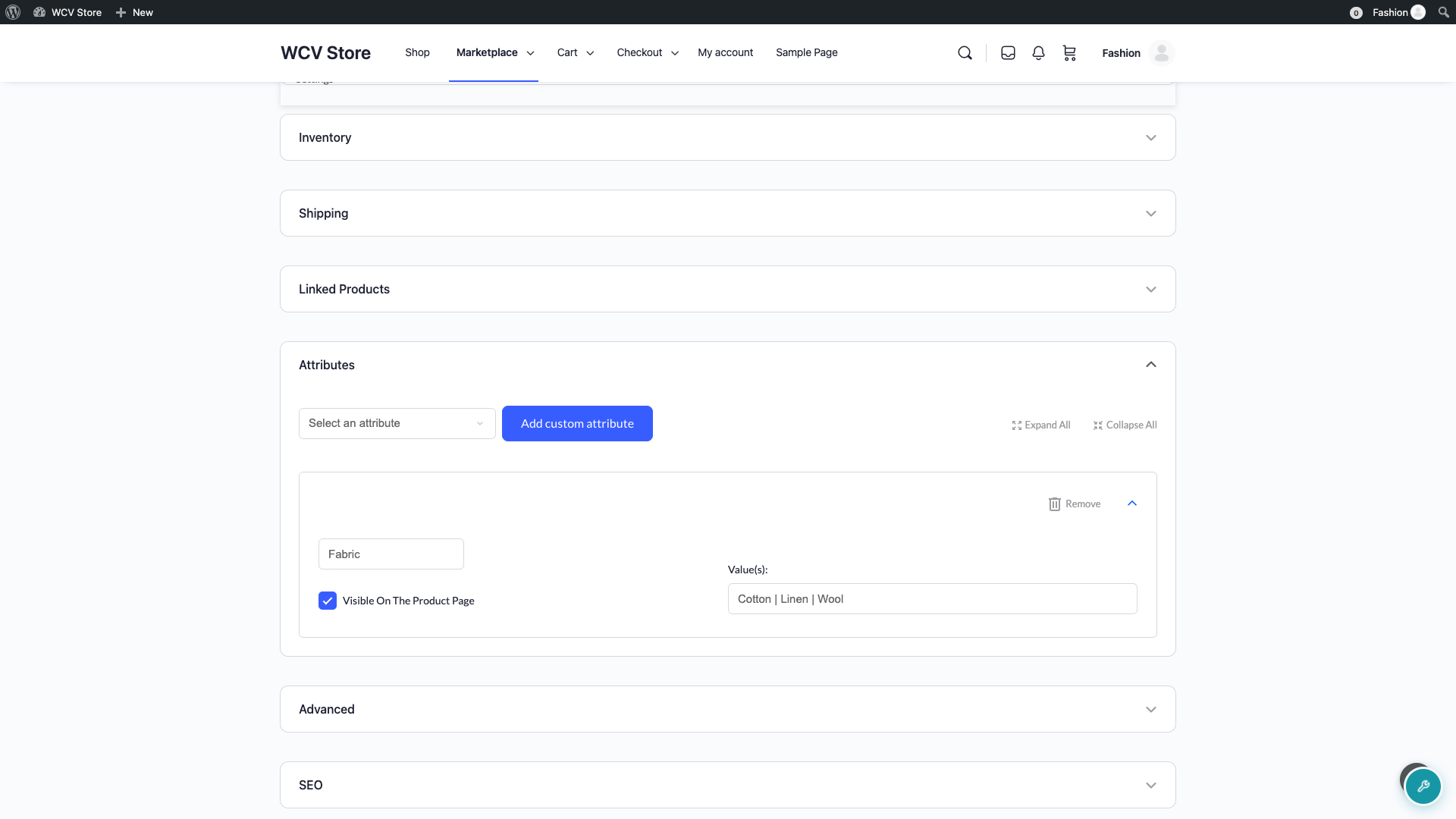
When the product is saved, the attribute name and its values are added to that vendor’s library.
Step 3: How vendors reuse saved attributes
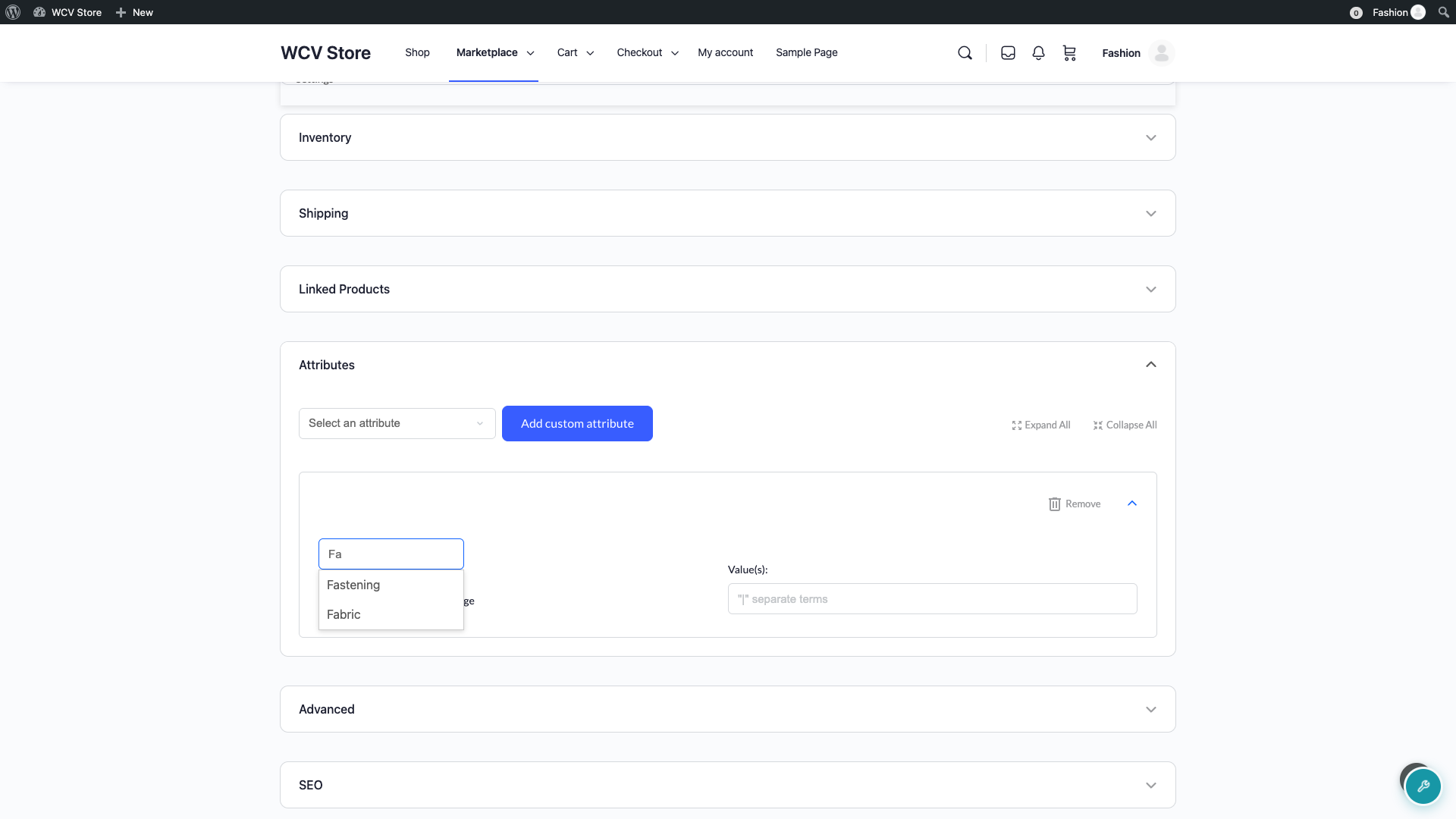
The next time the vendor adds a custom attribute, suggestions appear after they type two characters of the name. Suggestions match anywhere in the name and show the most recently used first.
When the vendor clicks a suggestion, the name is filled in and the Value(s) field is filled with all the saved values. Any values they had already typed in that field are replaced. They can then remove values they don’t need for this product.
Step 4: How vendors manage their library
Vendors can review and tidy their saved attributes on a dedicated page.
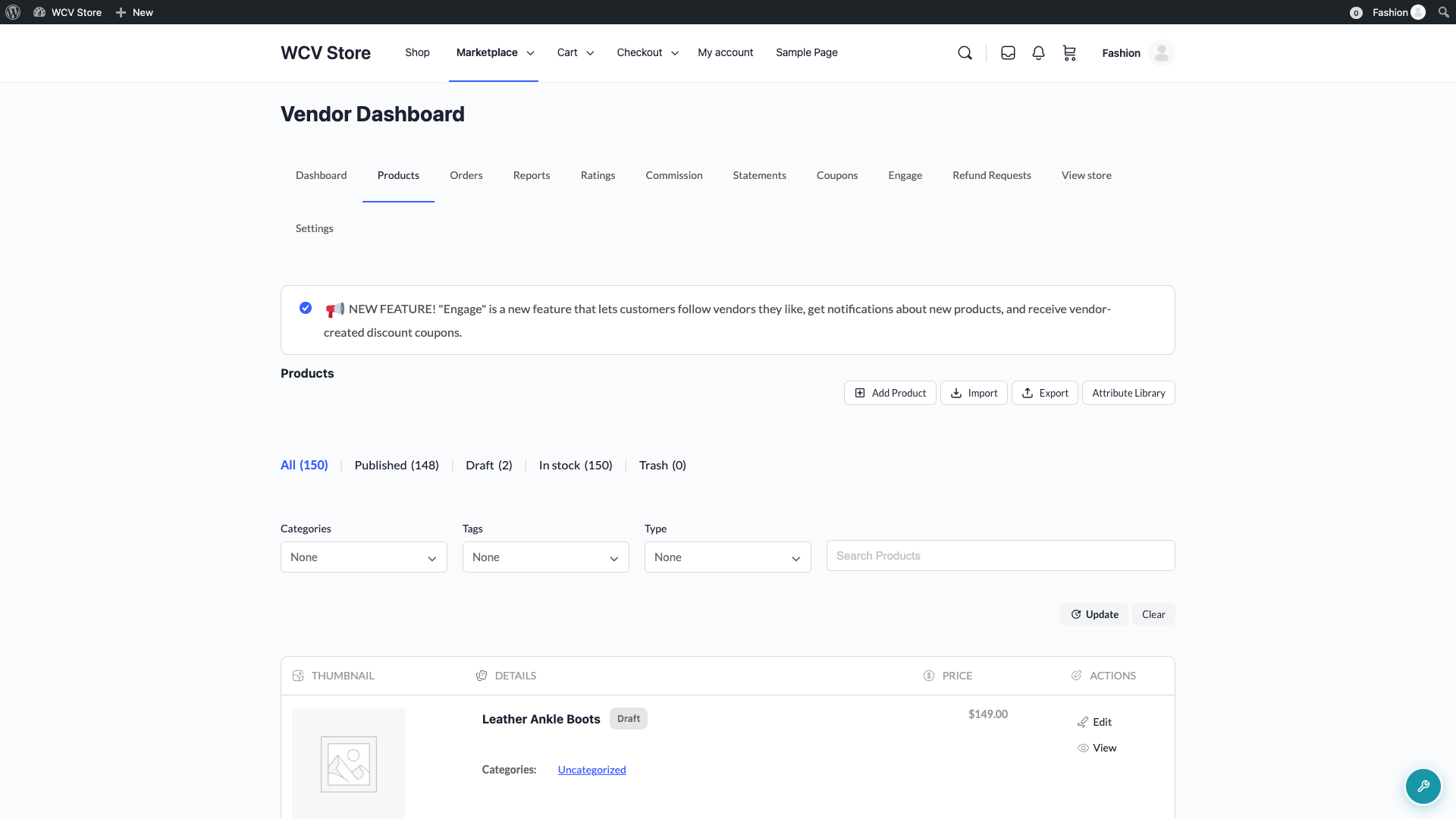
- In the vendor dashboard, the vendor goes to the products list.
- They click Attribute Library in the row of buttons above the products list.
The library lists each attribute with its Name, Values, Products using (how many of their products use it) and Last used. To change an entry, the vendor clicks Edit.
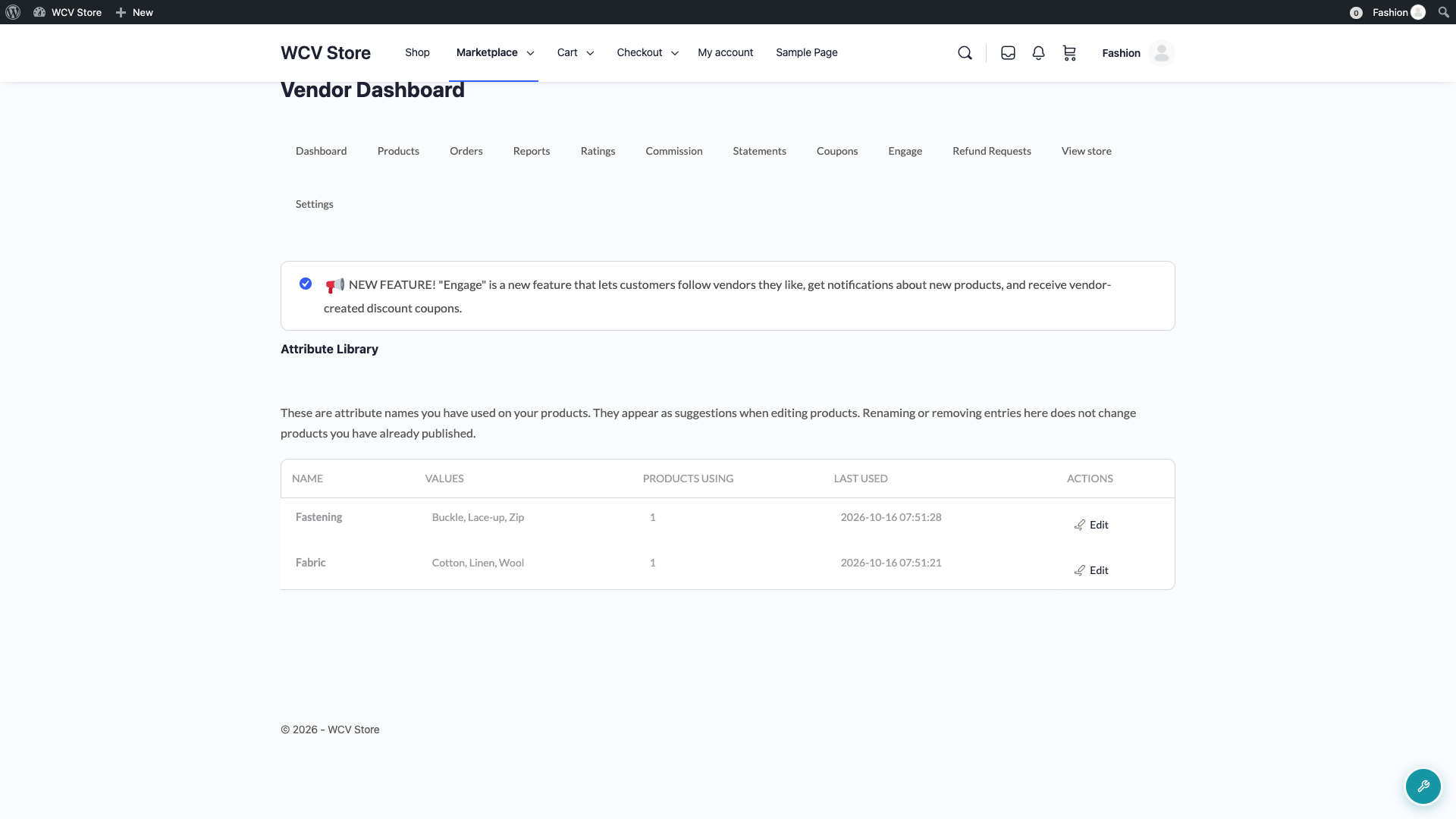
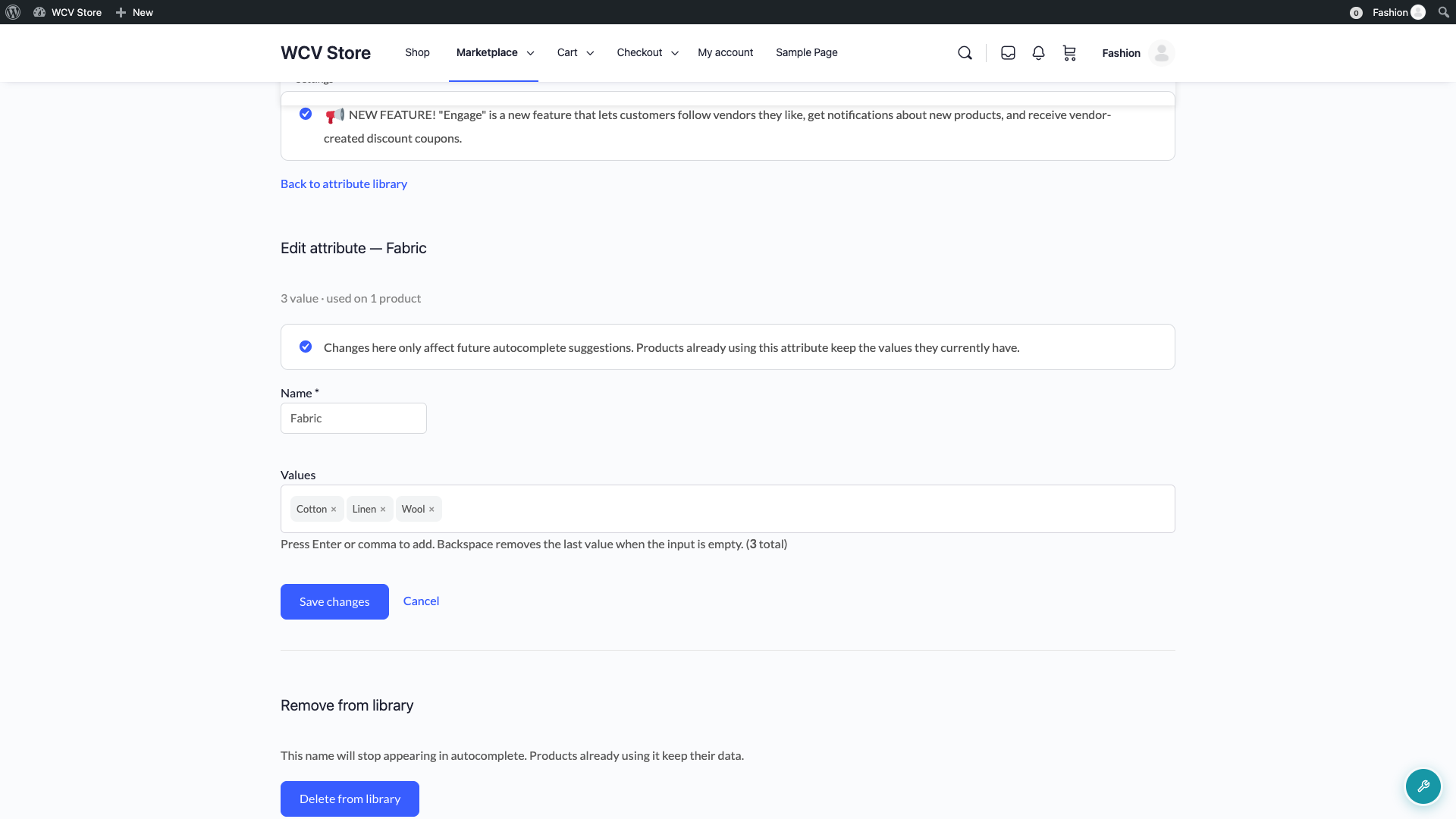
On the edit screen, vendors can rename the attribute or add and remove values. They press Enter or type a comma to add a value, then click Save changes. To remove an entry, they click Delete from library and confirm.
Editing or deleting a library entry only changes future suggestions. Products that already use the attribute keep their current name and values.
How this differs from Attribute Terms
The Attribute Terms setting lets vendors add new values to your store-wide attributes, and those values become available to every vendor. The Vendor Attribute Library works with custom attributes instead. Anything a vendor saves there stays private to their store and never touches your global attribute list. You can turn on either setting, or both.
Troubleshooting
Vendors don’t see the Add custom attribute button
Check that Vendor Attribute Library is ticked and saved. Then check that the attributes section isn’t hidden: go to WC Vendors → Settings, click the Forms tab, then click the Product section. In the Form Fields block, find the Attributes row in the Basic table and make sure Hide is not ticked. When the attributes section is hidden, the button is hidden too.
The Attribute Library page shows “page not found”
Go to Settings → Permalinks and click Save Changes without changing anything. The page then loads for your vendors. This can happen right after you turn on Vendor Attribute Library, because WordPress hasn’t refreshed its page addresses yet.
An attribute the vendor deleted keeps coming back
Ask the vendor to remove the attribute from the products that still use it, then delete it from the library. Saving a product that still has the attribute adds the name back to the library.
No suggestions appear while typing
Type at least two characters of the attribute name. Suggestions only cover custom attributes the vendor has saved before. Global attributes from the Select an attribute dropdown aren’t part of the library.
Frequently asked questions
Can vendors see each other’s attributes?
No. Each vendor’s library is private to their own store.
Does this add anything to my global attribute list?
No. Only custom attributes go into vendor libraries. Your store-wide attributes are never changed.
What happens if I turn the setting off later?
The button, suggestions and library page disappear for vendors. Their saved library entries are kept, so everything returns if you turn the setting back on. Products keep their attributes either way.
Can vendors use library attributes for variations?
Yes. On variable products, vendors can tick Used For Variations on a custom attribute, just like a global one.
What’s next
- How to let vendors add attribute terms to their products
- Vendor Product Management: How To Add & Manage Products In WC Vendors
- Product Management Overview
Need help?
If you have a question or run into any issues, we’re here to help.
- Premium users: Open a support ticket
- Free users: Visit our community forum