Picture a shopper landing on your marketplace to find handmade candles. They scroll past jewelry, phone cases, and pet supplies from dozens of different vendors, and somewhere along the way they give up. On a busy multi-vendor store, a long and unsorted list is one of the fastest ways to lose a sale. That’s why WC Vendors Pro 2.1.0 introduces built-in WooCommerce category filters for your marketplace.
Shoppers now get a simple category dropdown on your All Vendors page, your main shop page, and every vendor’s store page, so they can narrow results in a single click. In this article, we’ll walk you through what the new WooCommerce category filters do, where they appear, and how to set them up step by step. You’ll also get practical tips to help customers find the right sellers and products faster.
Why Shoppers Need A Faster Way To Browse Your Marketplace
Every marketplace grows in two directions at once: more vendors and more products. That variety is great for choice, but it also makes browsing harder. In the Baymard Institute’s product list and filtering study, sites with mediocre product list usability saw abandonment rates of 67 to 90%, while sites with a slightly optimized toolset saw only 17 to 33% abandonment among users looking for the same types of products.
The problem is widespread, too. When Baymard benchmarked leading US and European ecommerce sites, it found that 36% had product list flaws severe enough to actively harm shoppers’ ability to find and select products. A marketplace with dozens of sellers is especially exposed, because every new vendor adds more items to sort through.
Filtering is a big part of the fix. The Nielsen Norman Group describes filters as tools that “analyze a given set of content to exclude items that don’t meet certain criteria.” NN/g also notes that a simple filter is often easier to understand and faster to use than a complex faceted system. That’s the idea behind WooCommerce category filters: one familiar dropdown that does one job well.
Before this release, WC Vendors Pro shoppers could already search the vendor directory, and since version 2.0.5 they could narrow it down by location. Store owners could also place the Store Categories widget or block on vendor store pages. What was missing was a category filter at the top of the page, right where shoppers look first.
What Are The New WooCommerce Category Filters In WC Vendors Pro?
The WooCommerce category filters in WC Vendors Pro are category dropdowns that appear at the top of three key marketplace pages. They use the product categories you already manage in WooCommerce, so there’s nothing new to create or maintain. When a shopper picks a category, the page reloads automatically and shows only the matching results.
Each dropdown starts with an “All categories” option that shoppers can choose at any time to see everything again. Parent and child categories are both supported, so selecting a parent category also includes everything in its subcategories. Here’s a quick overview before we look at each page.
| Page | Where the dropdown appears | What shoppers see after choosing a category |
|---|---|---|
| All Vendors page | In the search bar, next to the “Search for a vendor” field | Vendors with published products in that category or its child categories |
| Main shop page | In the top bar above the product grid, beside the sorting options | Products in that category and its child categories |
| Vendor store page | In the top bar of the vendor’s store | That vendor’s products only, from categories the vendor actually sells in |
On the All Vendors page
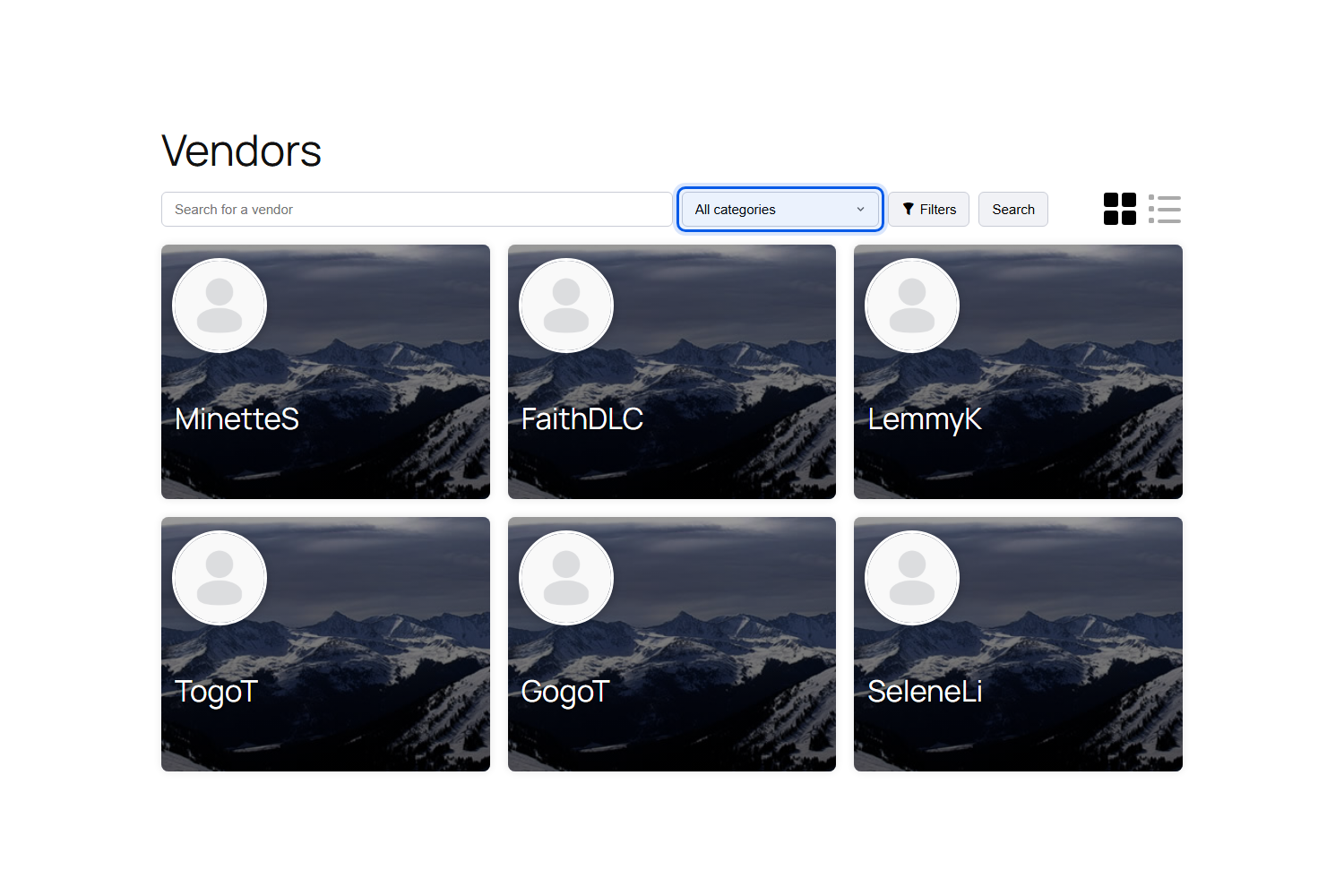
On your vendor directory, the dropdown sits in the search bar right next to the “Search for a vendor” field. Choosing a category shows only the vendors who have published products in that category or any of its child categories. For example, picking a parent category like Clothing also brings up a vendor who only sells in a Hoodies subcategory.
The category dropdown works together with the vendor search box and the WC Vendors Pro location filters. That means a shopper can look for clothing vendors in a specific country or city in just a few clicks. The selected category stays in place as shoppers move through pages of results, and the “Clear All” link resets every filter at once.
On the main shop page
On your WooCommerce shop page, the dropdown appears in the top bar above the product grid, alongside the sorting options. Here, it lists all of your store’s product categories, and choosing one narrows the grid to products in that category and its child categories.
Your regular WooCommerce rules still apply while a filter is active. Products hidden from the catalog stay hidden, and if you’ve chosen to hide out-of-stock items, those stay hidden too. Shoppers can also pair a category with the sorting dropdown, for example to view one category sorted by price.

On each vendor’s store page
On an individual vendor’s store, the dropdown only lists the categories that vendor actually sells in. Someone browsing a candle maker’s store won’t see categories that belong to other vendors. Choosing a category filters that vendor’s products only, so shoppers stay focused on the store they’re already browsing.
If a vendor hasn’t published any products yet, the dropdown doesn’t appear on their store. As soon as they publish products, it shows up automatically.
Who Benefits From WooCommerce Category Filters On Your Marketplace
Category dropdowns help everyone who touches your marketplace, from the people running it to the people shopping on it. Here’s what they do for each group:
- Marketplace owners get cleaner navigation across the vendor directory, the shop, and every vendor store without installing a separate filter plugin.
- Vendors with large catalogs can count on shoppers jumping straight to the right section of their store instead of scrolling through every product.
- Shoppers find relevant vendors and products in fewer clicks, which makes it easier to keep browsing and buying.
- Niche marketplaces with deep category trees, such as fashion or home goods, can let shoppers drill down from a broad parent category to a specific subcategory.
- Local marketplaces can combine a category with location filters, so shoppers find nearby sellers in exactly the niche they want.
If you’ve been looking for WooCommerce category filters that work with vendors as well as products, this feature was built for you.
How To Set Up WooCommerce Category Filters In WC Vendors Pro
The WooCommerce category filters are turned on by default once you update to WC Vendors Pro 2.1.0. Even so, it’s worth working through each step below to make sure every page looks and behaves the way you want.
Step 1: Update WC Vendors Pro to version 2.1.0
Back up your site first, then update WC Vendors Pro to version 2.1.0 or later from your WordPress Plugins page. You can review what ships in each release on the WC Vendors changelog. WC Vendors Pro is included in the Pro, Growth, and Business plans, which you can compare on the WC Vendors pricing page.
Step 2: Confirm the setting is turned on
In your WordPress dashboard, go to WC Vendors > Settings > Forms. On the General tab, scroll past the Vendor Location Filters settings to the Category Filter section, and make sure the Enable Category Filter box is checked. Its description reads “Show a category dropdown on the vendors list, vendor store and shop pages.” Click Save Changes if you made any edits.

Step 3: Organize your product categories
The dropdowns are built from your WooCommerce product categories, which you manage under Products > Categories. The official WooCommerce guide to product categories, tags, and attributes explains how categories, subcategories, and tags work. Ask your vendors to assign the right category to each product so their listings show up under the correct option.
Step 4: Use the WC Vendors Pro vendors list shortcode
On the All Vendors page, the dropdown only appears when the page uses the Pro shortcode [wcv_pro_vendorslist]. If your vendors page still uses the free [wcv_vendorslist] shortcode, edit the page and swap it for the Pro version. The same Pro shortcode also powers the location filters, and you can find every option in our list of available WC Vendors shortcodes.
Step 5: Check your shop and vendor store pages
Visit your main shop page and a few vendor stores to confirm the dropdown appears in the top bar. If you already show the Store Categories widget or block in a sidebar on a page, WC Vendors hides the top-bar dropdown on that page automatically, so shoppers never see two category filters at once. Our overview of available widgets for WC Vendors covers the Store Categories widget and the rest of the Pro widget set.
Step 6: Test it the way a shopper would
Pick a category on each page and check that the results make sense. Then choose “All categories” or click “Clear All” to confirm you can get back to the full list. It’s also worth repeating the test on a phone, where a quick dropdown matters even more on a small screen.
How to turn the category filters off
Prefer to keep your pages as they are? Go back to WC Vendors > Settings > Forms, uncheck Enable Category Filter, and save your changes. The dropdown disappears from the All Vendors page, the shop page, and every vendor store.
Tips To Get The Most Out Of Your WooCommerce Category Filters
WooCommerce category filters are only as helpful as the categories behind them. These tips will help you turn the new dropdowns into a real shortcut for your customers.
Keep your category tree simple
Aim for a short list of clear parent categories with focused subcategories underneath. A shopper should understand every option in the dropdown at a glance. Our guide to eCommerce UX best practices for your marketplace covers more ways to make navigation feel effortless.
Use tags for traits that cross categories
Categories work best for the main type of product, like Candles or Jewelry. For shared traits such as “eco-friendly” or “gift ideas” that stretch across several categories, product tags are a better fit than extra categories. Our article on WooCommerce tags shows how to use them to help customers find marketplace products. Moving those traits into tags keeps your WooCommerce category filters short and easy to scan.
Encourage vendors to categorize every product
Vendors only appear in a category’s results on the All Vendors page when they have published products in that category. Remind vendors to choose accurate categories whenever they add products. It also helps to check that every vendor has completed their store details, since the Pro vendor directory leaves out vendors who haven’t set up their shop information.
Pair categories with location filters
If your marketplace serves local buyers, combine the category dropdown with the WC Vendors Pro location filters, which let shoppers narrow vendors by country, state, city, or postal code. You can also turn on radius search so shoppers find vendors within a set distance of their current location. Radius search needs a Google Maps API key and a site running on HTTPS, and our knowledge base explains how to use location filters to help customers find local vendors. Together, location filters and WooCommerce category filters let a shopper find, say, bakery vendors near their own city.
Pick one category tool per page
The Store Categories widget or block and the new top-bar dropdown do a similar job. Decide which one fits your theme best on each page, and remember that the widget or block takes priority whenever both are showing.
Measure the impact
Better navigation should lead to more product views and more sales. Track how shoppers move from listing pages to product pages after the update, and use our guide to marketplace conversion rate optimization in WooCommerce to find your next improvement. A smoother path to purchase is also a big part of a great ecommerce customer experience.
Conclusion
A growing marketplace is a good problem to have, but only if shoppers can still find what they came for. The new WooCommerce category filters in WC Vendors Pro 2.1.0 tackle that problem head on by adding one simple dropdown to the pages shoppers use most: the All Vendors directory, the main shop page, and each vendor’s store.
Because the filters run on your existing WooCommerce categories and are turned on by default, there’s very little to set up. Confirm the setting, use the Pro vendors list shortcode, and keep your categories tidy. Pair them with location filters and a clean category tree, and every visitor gets a faster, more focused way to browse.
If you haven’t updated yet, now is a great time to try WooCommerce category filters on your own marketplace and see how much easier browsing becomes for your customers.
Here’s what we covered in this article:
- Why shoppers need a faster way to browse your marketplace
- What are the new WooCommerce category filters in WC Vendors Pro?
- Who benefits from WooCommerce category filters on your marketplace
- How to set up WooCommerce category filters in WC Vendors Pro
- Tips to get the most out of your WooCommerce category filters
Frequently Asked Questions
Are WooCommerce category filters available in the free version of WC Vendors?
No. The category filters are part of WC Vendors Pro 2.1.0 and later, which is included in the Pro, Growth, and Business plans. On the All Vendors page, the dropdown also needs the Pro [wcv_pro_vendorslist] shortcode rather than the free [wcv_vendorslist] shortcode.
Do I need to turn on the category filter after updating?
No. The Enable Category Filter setting is on by default. You can turn it off or back on at any time under WC Vendors > Settings > Forms.
Will hidden or out-of-stock products show up when shoppers use the WooCommerce category filters?
No. The filters respect WooCommerce’s own visibility rules, so products hidden from the catalog stay hidden. If your store is set to hide out-of-stock items, those stay hidden as well.
Can shoppers combine a category with location filters?
Yes. On the All Vendors page, the category dropdown works alongside the vendor search box and the WC Vendors Pro location filters. The selected category stays in place across pages of results, and the “Clear All” link resets every filter at once.
Can I keep using the Store Categories widget?
Yes. When the Store Categories widget or block is showing on a page, WC Vendors automatically hides the top-bar dropdown on that page so shoppers don’t see two category filters. The dropdown only stays when a filtered page has no results, so shoppers still have a way to reset their choice.
Does a vendor’s store dropdown show categories from other vendors?
No. On a vendor’s store page, the dropdown only lists categories where that vendor has published products, and picking one filters that vendor’s products only.
Can developers change how the category dropdown looks?
Yes. On the shop and store pages, the dropdown already borrows your theme’s sorting dropdown styles. For deeper changes, copy the vendor-store-category-filter.php template into yourtheme/wc-vendors/front/ and edit it there.