
If you are using WC Vendors Pro, the default registration process directs potential sellers to a comprehensive registration form within the Vendor Dashboard. However, if some store owners prefer the “Simple Signup” style found in the WC Vendors Free version (a quick checkbox on the My Account page) to make joining the marketplace as frictionless as possible.
This guide is for store owners who want to simplify the onboarding process. You will learn how to use a simple code snippet to redirect “Become a Vendor” buttons to the simple layout and how to clean up the dashboard view for users who haven’t applied yet.
Understanding Your Registration Options
Before configuring the redirect, it’s helpful to understand the three ways vendors can register:
- WC Vendors Free (Simple Signup): A basic “Apply to become a vendor?” checkbox located on the WooCommerce My Account page.
- WC Vendors Pro: A multi-step registration form hosted within the Vendor Dashboard.
- WC Vendors Signup: A dedicated, standalone vendor registration page.
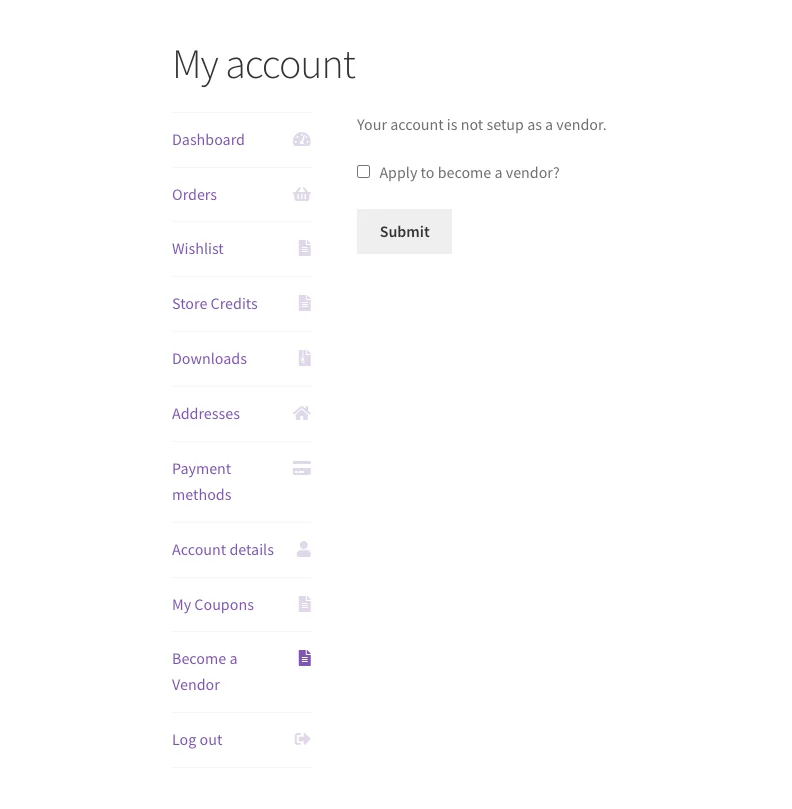
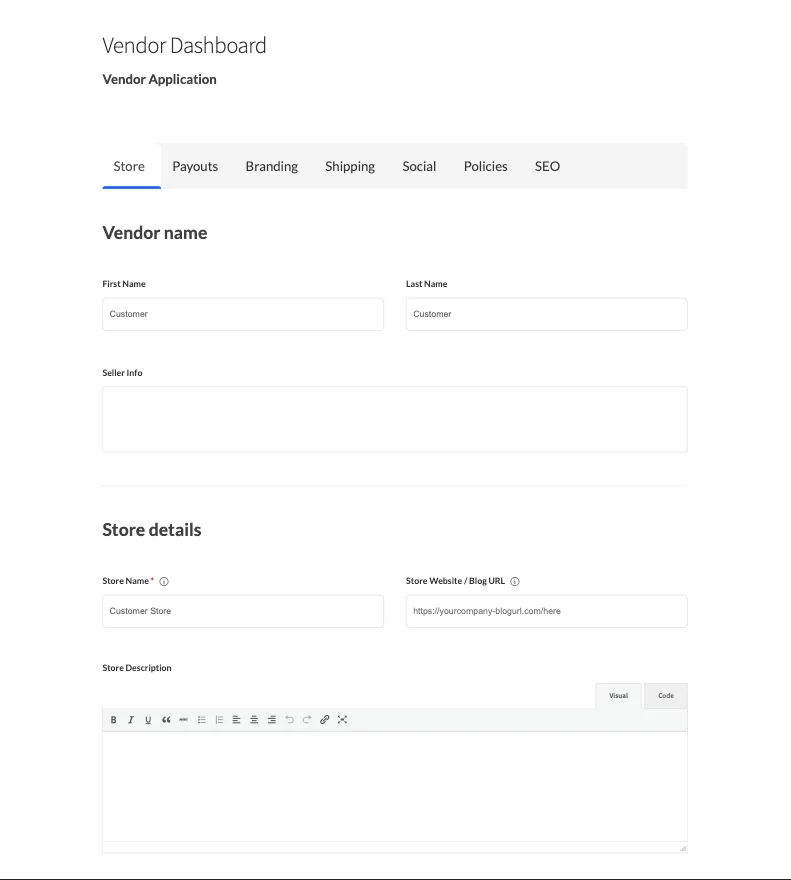
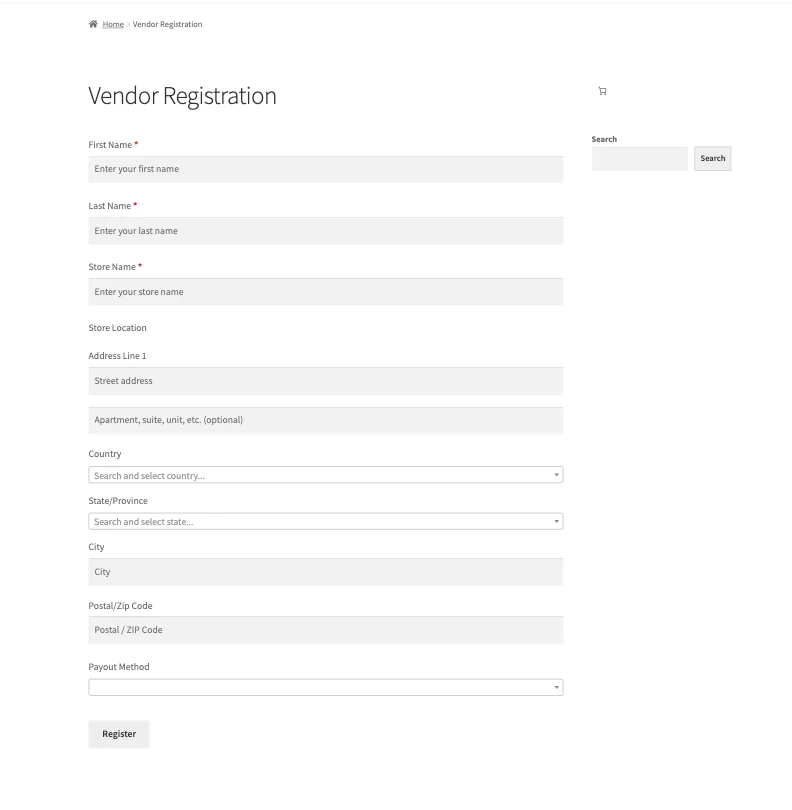
Step 1: Redirect to the Simple Layout
To use the simple checkbox layout, we need to tell your website to send users to the “Become a Vendor” section of their account page instead of the Vendor Dashboard.
Add the Redirect Code
You will need to add a small PHP code snippet to your site. This changes the redirect URL of the “Become a Vendor” button from /vendor_dashboard/ to /my-account/become-a-vendor/.
The Code Snippet:
You can copy and paste the official snippet here:
How to install it:
- Using WPCode (Recommended): Install the free WPCode Lite plugin, go to Code Snippets → + Add Snippet, choose PHP Snippet, paste the code, and set it to Active.
- Using functions.php: Alternatively, paste the code at the bottom of your child theme’s functions.php file.
Step 2: Clean Up the Manual Dashboard Access
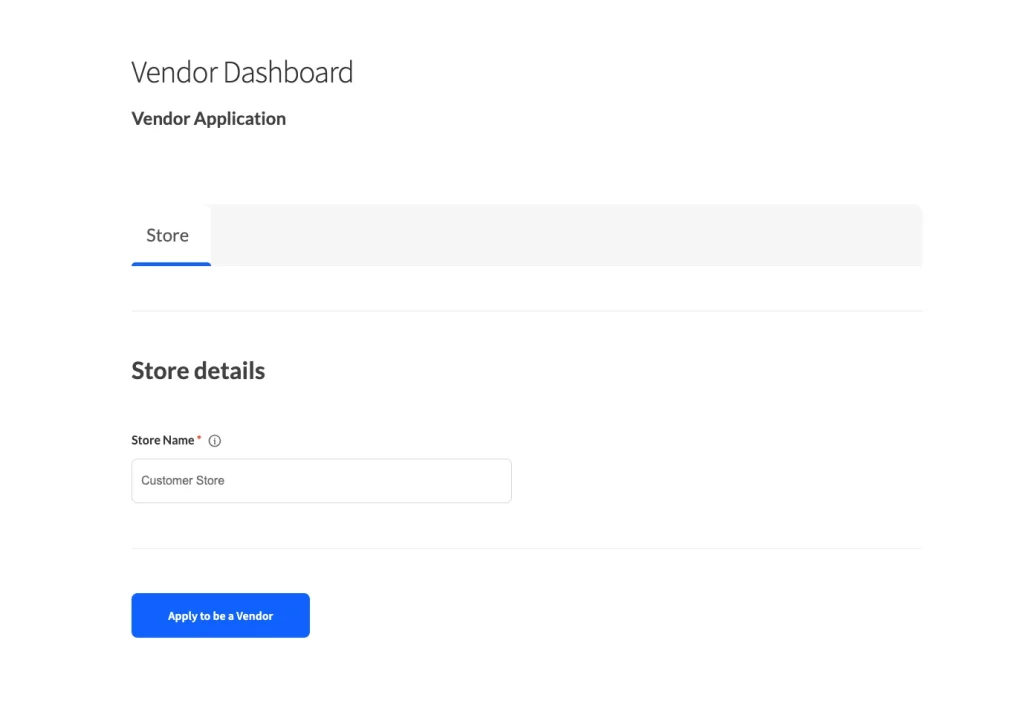
Even with the redirect active, a user might manually type your dashboard URL (e.g., mysite.com/vendor_dashboard/) into their browser. By default, WC Vendors Pro will still show registration forms there. To keep the experience consistent, you can hide these extra fields and subheadings.
Hide Form Fields
- Navigate to WC Vendors → Settings → Forms → Signup.
- Locate the Tabs and Store sections.
- Uncheck all the boxes in these sections.
- Save Changes. This ensures only the “Store Name” field remains.
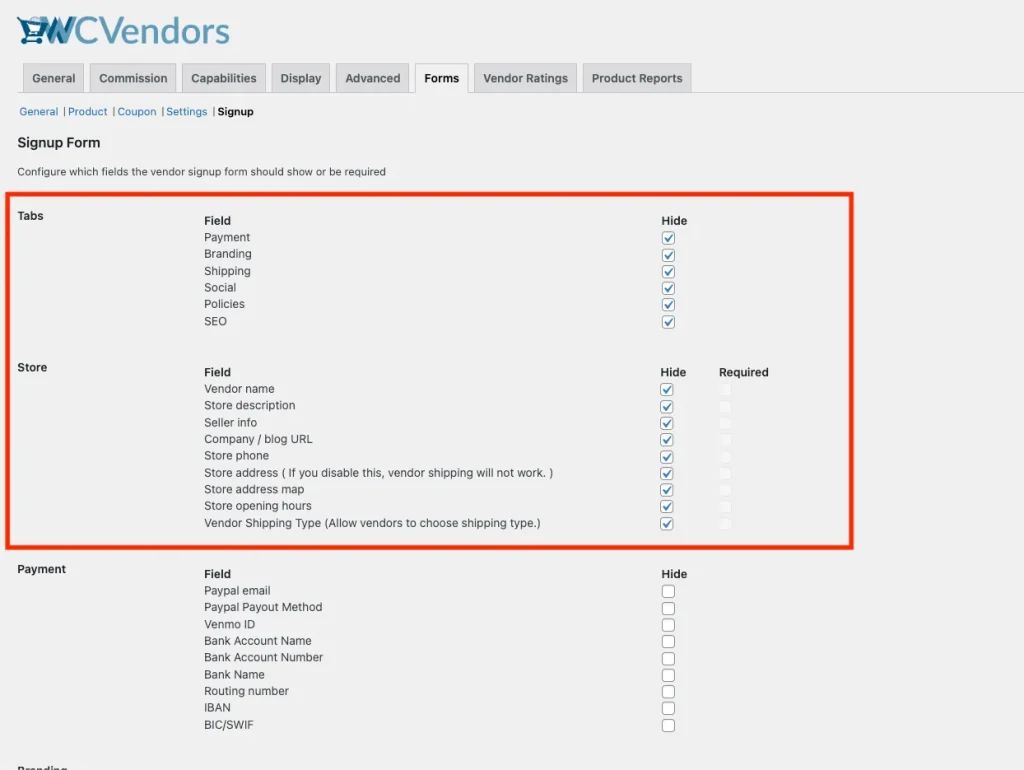
Hide the “Store Contact and Address” Subheading
To remove the remaining subheading for a truly clean look, add the following CSS to your site (via Appearance → Customize → Additional CSS):
form:has(#_wcv_vendor_application_id) .tabs-content.active > div:last-child {
    display: none;
}
What achieving this does: Now, if a user manually visits the dashboard before they are a vendor, they will only see the Store Name field (which is required), making manual access look as simple as the account page checkbox.
Step 3: Enable the Registration Checkbox
To ensure the simple signup actually appears on the My Account page:
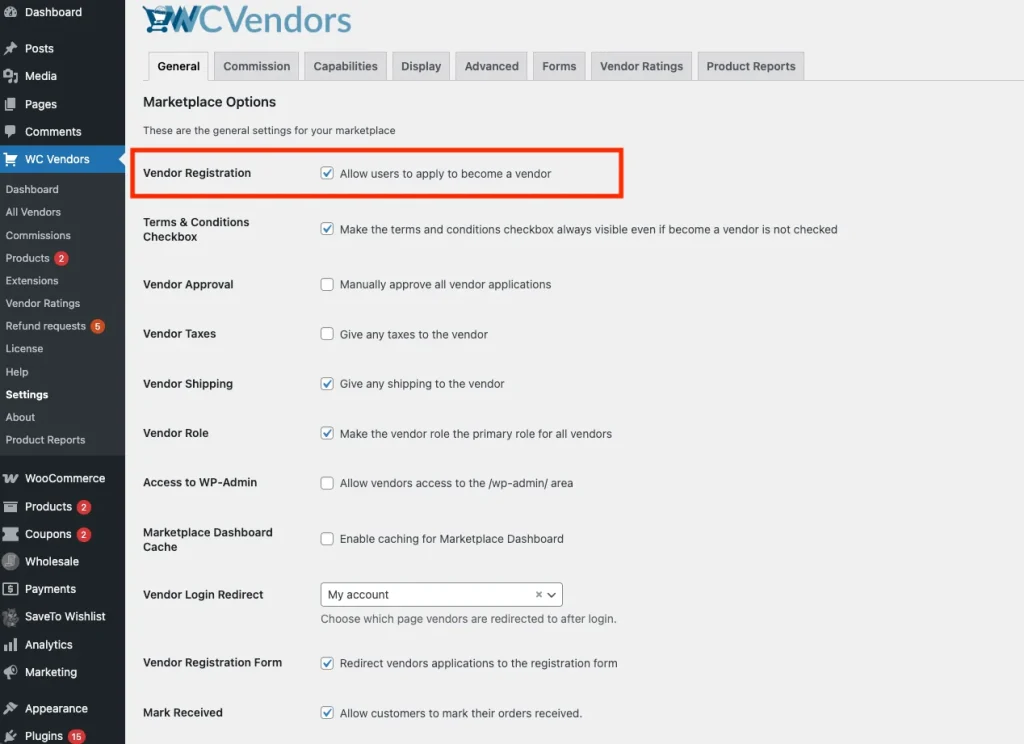
- Navigate to WC Vendors → Settings → General.
- Ensure that Vendor Registration is enabled.
- Log in as a standard customer and visit your My Account page to verify the Become a Vendor tab and checkbox are visible.
You’re All Set!
By using this redirect, cleaning up the signup form fields, and adding a touch of CSS, you’ve combined the easy onboarding of WC Vendors Free with the professional power of WC Vendors Pro. Users are now guided through a simplified application process, regardless of how they reach the registration area.
Here’s What to Verify Next
- Test the registration flow with a test customer account.
- Customize your registration labels under WC Vendors → Settings → Display → Labels.
Need help?
If you have a question or run into any issues, we’re here to help.
- Premium users: Open a support ticket
- Free users: Visit our community forum