
If your customers want to buy from sellers near them, or only care about vendors who sell a certain kind of product, a plain vendor list makes them scroll. This guide shows you how to turn on location filters, radius search, and category filters in WC Vendors Pro. Location filters narrow your vendor list by country, state, city, and postal code, and radius search finds the nearest vendors. Category filters let customers pick a product category on the vendor list, the shop page, and each vendor store.
Prerequisites
- WooCommerce and WC Vendors (free) must be installed and active.
- WC Vendors Pro must be installed and active.
- The category filter needs WC Vendors Pro 2.1.0 or later.
- Radius search and address autocomplete need a valid Google Maps API key. See the Google Maps Platform documentation for help generating one.
Prepare your marketplace for location search
Before you turn on the filters, check your vendor list page and your Google Maps settings.
- Open the page that lists your vendors.
- Make sure it uses the Pro shortcode
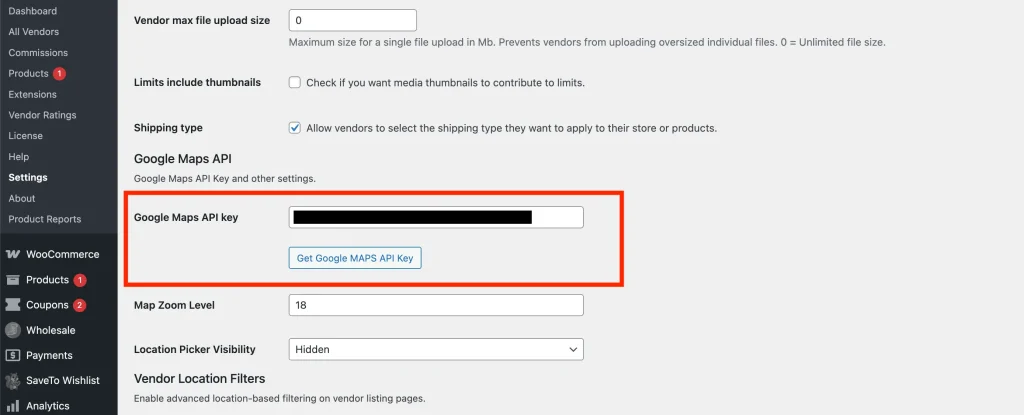
[wcv_pro_vendorslist]. - Go to WC Vendors → Settings → Forms → General.
- Paste your key into the Google Maps API key field.
- Click Save changes.
The filters in this guide don’t appear with the standard [wcv_vendorslist] shortcode.
Turn on vendor location filters
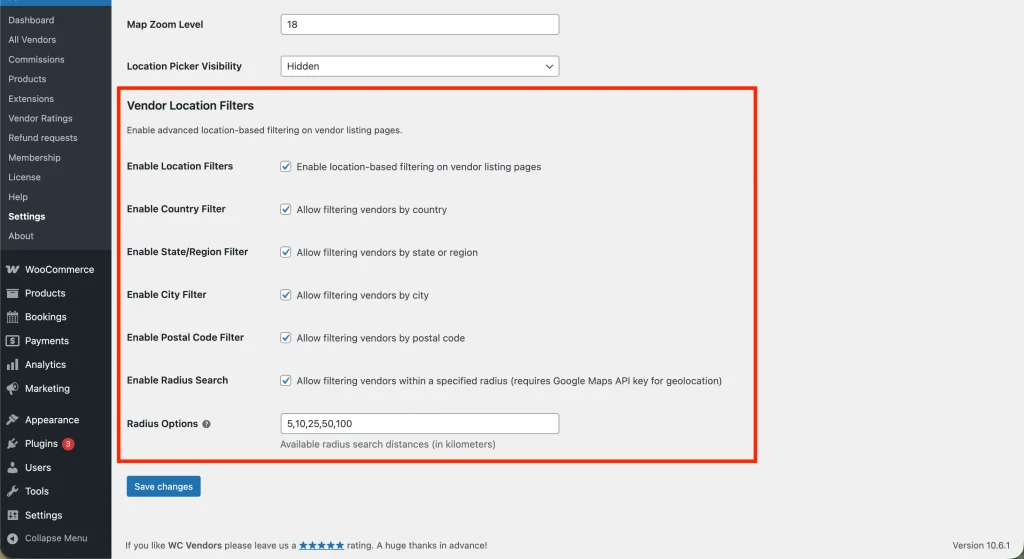
Pick which location filters customers see on your vendor list page.
- Go to WC Vendors → Settings → Forms → General.
- Find the Vendor Location Filters section.
- Check Enable Location Filters. This is the main switch for all location filters.
- Check each filter you want to offer:
- Enable Country Filter
- Enable State/Region Filter
- Enable City Filter
- Enable Postal Code Filter
- Click Save changes.
Set up radius search
Radius search lets a customer say “show me vendors within 25 km of me.”
- In the same settings area (Forms → General), check Enable Radius Search.
- In the Radius Options field, enter the distances you want to offer, in kilometers, separated by commas. For example:
5,10,25,50,100. - Click Save changes.
Radius search measures the distance from the customer to each vendor’s store address. Ask your vendors to fill in their store address, or they won’t show up in radius results.
💡 Important:
Your site must run on HTTPS for radius search to work. Browsers only share a customer’s location with secure sites.
Turn on category filters
The category filter adds a category dropdown to your vendor list page, your shop page, and every vendor store. It’s on by default, so check the setting if you want to confirm it or turn it off.
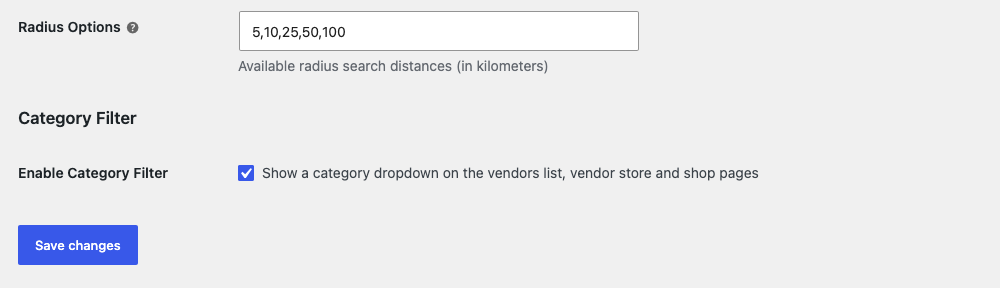
- Go to WC Vendors → Settings → Forms → General.
- Scroll to the Category Filter section, below Vendor Location Filters.
- Check Enable Category Filter. Uncheck it to hide the dropdown everywhere.
- Click Save changes.
How customers use location search
When location filters are on, a Filters button appears on your vendor list page. Clicking it opens the location options.
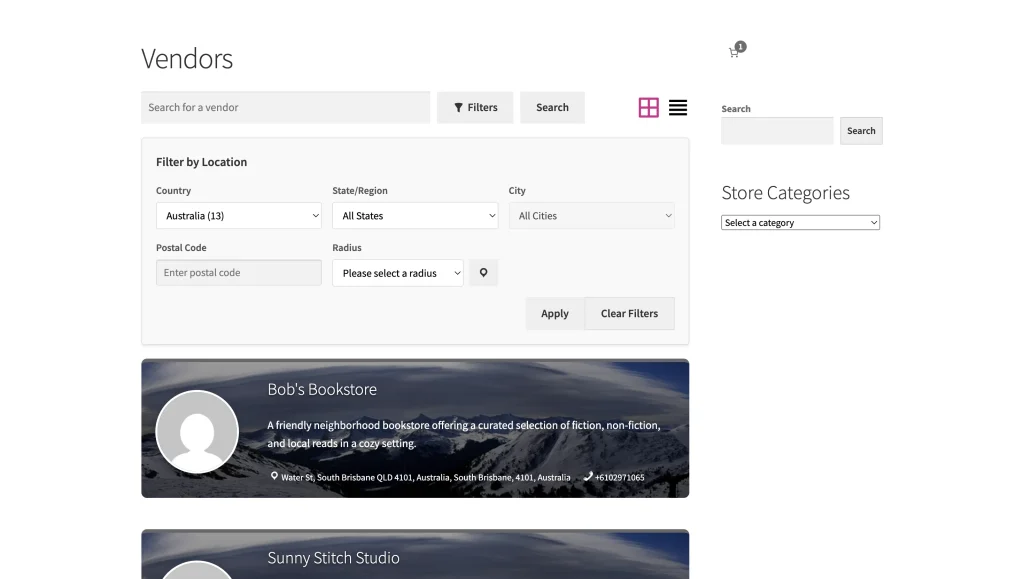
Linked dropdowns. The location dropdowns update each other. When a customer picks a country, the state list changes to match. When they pick a state, the city list shows only cities in that state.
Use my current location. Next to the Radius dropdown, customers can click the location pin icon to let their browser detect where they are. The icon shows only when radius search is on and a Google Maps API key is saved.
Address search. Customers can type a city name or postal code into the vendor search bar to find matching vendors.
💡 Tip:
To make sure vendor addresses map correctly, see the Google Maps API section of the Forms settings overview.
How customers filter by category
The category dropdown starts on All categories. Picking a category reloads the page right away, so customers don’t need to click a button.
On the vendor list page
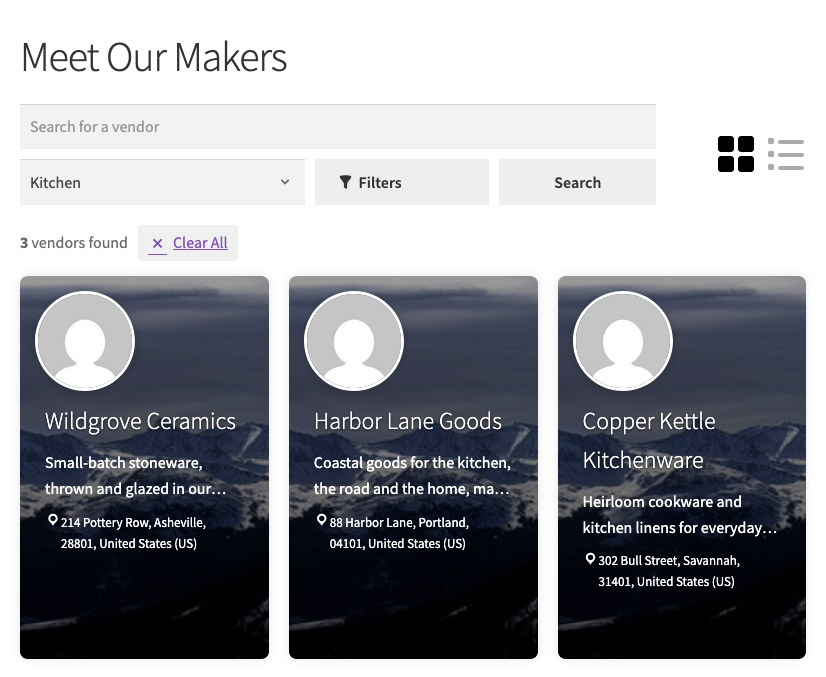
The dropdown sits in the vendor search row, with the Filters and Search buttons. When a customer picks a category, the list shows only vendors with published products in that category or any of its subcategories.
The chosen category stays in place as customers move through the pages of results. To see every vendor again, they can pick All categories or click Clear All.
On the shop page and vendor stores
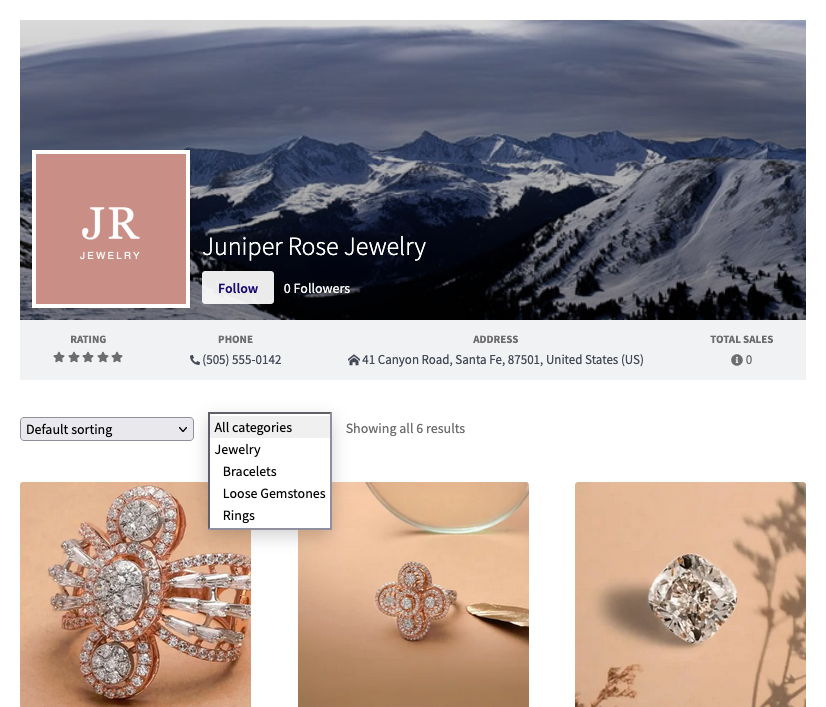
The dropdown appears above the product grid. On the shop page it lists your product categories. On a vendor store it lists only the categories that vendor sells in, so customers never pick a category with no products from that vendor.
If a vendor store or the shop page already shows the WC Vendors Pro Store Categories block or the (Legacy) WC Vendors Store Categories widget, the dropdown stays hidden. That way customers don’t see two category filters on the same page. The dropdown still shows when a category has no results, so customers can reset their choice.
Check your setup before you go live
Run a quick test with a vendor whose address and products you know.
- Visit your vendor list page.
- Click Filters and search by your test vendor’s postal code.
- Check that your test vendor appears.
- Pick one of your test vendor’s categories from the category dropdown.
- Check that your test vendor still appears.
- Open your test vendor’s store and check that the dropdown lists only that vendor’s categories.
FAQs and troubleshooting
➤ Why don’t I see the location filter panel on my page?
Check that your vendor list page uses [wcv_pro_vendorslist], not [wcv_vendorslist]. Then check that Enable Location Filters is on in your settings.
➤ Why don’t I see the category dropdown?
Check that Enable Category Filter is on. On a vendor store, the dropdown also stays hidden when the vendor has no published products, or when the page shows a Store Categories block or widget.
➤ The City or State dropdown is empty.
The State/Region dropdown stays greyed out until the customer picks a country, so turn on the Country filter if you use the State filter. Dropdowns also only list places where you have vendors. If no vendor is in New York, New York won’t appear in the State filter. If you have more than 50 vendor cities, the City filter shows a text box instead of a dropdown.
➤ “Use my current location” isn’t working.
Make sure your site runs on HTTPS. If it does, the customer may have blocked location access in their browser settings.
➤ Radius search results look wrong.
Ask your vendors to check their address. In the vendor dashboard, they go to Settings, open the Store tab, and check the Store Address field. Radius search needs an address that Google Maps can turn into map coordinates.
➤ Do I have to use all the filters?
No. Turn on only what fits your marketplace. A local marketplace might use only the Postal Code filter, while an international one might use only the Country filter.
➤ Does this work on mobile devices?
Yes. The filter panel stacks into a single column on small screens, so it’s easy to tap.
Need help?
If you have a question or run into any issues, we’re here to help.
- Premium users: Open a support ticket
- Free users: Visit our community forum