
Going away for a while? You can let shoppers know your store is taking a break without deleting your products or closing your account. Vacation mode in WC Vendors Pro lets you display a message on your store page, and optionally stop new purchases from going through while you’re away. This guide shows you how to turn it on, write your own message, and switch it back off when you’re ready.
Requirements
- WC Vendors Pro installed and activated
- WC Vendors (free) installed and activated
How to enable vacation mode
- Log in to your vendor dashboard and click Settings.
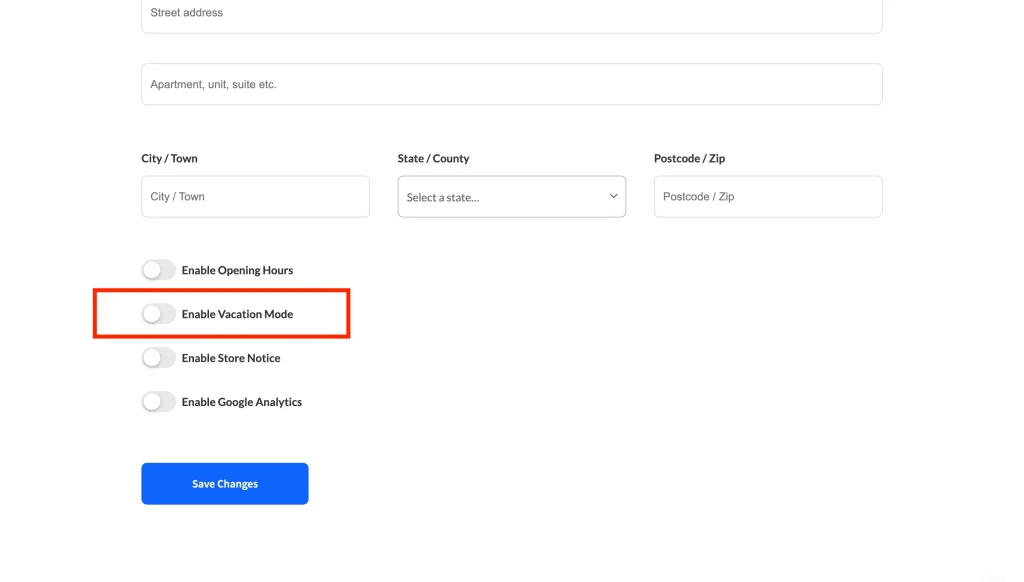
- Scroll down to the Enable Vacation Mode toggle (located between Enable Opening Hours and Enable Store Notice).
- Switch Enable Vacation Mode on.
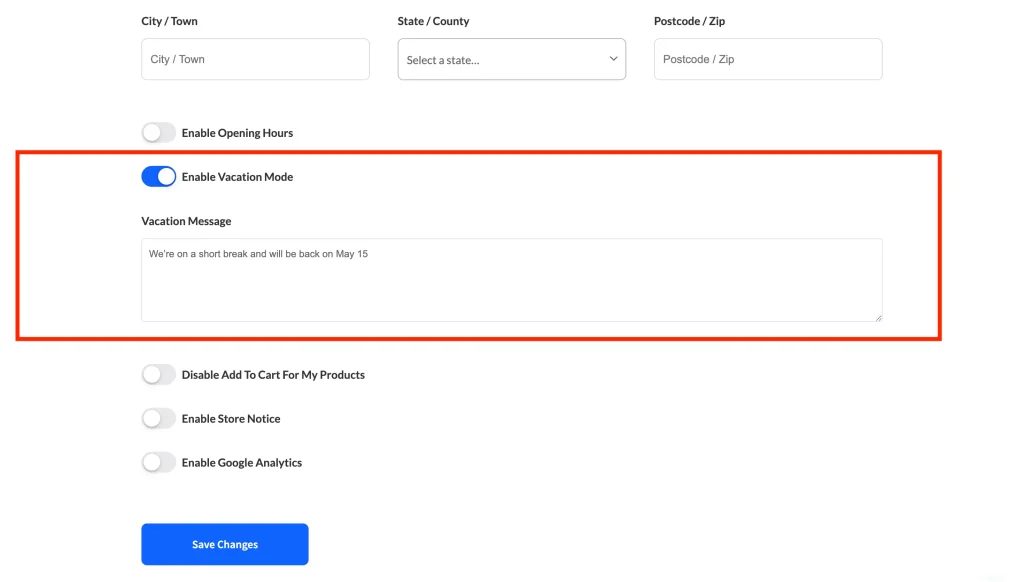
- (Optional) In the Vacation message field, type the message you’d like customers to see. If you leave it blank, a default message will appear: “This vendor is currently on vacation.”
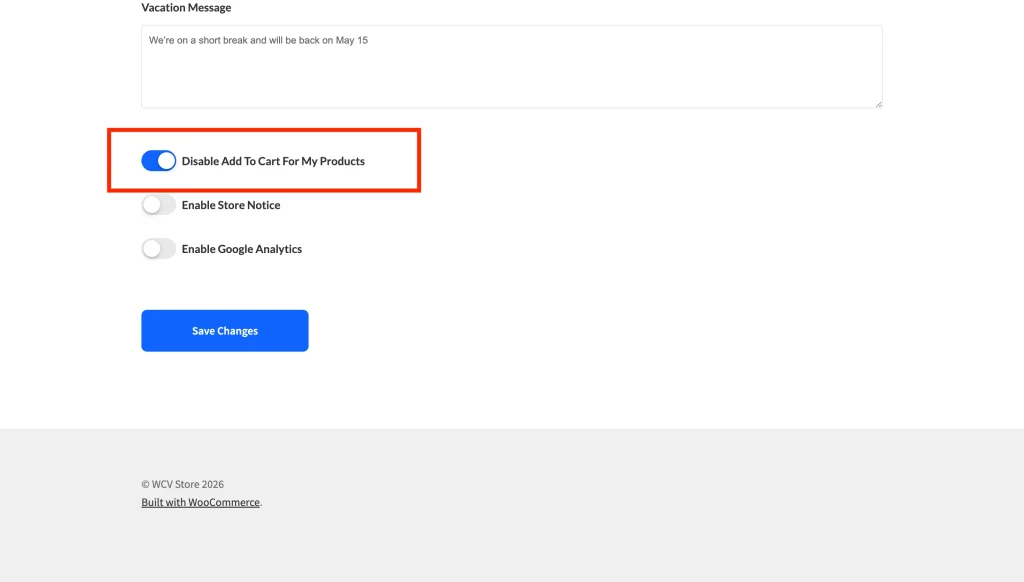
- (Optional) Switch Disable Add To Cart For My Products on if you want to stop customers from buying while you’re away. When this is on, the add-to-cart button is removed from all your product pages.
- Click Save Changes to apply your settings.
What your customers see
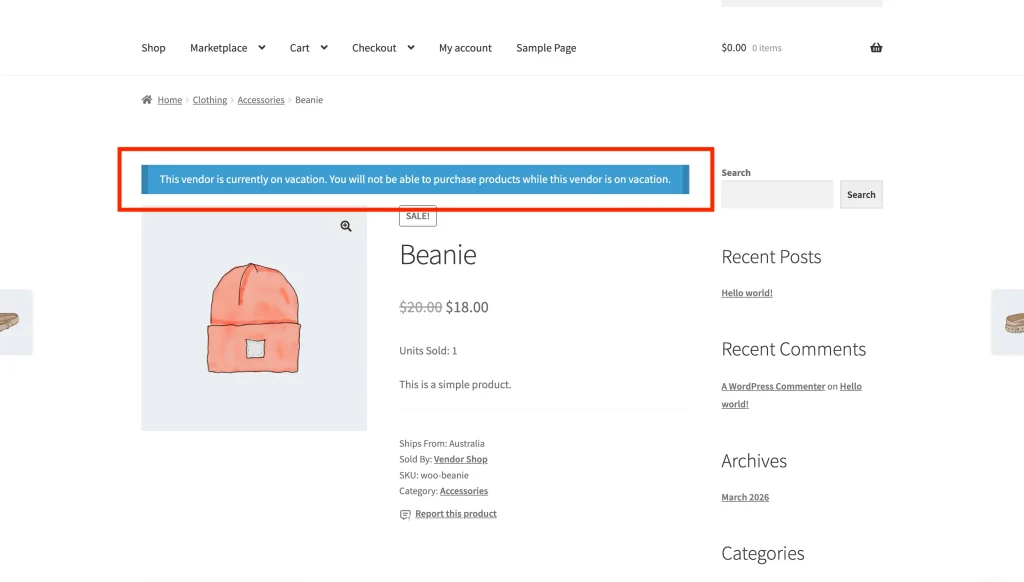
Once vacation mode is on, a notice appears at the top of your store page and on each of your product pages. If you wrote a custom message, that’s what shoppers see. If you left the field empty, they’ll see the default: “This vendor is currently on vacation.”
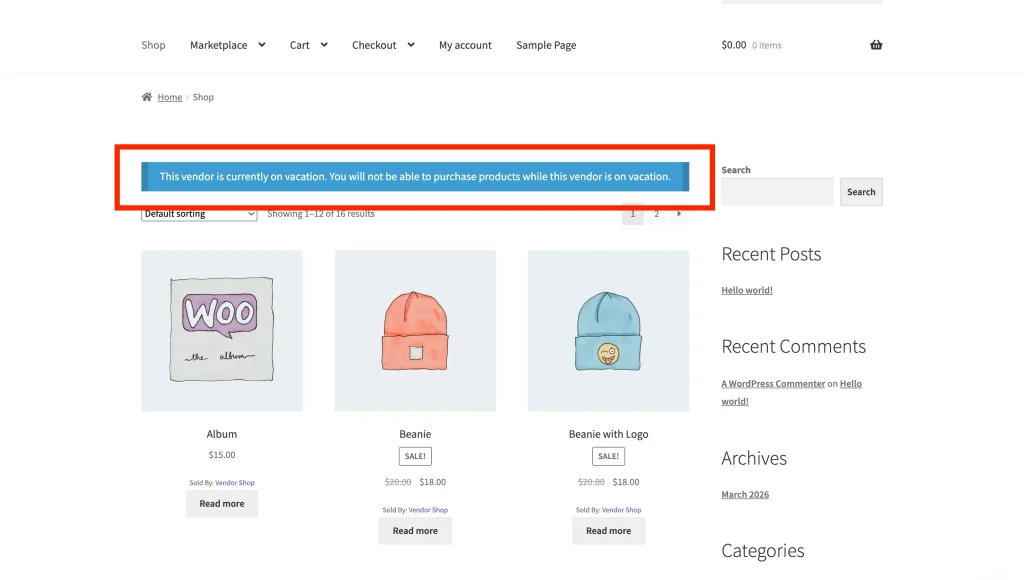
If you also switched Disable Add To Cart For My Products on, an extra line is added: “You will not be able to purchase products while this vendor is on vacation.” The add-to-cart button is also removed from your product pages, so no orders can be placed.
Your dashboard reminder
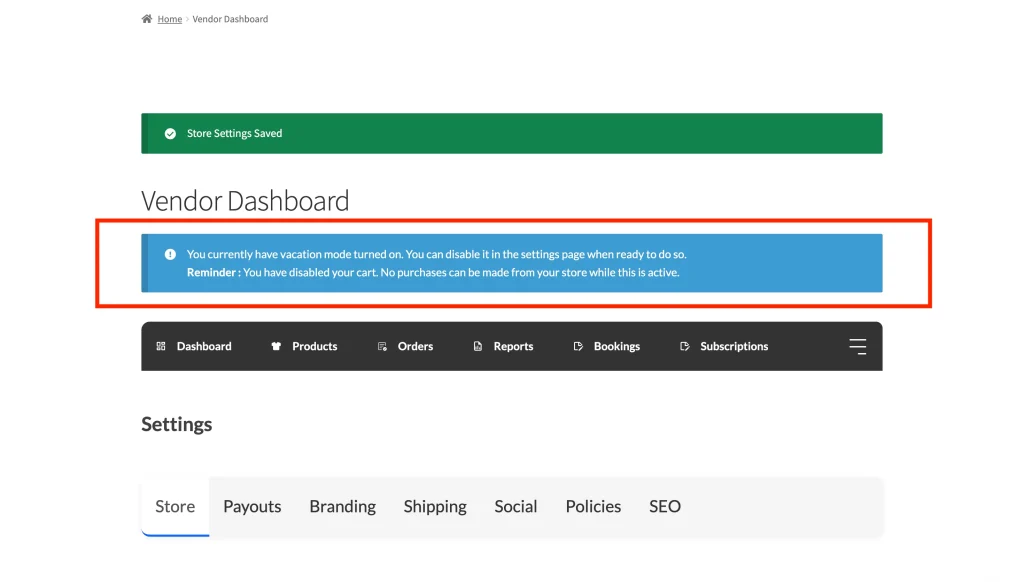
While vacation mode is active, you’ll see a reminder banner inside your vendor dashboard. It links straight to your settings page so you can turn vacation mode off without having to hunt for it.
If you’ve also disabled the cart, the reminder adds: “Reminder : You have disabled your cart. No purchases can be made from your store while this is active.”
Turning vacation mode off
When you’re back, go to your Settings page, switch Enable Vacation Mode off, and click Save Changes. Your store returns to normal straight away. Products are purchasable again, and the vacation notice disappears.
Troubleshooting
Vacation banner doesn’t appear on the storefront
Confirm you clicked Save Changes after switching Enable Vacation Mode on. If you use a caching plugin or CDN, clear the cache for your store and product pages so visitors see the updated banner.
Customers can still add products to the cart even though vacation mode is on
The Enable Vacation Mode toggle alone only shows the notice — it doesn’t block purchases. To stop new orders, also switch Disable Add To Cart For My Products on and click Save Changes.
Frequently asked questions
Can customers still buy my products while vacation mode is on?
That depends on whether you switched Disable Add To Cart For My Products on. If you did, the add-to-cart button is removed and customers can’t place orders. If you left it off, the vacation message shows but purchases can still go through.
What message shows if I leave the vacation message field blank?
A default message is used: “This vendor is currently on vacation.” If you’ve also disabled the cart, it adds: “You will not be able to purchase products while this vendor is on vacation.”
Will my products be hidden from search while vacation mode is on?
No, your products stay visible in your store and in search results. Vacation mode only shows a notice and (optionally) removes the add-to-cart button. Your listings stay up the whole time.
Need help?
If you have a question or run into any issues, we’re here to help.
- Premium users: Open a support ticket
- Free users: Visit our community forum