
Running a marketplace means a lot of small admin jobs: approving vendor applications, checking new products, and looking up how each vendor is selling. If you already work with an AI assistant like Claude or ChatGPT, you can ask it to do those jobs for you. This article shows the AI abilities in WC Vendors Marketplace, who can use them, and how to connect your assistant.
What you’ll need
- WordPress 6.9 or newer. It provides the WordPress Abilities API that AI abilities are built on.
- WC Vendors Marketplace 2.7.3 or newer. This free plugin adds all 10 WC Vendors abilities. WC Vendors Pro and the other add-ons don’t add abilities of their own.
- A connection between your AI assistant and your store. The easiest route is StoreAgent 1.1.9 or newer, with MCP turned on and your StoreAgent account connected. You can also use an MCP adapter plugin (see the WordPress MCP adapter guide).
- An AI assistant that supports MCP, such as Claude or ChatGPT.
- An Administrator or Shop Manager account. Your assistant acts as that signed-in user.
What AI abilities are
AI abilities are the actions an AI assistant can take in your marketplace, like “list my pending vendors” or “approve this product”. Some abilities only read your marketplace data. Others make changes, such as approving a vendor or updating a store profile.
Your assistant reaches these abilities through MCP (Model Context Protocol), the connection that lets an AI assistant talk to your store. StoreAgent, or an MCP adapter plugin, provides that connection. WC Vendors adds the marketplace abilities to it.
WC Vendors has no AI settings screen of its own. You connect your assistant and choose what it can do in StoreAgent.
Connect your AI assistant
Step 1: Connect your assistant through StoreAgent
- Go to StoreAgent > Settings > MCP and open the General sub-tab.
- Switch on Enable MCP for this store.
- Copy Your MCP endpoint URL.
- Add the URL to Claude or ChatGPT as a custom connector.
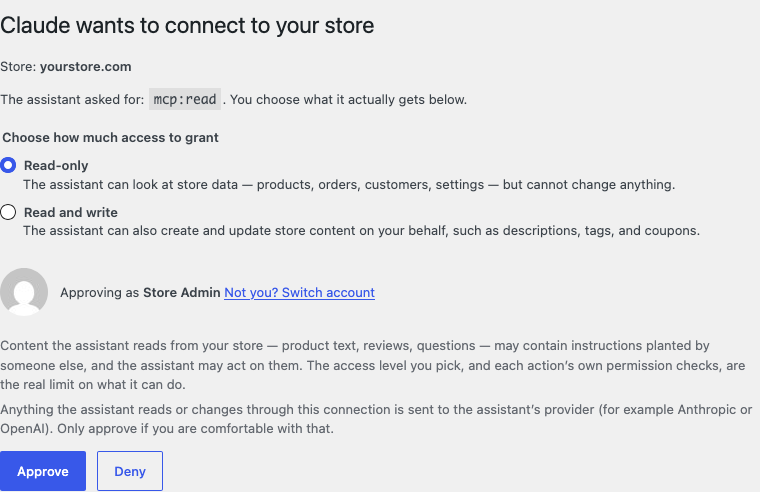
- Approve the connection on the approval page that opens in your store.
On the approval page, under Choose how much access to grant, you pick Read-only or Read and write. Pick Read-only if you only want your assistant to look things up. Pick Read and write if you also want it to approve vendors and products.
For the full walk-through, including the exact steps in Claude and ChatGPT, see connecting ChatGPT or Claude to your store with MCP.
Step 2: Check the WC Vendors abilities
- Go to StoreAgent > Settings > MCP and open the Abilities sub-tab.
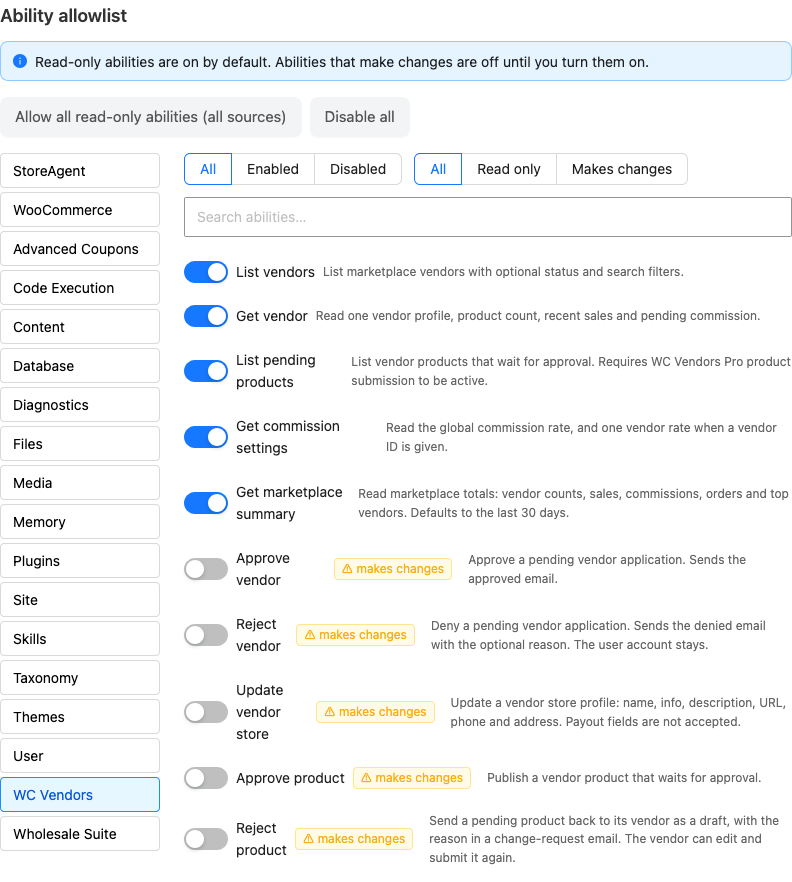
- Under Ability allowlist, click WC Vendors in the list of sources.
You see all 10 WC Vendors abilities. The 5 read-only abilities are on by default, so your assistant can look up vendors, products and sales straight away. The 5 abilities that make changes are off until you switch them on in Step 3.
Step 3 (optional): Let the assistant make changes
Important: write access lets your assistant change live marketplace data. It can approve or deny vendor applications, publish vendor products, send products back to vendors, and edit vendor store profiles. Vendors get the same emails as when you do these things yourself. Start with the read-only abilities, and review what your assistant plans to do before you approve a change.
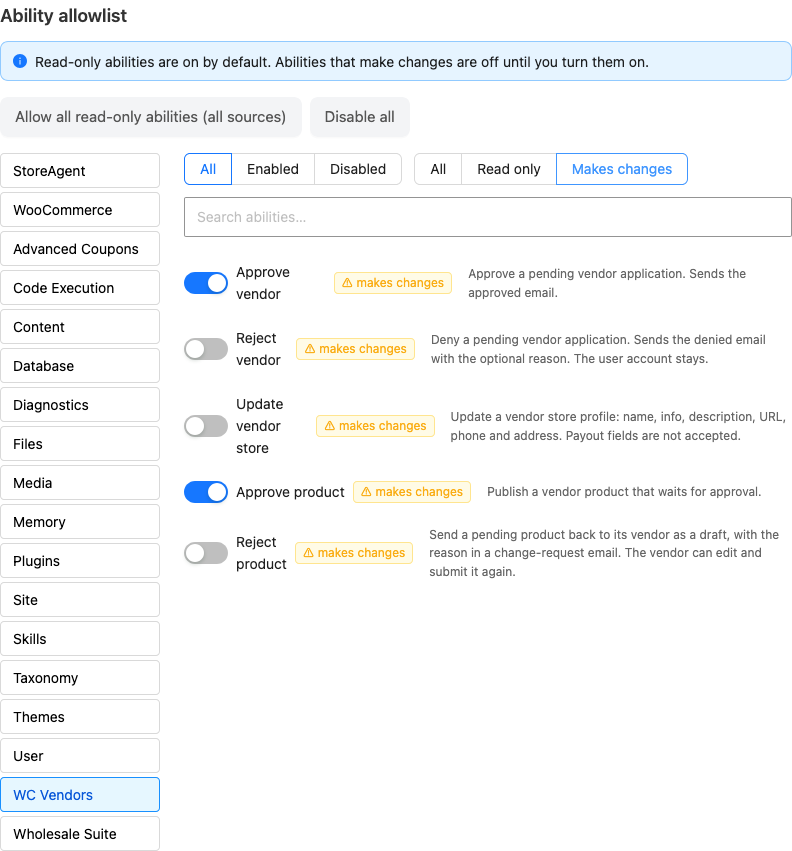
- On the Abilities sub-tab, with WC Vendors selected, set the filter to Makes changes.
- Switch on each ability you want your assistant to use.
Two separate settings control whether your assistant can make changes. Both must allow it:
The ability’s switch in the Ability allowlist. An ability that makes changes stays off until you switch it on. You can switch on only the ones you need, for example Approve vendor but not Update vendor store.
The connection’s access level. A connection you approved as Read-only can’t make changes, even with the switches on. To change it, revoke the connection on the Connections sub-tab and approve it again as Read and write.
What your assistant can do
WC Vendors Marketplace registers 10 abilities: 5 are read only and 5 make changes. Your assistant may show an ability by its technical name, shown under each ability.
| Ability | What it does | Type | Who can use it |
|---|---|---|---|
List vendorswcvendors/list-vendors | Lists your vendors, with an optional search and a filter for active, pending or inactive vendors. | Read only | Shop Managers and Administrators |
Get vendorwcvendors/get-vendor | Shows one vendor’s profile, product count, sales for the last 30 days and the commission waiting to be paid. | Read only | Shop Managers and Administrators |
List pending productswcvendors/list-pending-products | Lists products that wait for your approval, optionally for one vendor only. | Read only | Shop Managers and Administrators |
Get commission settingswcvendors/get-commission-settings | Shows your global commission rate. Give it a vendor and it also shows that vendor’s rate, and whether it’s a custom rate. | Read only | Shop Managers and Administrators |
Get marketplace summarywcvendors/get-marketplace-summary | Shows vendor counts, sales, orders and your top vendors for a date range. Give both a start and an end date. Without both, it covers the last 30 days. | Read only | Shop Managers and Administrators |
Approve vendorwcvendors/approve-vendor | Approves a pending vendor application and sends the vendor the approved email. | Makes changes | Shop Managers and Administrators |
Reject vendorwcvendors/reject-vendor | Denies a pending vendor application, with an optional reason, and sends the vendor the denied email. | Makes changes | Shop Managers and Administrators |
Update vendor storewcvendors/update-vendor-store | Changes a vendor’s store profile: shop name, seller info, description, store URL, phone and address. | Makes changes | Shop Managers and Administrators |
Approve productwcvendors/approve-product | Publishes a vendor product that waits for approval. | Makes changes | Shop Managers and Administrators |
Reject productwcvendors/reject-product | Sends a pending product back to its vendor as a draft, with an optional reason in a change request email. | Makes changes | Shop Managers and Administrators |
None of the abilities move money, pay vendors, change a commission rate or delete anything. Update vendor store doesn’t accept payout details, such as PayPal or bank details. It only changes the fields you mention.
Reject vendor keeps the user account. The person is no longer a pending vendor, and if they have no other role, they get your site’s default role.
Reject product doesn’t delete the product. The vendor can edit it and submit it again.
In Get marketplace summary, the commission figure is your marketplace’s share: revenue minus tax, shipping, vendor commission and sales of your own products. It isn’t the commission you owe vendors. To see what one vendor is owed, use Get vendor.
You can ask your assistant things like “which vendors are waiting for approval?”, “how much did my top 5 vendors sell last month?”, “what’s the commission rate for Bloom & Thread Studio?”, “approve the vendor application from Marcus Lee” or “send the Linen Tote Bag back to its vendor and ask for better photos”. It uses the matching ability to answer or act.
Who can use each ability
Every WC Vendors ability needs a Shop Manager or Administrator account. Your assistant acts as the WordPress user who approved its StoreAgent connection, so it gets exactly the permissions that user has in your store.
Vendors can’t use any WC Vendors ability, not even on their own store. The same goes for pending vendors and customers. If a vendor connects an assistant with their own account, it gets no access to marketplace data.
Troubleshooting
The assistant does not list any WC Vendors abilities
Update WC Vendors Marketplace to 2.7.3 or newer, and check that you run WordPress 6.9 or newer. Earlier versions don’t have AI abilities. If they still don’t appear, ask your developer to check wp-config.php for WCV_DISABLE_ABILITIES or WCV_DISABLE_REST_API. Either one turns the abilities off. See “Turn abilities off (for developers)” below.
WC Vendors is missing from the Ability allowlist in StoreAgent
Check the same two things: WC Vendors Marketplace 2.7.3 or newer, and WordPress 6.9 or newer. Then reload StoreAgent > Settings > MCP > Abilities.
The assistant cannot approve or change anything
Check these three things in order:
- The ability is switched on under WC Vendors in the Ability allowlist.
- The connection was approved as Read and write, not Read-only.
- The user who approved the connection is a Shop Manager or Administrator.
The assistant says the vendor is not pending
Approve vendor and Reject vendor only work on vendor applications that wait for approval. Applications wait for approval when Vendor Approval is checked under WC Vendors > Settings > General. If it’s unchecked, new vendors are approved straight away, so there’s nothing to approve. See General Settings Overview.
List pending products always comes back empty
Check Publish Approval under WC Vendors > Settings > Capabilities. When it’s checked, vendors publish products straight to your marketplace, so no products wait for approval. Uncheck it if you want to review new vendor products first. You don’t need WC Vendors Pro for this, even though the ability’s description in StoreAgent mentions it. See Capabilities settings.
The assistant says the usage limit has been reached
Check your usage under My Account > Plan Details in your StoreAgent account, then upgrade your plan or wait for it to renew. This error means your plan has used all of its AI Tasks or all of its AI chat replies. Each ability your assistant runs through StoreAgent uses 1 AI Task, including the WC Vendors abilities. See the StoreAgent pricing page for plan limits.
Frequently asked questions
Will the assistant approve vendors without asking me?
WC Vendors marks every ability that makes changes as destructive, which tells your assistant to ask you before it runs it. Your assistant decides how it asks, so check its settings. For full control, keep the abilities that make changes switched off until you need them.
Can my vendors use AI abilities?
No. Every WC Vendors ability needs a Shop Manager or Administrator account.
Can the assistant pay vendors or change commission rates?
No. Your assistant can read commission rates and pending commission, but no ability changes a rate, pays a vendor or changes payout details.
Do vendors still get their emails?
Yes. Approve vendor, Reject vendor and Reject product send the same emails as when you take these actions in your WordPress admin. Approve product publishes the product without an email.
Can I see what the assistant did?
With StoreAgent, open the Activity sub-tab under StoreAgent > Settings > MCP. It shows each ability your assistant called, whether it worked, and when, for the last 30 days.
Do I need StoreAgent?
No. StoreAgent is the easiest route, but you can also connect through an MCP adapter plugin. With an adapter, StoreAgent’s Ability allowlist doesn’t apply. The adapter decides what your assistant can do.
Turn abilities off (for developers)
To stop WC Vendors Marketplace from adding AI abilities, add this line to wp-config.php:
define( 'WCV_DISABLE_ABILITIES', true );This turns off the abilities only. The WC Vendors REST API keeps working.
WCV_DISABLE_REST_API turns off the WC Vendors REST API and the abilities together.
Need help?
If you have a question or run into any issues, we’re here to help.
- Premium users: Open a support ticket
- Free users: Visit our community forum