
Want to know where your commissions, sales, and refunds stand for the month? The Reports tab in your vendor dashboard pulls all of it into one screen. This article walks through each table, chart, and list on the tab and explains how refunds affect your totals.
Before you begin
- WooCommerce and WC Vendors installed and active on the marketplace you sell on
- At least one order for one of your products, so there’s data to show
You don’t need any extra setup beyond that. The Reports tab is always in your vendor dashboard menu. Its tables and chart fill in once you have orders.
Getting to the Reports tab
Open your vendor dashboard and click Reports in the navigation menu. You can also jump straight to the current month’s figures from the Sales Report: This month quick link on your dashboard home screen.
Filtering by date range
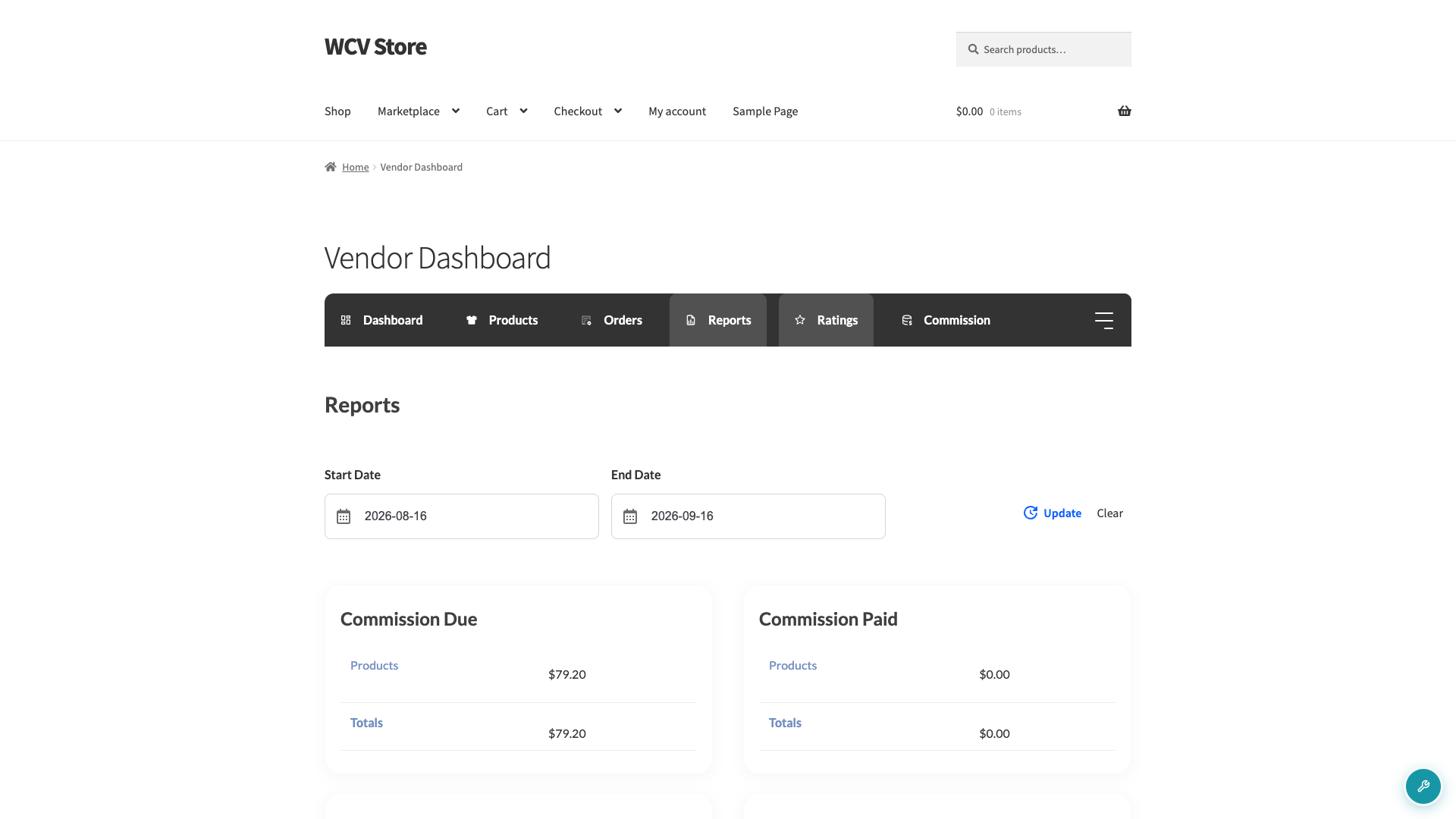
At the top of the Reports tab, you’ll find a Start Date and End Date field. By default, the tab shows data from the past month up to today. Enter your own dates and click Update to recalculate every table and chart on the page for that range. Click Clear to remove your custom range.
If you have no orders in the selected range, the tables show zero and the Orders Totals chart shows this message instead: No orders for this period. Adjust your dates above and click Update, or list new products for customers to buy.
The report places each order in the range by the date the order was placed. A refund stays with that original order date, not the date you issued the refund.
Marketplace admins using WC Vendors Pro can change the default range at WC Vendors → Settings → Display → Vendor dashboard → Dashboard Date Range. The options are Annually, Quarterly, Monthly, Weekly, and Daily.
Commission Due and Commission Paid
Below the date picker, two tables break down your commission for the selected range: Commission Due (what you’re still owed) and Commission Paid (what’s already been paid out). See How Commissions Work in WC Vendors? for how these figures are calculated.
Both tables always show a Products row and a Totals row. A Tax row appears when your marketplace admin turns on the Vendor Taxes setting. A Shipping row appears when your marketplace admin turns on the Vendor Shipping setting, which needs WC Vendors Pro. The Totals row only adds tax and shipping when their rows are shown.
The Gross Sales Report table
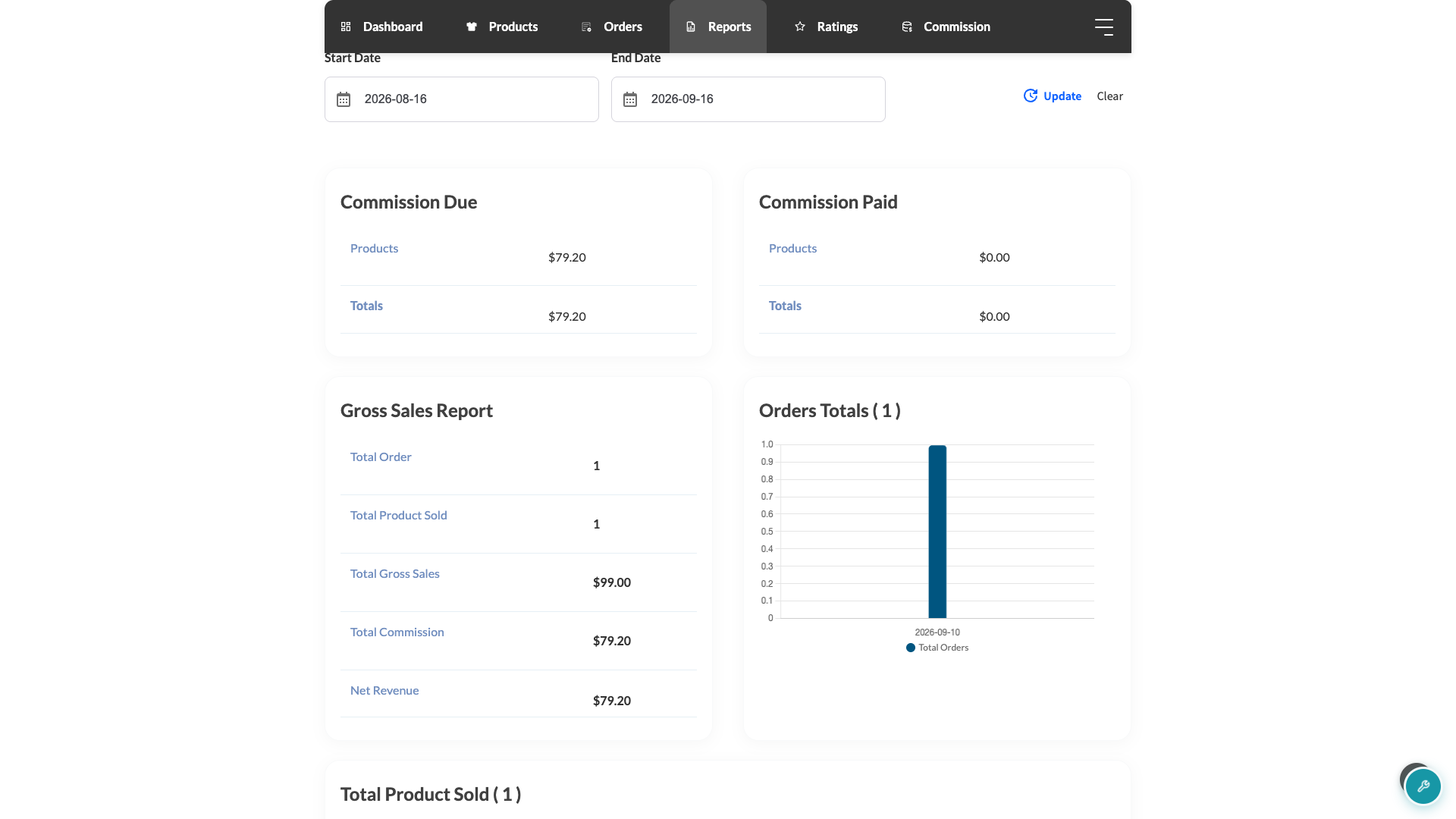
This table gives you a single-glance summary of the selected date range.
| Row | What it shows |
|---|---|
| Total Order | The number of orders that included one of your products in the selected range. |
| Total Product Sold | The number of product units sold in the selected range. Refunded units still count here. |
| Total Gross Sales | Your product sales across every order the tab lists, plus any tax and shipping passed to you, before any refunds. |
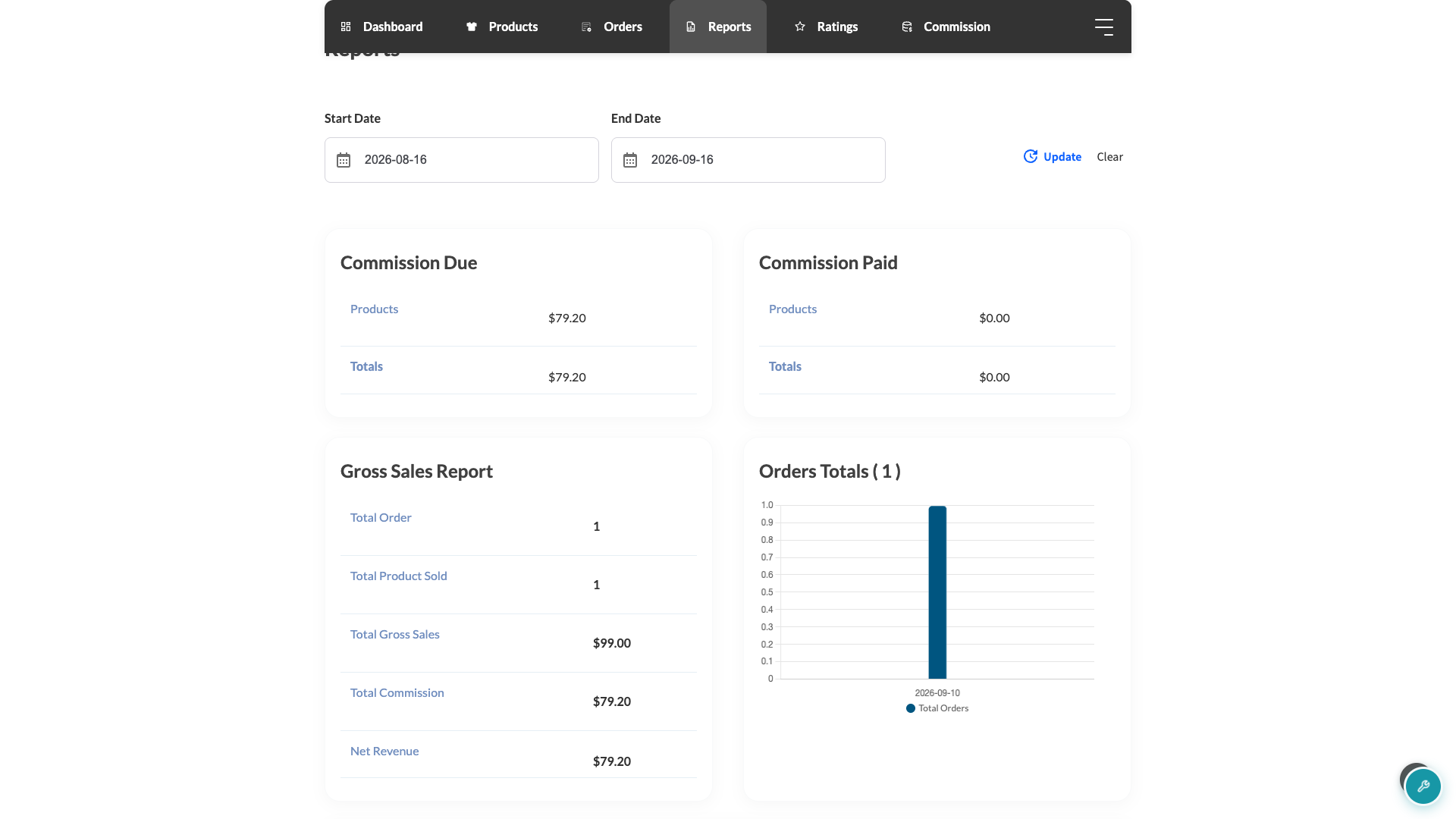
| Total Refunded Sales | The value of your refunded products in the range. This row only appears when there’s at least one refund to show. |
| Total Commission | Your commission for the range, including any tax and shipping passed to you. Refunded products are left out. |
| Net Revenue | Total Commission minus any tax and shipping passed to you. This is usually your commission on product sales alone. See the note below the table for one exception. |
Total Gross Sales doesn’t change when a product is refunded. It counts every order the tab lists, including any tax and shipping passed to you, so use it to check your sales volume before refunds.
By default, the Reports tab leaves out orders that were fully refunded. They appear only when your marketplace admin turns on Show reversed orders under WC Vendors → Settings → Commission. That setting also shows refunded orders on your Orders tab. If you use WC Vendors Pro, fully refunded orders do not show on the Reports tab or the Orders tab, even when Show reversed orders is on. Partly refunded orders always appear, and their refunded products count in Total Refunded Sales.
Your marketplace admin can also turn on tax or shipping for your account only. In that case, Total Commission and Net Revenue include that tax and shipping, and the Tax and Shipping rows don’t show.
Total Refunded Sales uses the refund amount recorded on the order. If your commission for a product was reversed but the order has no refund recorded for that product, the row counts the product’s full line total instead.
The Orders Totals chart
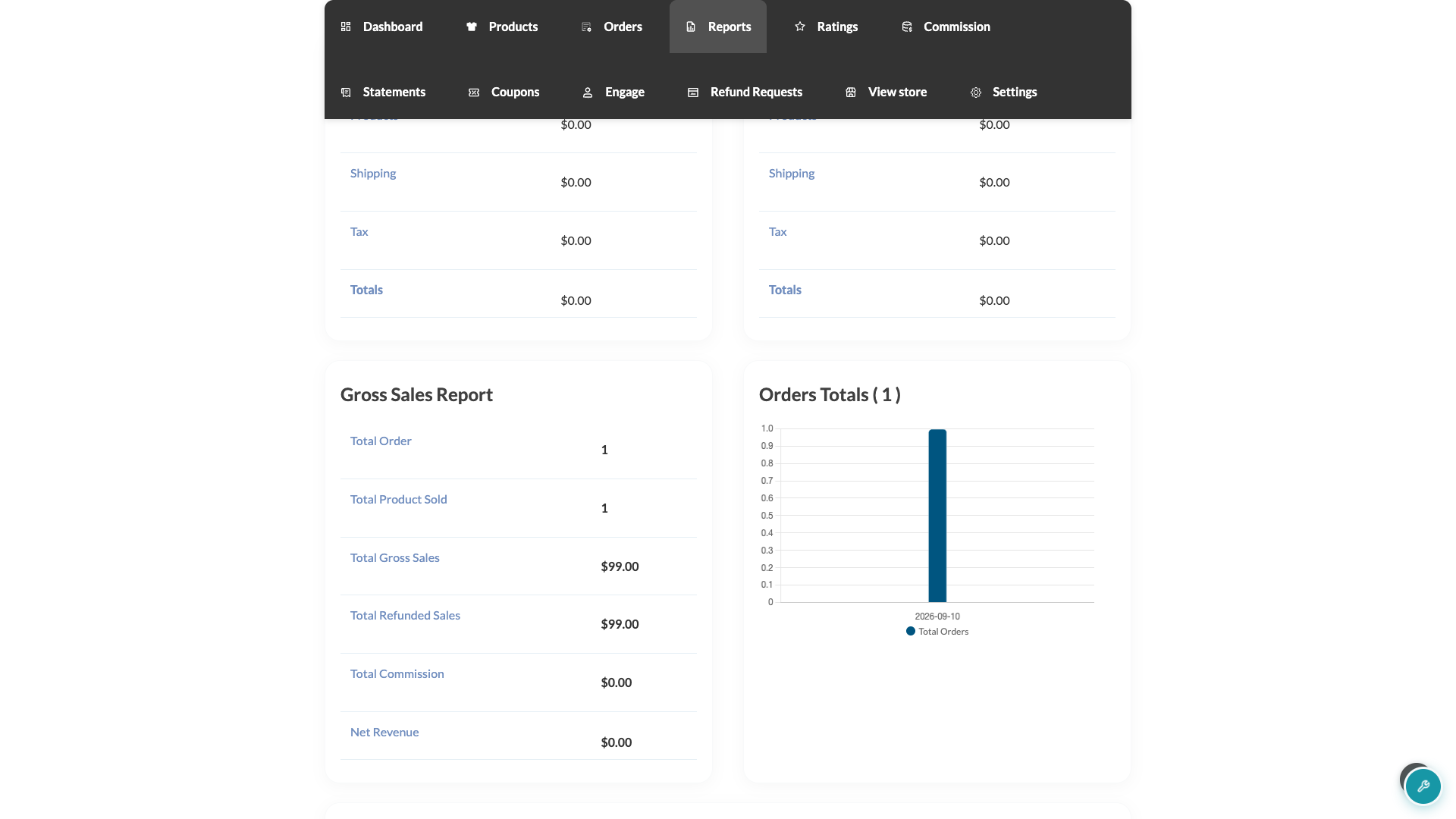
Next to the Gross Sales Report table, the Orders Totals chart plots your order count across the selected date range, so you can spot busier and quieter days at a glance.
With WC Vendors Pro, a Total Product Sold pie chart further down the page shows how many units of each product you sold in the range. The free version of WC Vendors doesn’t include this chart.
WC Vendors Pro also adds two lists at the bottom of the tab. Recent Orders lists your orders from the selected range. Recent Products lists your latest products. Each list has a View All link that opens your full Orders or Products page. If your marketplace admin turns off your Orders or Products page in WC Vendors Pro, that list’s heading and View All link don’t show.
Troubleshooting
I don’t see a Total Refunded Sales row.
Ask your marketplace admin to turn on Show reversed orders under WC Vendors → Settings → Commission. Without it, fully refunded orders don’t appear on the Reports tab. Partly refunded orders always appear.
If you use WC Vendors Pro, fully refunded orders do not show on the Reports tab or the Orders tab, even when Show reversed orders is on.
If the setting is already on, widen your date range. Check that the refunded order was placed within the dates you entered. The report groups refunds by the original order date, not the refund date. The row only appears when there’s a refund to show for the selected range.
My Total Commission looks lower than I expected after a refund.
Check Total Gross Sales to see your sales value before refunds. Total Commission and Net Revenue leave out refunded products, so a refund lowers both.
Even a partial refund on a product removes that product’s full commission from Total Commission and Net Revenue. For example, if a customer gets a refund for one of three units, the commission for all three units drops out. Total Refunded Sales still shows only the amount that was refunded.
I don’t see a Tax or Shipping row under Commission Due or Commission Paid.
Ask your marketplace admin to check two settings under WC Vendors → Settings → General. The Tax row needs Vendor Taxes turned on. The Shipping row needs Vendor Shipping turned on, which is only available with WC Vendors Pro. The two settings are independent, so you can see one row without the other.
Related articles
- How the vendor dashboard works
- Vendor Order Management
- Vendor Product Management
- How Commissions Work in WC Vendors?
Frequently asked questions
Why did my commission totals change after I updated WC Vendors?
Starting with WC Vendors 2.7.1, Total Commission and Net Revenue leave out refunded products. Total Gross Sales still counts refunded products in every order the tab lists. Fully refunded orders only appear when your marketplace admin turns on Show reversed orders under WC Vendors → Settings → Commission. With WC Vendors Pro, they stay hidden even when this setting is on.
Can I see a custom date range instead of the default?
Yes. Enter any Start Date and End Date at the top of the Reports tab and click Update. Every table and chart on the page recalculates for that range.
Why don’t I see a product breakdown chart?
The Total Product Sold pie chart is a WC Vendors Pro feature. On the free version, you still see the Gross Sales Report table and the Orders Totals chart.
Can my marketplace admin hide the Reports tab?
No. The Reports tab is always in your vendor dashboard menu. The Commission management setting in WC Vendors Pro hides the Commission tab, not the Reports tab.
Need help?
If you have a question or run into any issues, we’re here to help.
- Premium users: Open a support ticket
- Free users: Visit our community forum