
Curious where the star ratings your customers leave actually show up? Once a shopper rates one of your products, that review appears in two places in your Vendor Dashboard: a short preview on your Dashboard home screen, and a full list in the dedicated Ratings tab. This article covers what each view shows you, who can act on a rating, and how a marketplace admin can turn the whole ratings system off if it’s not needed.
Before you begin
- WC Vendors Pro must be active on the site. The Ratings tab, the Ratings widget, and the admin-side ratings screen are all part of Pro, not the free WC Vendors plugin.
- At least one customer has left a star rating on one of your products. Until then, the dashboard home panel shows “No ratings yet.” and the Ratings tab shows “No ratings found.”
How ratings reach your dashboard
Customers leave a rating from the Orders list in their My Account page, by clicking Leave Feedback next to an eligible order (the button reads Revise Feedback instead if they already rated that order), as covered in Vendor Dashboard Overview. Each rating is a 1 to 5 star score, a short title, and optional comments. It’s tied to the specific vendor, product, and order it was left on. From there, WC Vendors Pro shows that rating in your dashboard automatically. There’s nothing you need to do to collect or publish it.
Ratings on your dashboard home
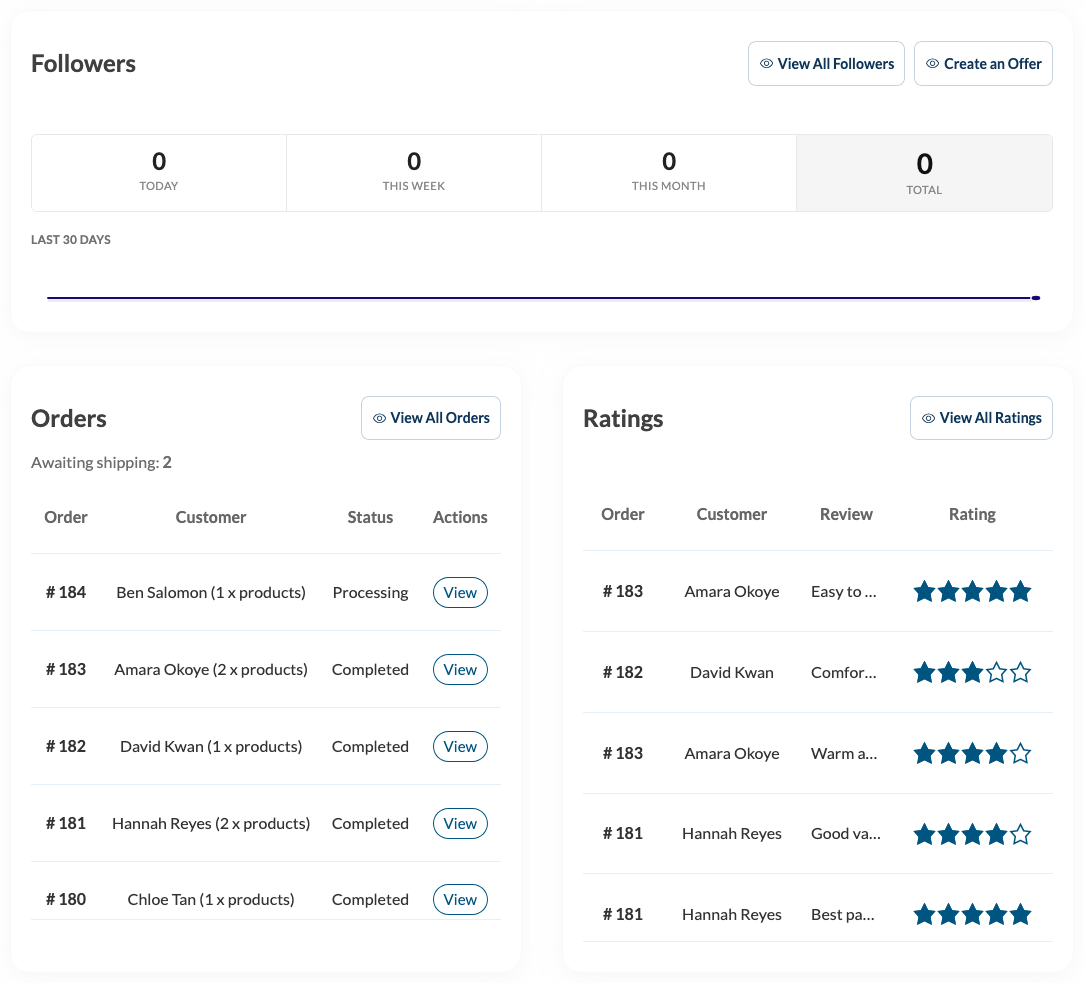
Your Dashboard home screen (the Dashboard tab) shows a Ratings panel next to your recent orders, listing your 5 most recent reviews. Each row shows the order number, the customer’s name, the review title, and the star rating. Click View All Ratings to open the full Ratings tab. If you haven’t received any ratings yet, this panel shows “No ratings yet.” instead of a table.
The Ratings tab
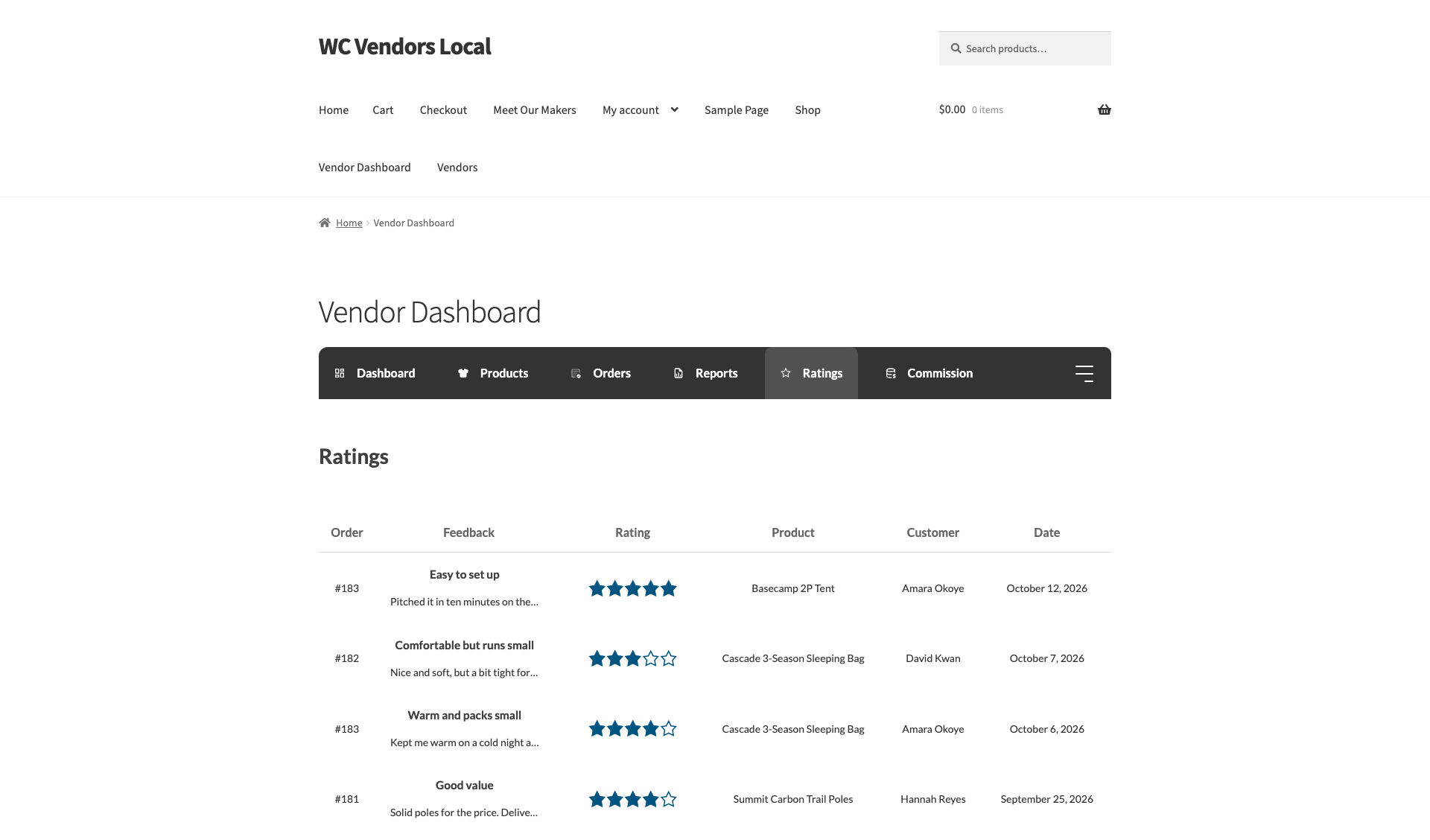
Open the Ratings tab from your dashboard navigation to see every rating you’ve ever received, not just the 5 most recent. The tab is read-only. You can’t reply to, edit, or delete a rating from here.
| Column | What it shows |
|---|---|
| Order | The order the rating was left on |
| Feedback | The rating title and the customer’s comments |
| Rating | The star rating, from 1 to 5 |
| Product | The product the rating was for. Shows “Deleted Product” if that product no longer exists |
| Customer | The customer’s name. Shows “Unknown Customer” if their account was deleted |
| Date | When the rating was left |
For marketplace admins
Reviewing ratings across your marketplace
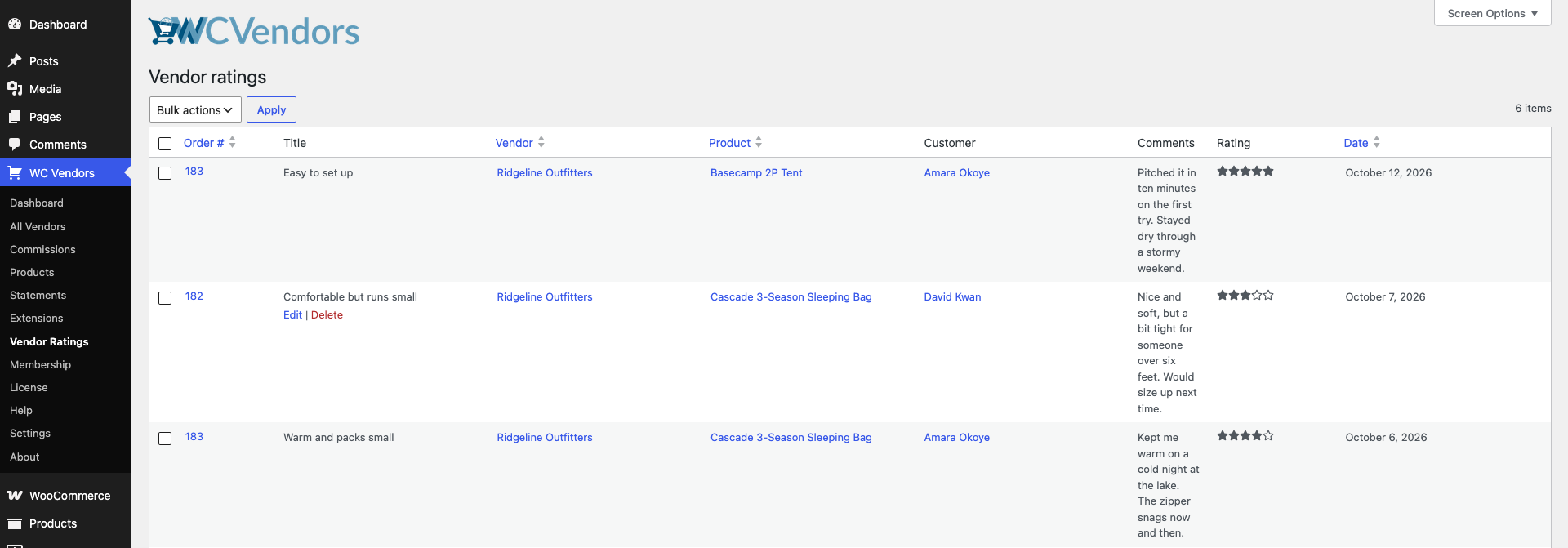
While vendors only see their own ratings, you can see every rating from every vendor in WC Vendors → Vendor Ratings in your WordPress admin. Unlike the vendor-facing tab, this admin screen gives you Edit and Delete row actions on each rating, so you can correct or remove one if it needs moderating. To change how ratings work, such as which order status lets customers leave feedback, see How to configure vendor ratings.
Turning ratings off
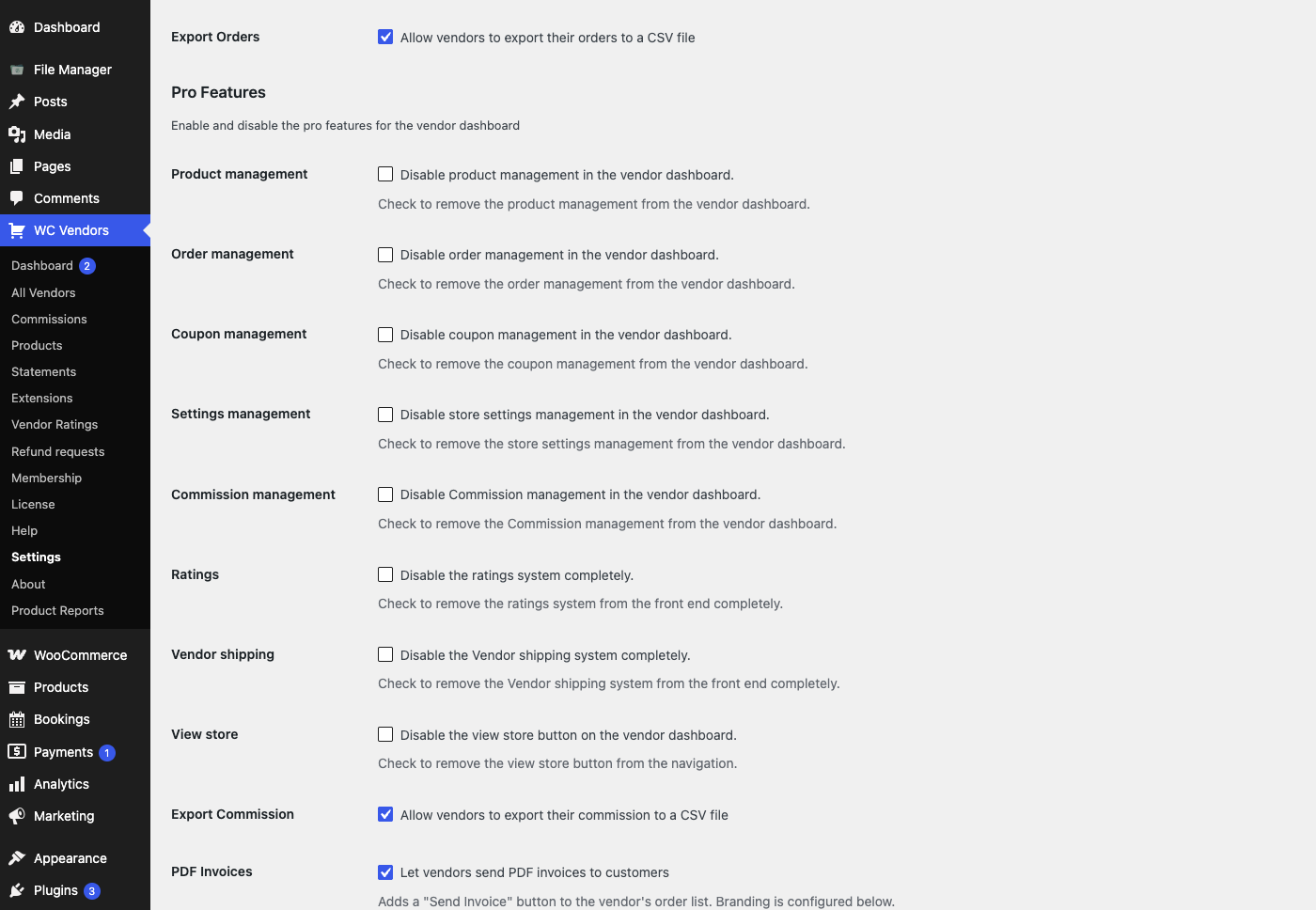
Ratings are on for every vendor by default. To turn off the ratings system for your whole marketplace:
- Go to WC Vendors → Settings.
- Open the Capabilities tab (General section).
- Check the Ratings box under Pro Features.
- Click Save changes.
When you check this box, WC Vendors hides all ratings features:
- Vendors lose the Ratings tab and the Ratings panel on their dashboard home.
- Customers no longer see the Leave Feedback button, and the feedback form stops working, so they can’t leave new ratings.
- Store pages no longer show the ratings link or the store ratings page, and product pages no longer show the vendor ratings tab.
- The ratings shortcodes (the short codes in square brackets you can add to a page to show ratings or the feedback form) stop working.
- The WC Vendors → Vendor Ratings admin screen disappears, so you can’t moderate ratings until you uncheck the box.
Troubleshooting
The Ratings tab or Ratings panel is missing from a vendor’s dashboard. Make sure WC Vendors Pro is active. Then make sure the Ratings box under WC Vendors → Settings → Capabilities → Pro Features is not checked.
A rating shows “Deleted Product”, “Unknown Customer”, or “Guest” instead of a name. This is expected. By default, WC Vendors keeps the rating after the product or customer account is removed. It shows “Deleted Product” for a removed product. For a deleted customer account, the Ratings tab shows “Unknown Customer” and the dashboard home panel shows “Guest”. If the Delete ratings option is on under WC Vendors → Settings → Vendor Ratings, the rating is deleted when the product is permanently deleted. A product in the trash is not permanently deleted, so its rating stays.
Frequently asked questions
Can I reply to a rating from my dashboard?
No. The Ratings tab is view-only for vendors. It has no reply option.
Can I remove a bad rating myself?
Not from the vendor dashboard. Only a marketplace admin can edit or delete a rating, from WC Vendors → Vendor Ratings in the WordPress admin.
If I turn off ratings in Capabilities, do I lose existing reviews?
No. The setting hides the ratings features, but it doesn’t delete anything. Your reviews stay in place and reappear if you turn the setting back on.
Related articles
Need help?
- Premium users: Open a support ticket
- Free users: Visit our community forum