
Selling on a WC Vendors marketplace? The vendor dashboard is where you run your store: you add products, ship orders, check your sales and update your store details. This guide walks you through each dashboard tab, what it shows, and which tabs need WC Vendors Pro or an add-on.
What is the vendor dashboard?
The vendor dashboard is the front-end control panel for sellers on a WC Vendors marketplace. From one page, you can add products, process orders, track sales and update your storefront. You never need access to the WordPress admin area.
Vendor dashboard tabs
The tabs you see depend on the plugins your marketplace runs and on the settings your marketplace admin picks. The admin can turn some tabs off, and add-ons can add tabs of their own.
| Tab | What you do there | Available with |
|---|---|---|
| Dashboard | See a snapshot of this month’s sales, your latest orders and your setup progress | WC Vendors |
| Products | Add, edit, view and delete your products | WC Vendors |
| Orders | View orders, add notes and tracking numbers, and mark orders as shipped | WC Vendors |
| Reports | Check your sales, refunds and commission for a date range | WC Vendors |
| Ratings | Read the star ratings and feedback customers leave for your products | WC Vendors Pro |
| Commission | See the commission you earn on each order | WC Vendors Pro |
| Statements | View and download your monthly commission statements | WC Vendors Pro. The admin can turn statements off |
| Coupons | Create discount coupons that work only on your products | WC Vendors Pro, when WooCommerce coupons are on |
| Refund Requests | Review refund requests from your customers | WC Vendors Stripe Connect |
| View store | Open your public store page | WC Vendors |
| Settings | Update your store details, payout method and API credential and, with WC Vendors Pro, branding, shipping, social links, policies and SEO | WC Vendors |
| Logout | Log out of the marketplace | WC Vendors Pro, when the admin turns on Show logout link |
Vendor dashboard features
The vendor dashboard gives you these tools. Banner, icon, store notice, shipping, social links, policies and SEO need WC Vendors Pro.
- Storefront management: store name, description, banner, icon and store notice
- Product management: add, edit and organize your products
- Order management: order notes, tracking numbers and shipped status
- Shipping settings: your own shipping rates (WC Vendors Pro)
- Sales reports: gross sales, refunds, commission and net revenue for any date range
- Store settings: payout method, social links, policies and SEO fields
Tour the dashboard tabs
Dashboard
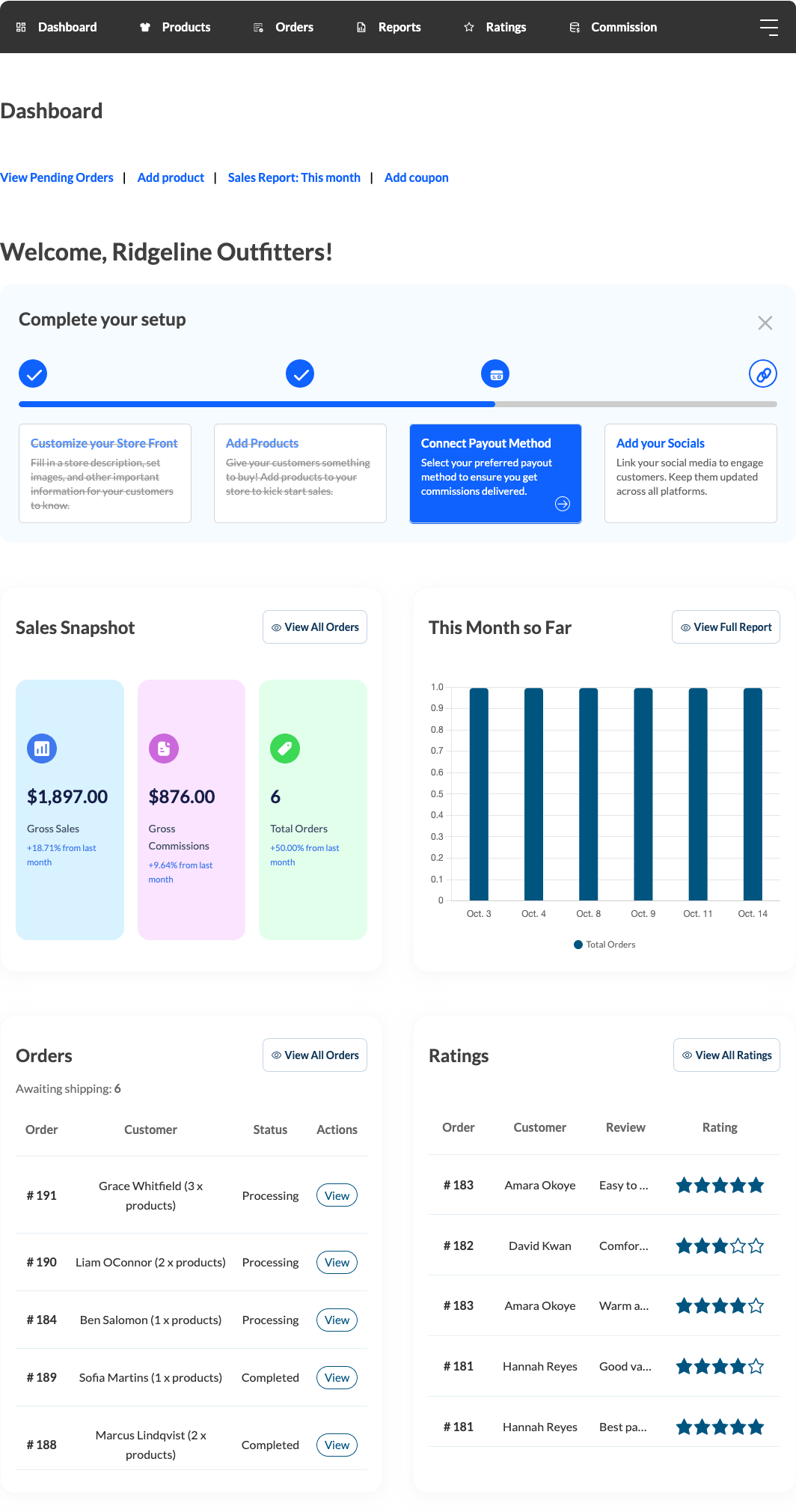
The Dashboard tab is your home page. A Complete your setup checklist shows the steps you still need to finish, such as connecting a payout method. Below it, the Sales Snapshot shows your Gross Sales, Gross Commissions and Total Orders for this month, compared with last month.
The This Month so Far chart plots your orders day by day. The Orders panel lists your latest orders and how many are awaiting shipping. With WC Vendors Pro, a Ratings panel shows your latest customer reviews. Your marketplace admin can also show your storage use and file count as text under the quick links, so you can see how close you are to your upload limits.
Products
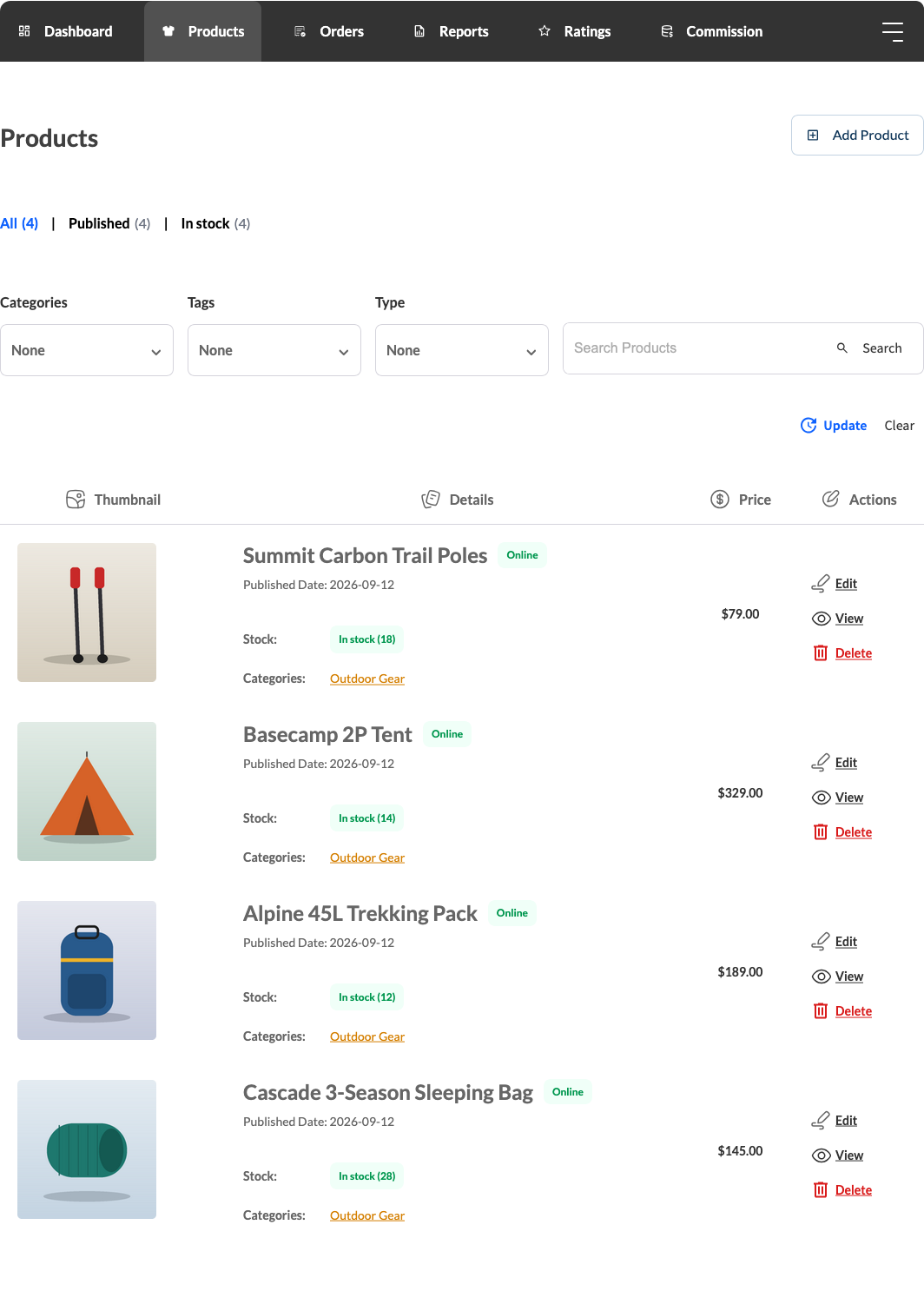
The Products tab lists every product in your store, with its stock, categories and price. Click Add Product to create a new one. Each product has Edit, View and Delete actions. A Duplicate action also shows when your marketplace admin allows it.
When you edit a product, you see the product fields your marketplace has set up for vendors. For a full walkthrough, see vendor product management.
Orders
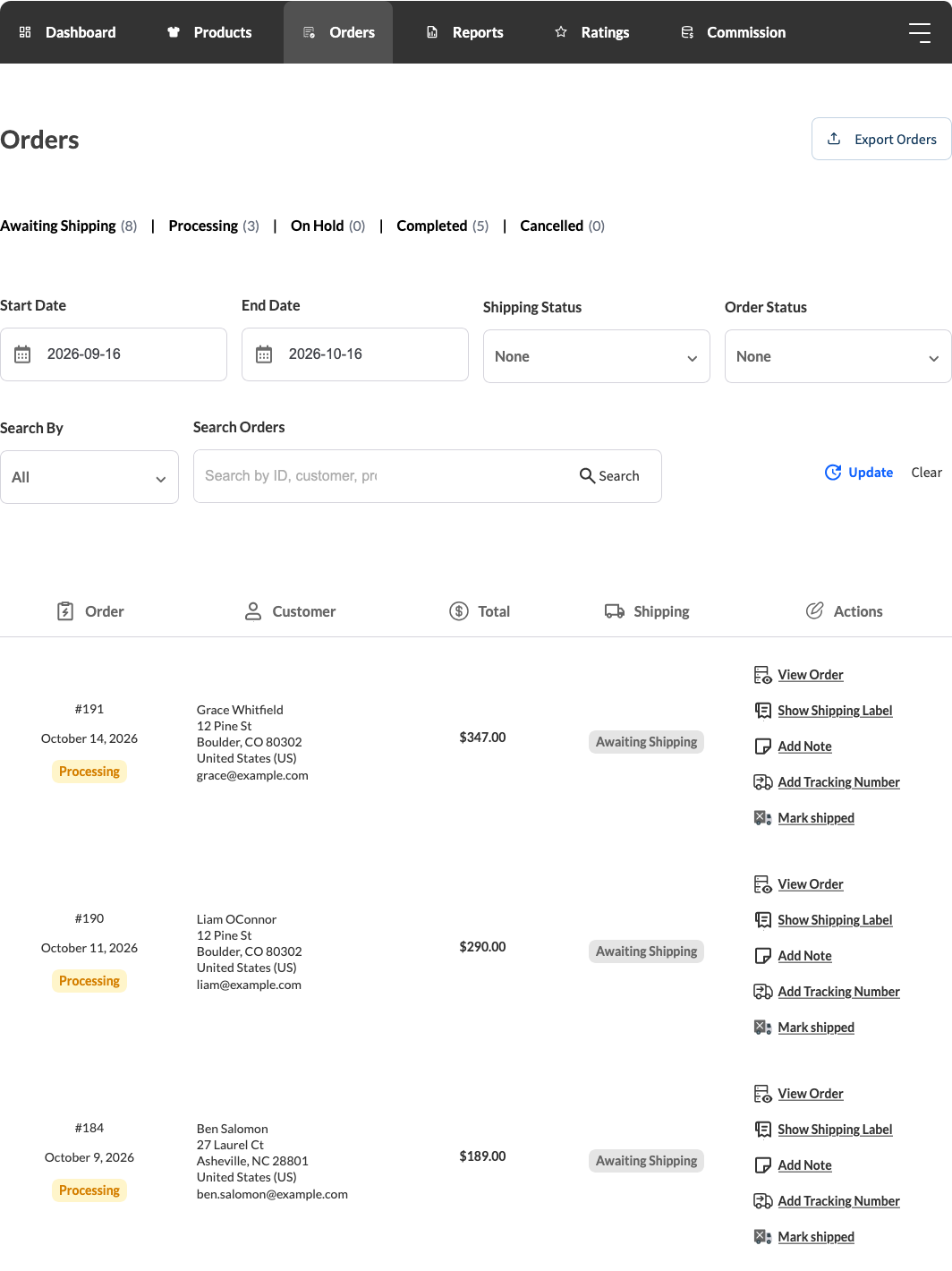
The Orders tab lists the orders customers place for your products. Filter by status, such as Awaiting Shipping or Completed, or by a date range. Depending on the order, you see these actions:
- View Order
- Add Note
- Add Tracking Number
- Mark shipped. After you mark an order as shipped, this action changes to Mark Unshipped while the order is still processing.
- Show Shipping Label (WC Vendors Pro)
Add Tracking Number and Show Shipping Label do not show when an order needs no shipping or when the admin turns off vendor shipping.
When your marketplace admin allows it, an Export Orders button lets you download your orders. For more detail, see vendor order management.
Reports
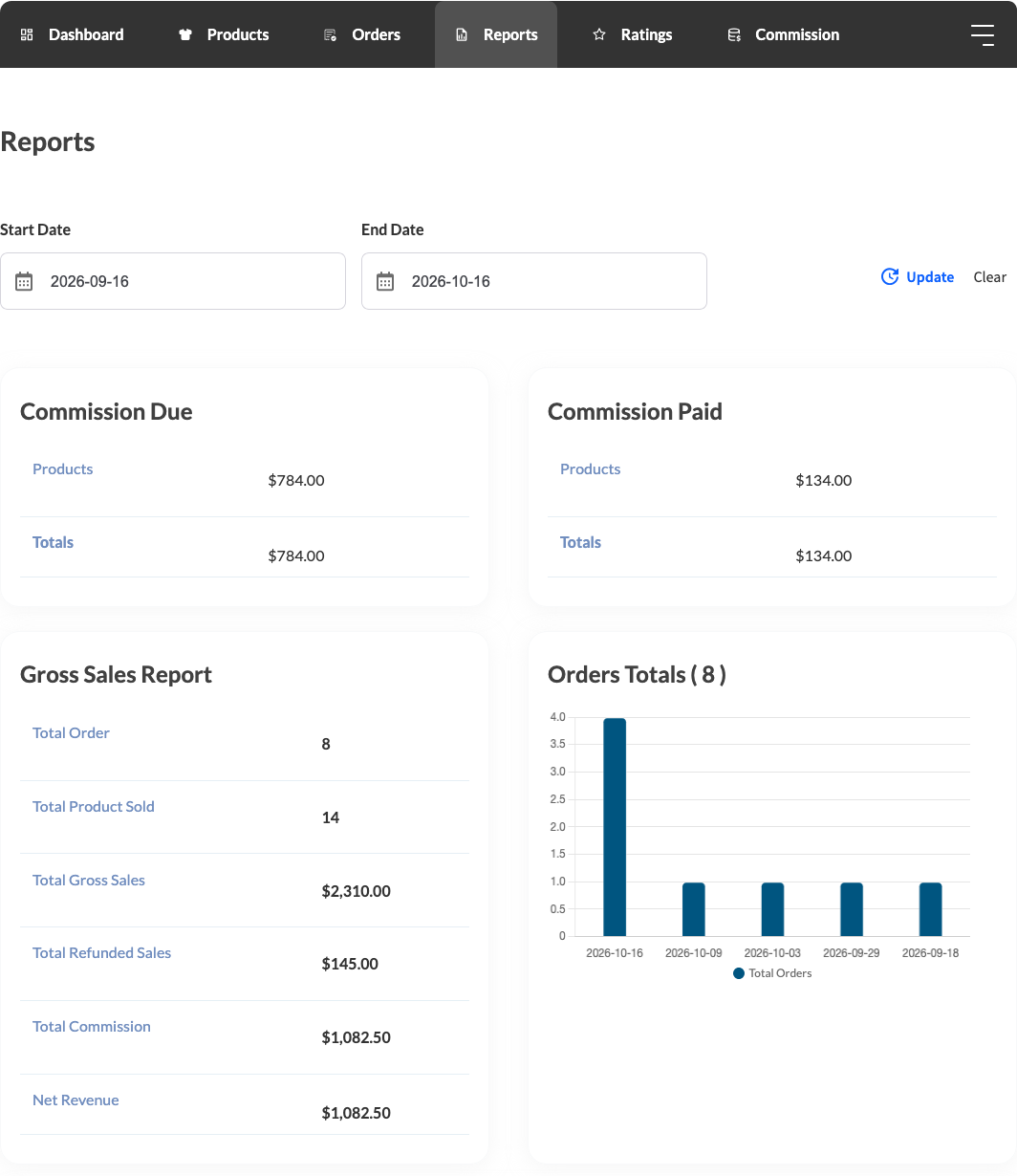
The Reports tab shows your sales for a date range. Pick a start date and an end date, then click Update. The Commission Due and Commission Paid tables show the commission still owed to you and the commission already paid. The Gross Sales Report table shows these figures:
- Total Order: the number of orders in the date range.
- Total Product Sold: the number of your products sold.
- Total Gross Sales: the total of your orders, including the tax and shipping passed to you, before partial refunds.
- Total Refunded Sales: the value of refunded items. A refund counts in the date range of the original order, not the date of the refund. Fully refunded orders do not show unless the admin turns on Show reversed orders. With WC Vendors Pro, they stay hidden even when this setting is on. This row shows only when you have refunds in the date range.
- Total Commission: the commission you earn on your sales after refunds, including any tax and shipping passed to you.
- Net Revenue: your commission after refunds, less any tax and shipping the marketplace passes to you.
The Orders Totals chart plots your orders over the same date range. For a full guide, see How the Reports tab in your vendor dashboard works.
Ratings
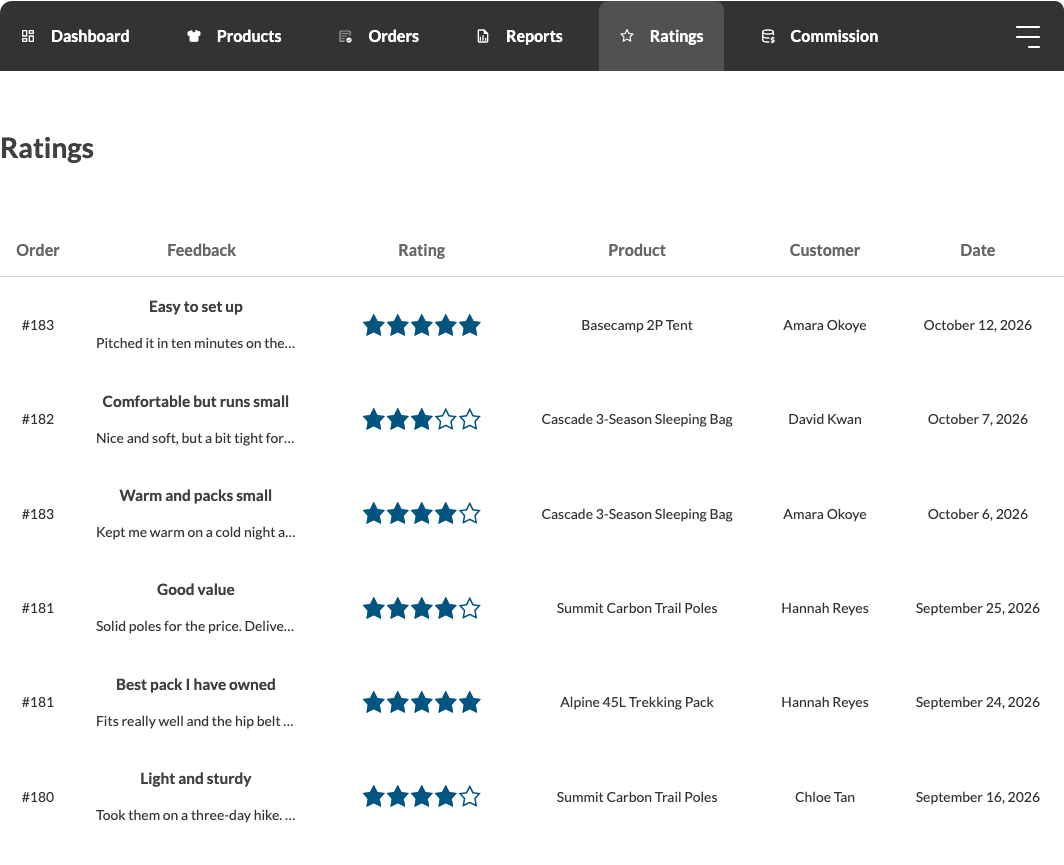
With WC Vendors Pro, customers can rate your products from 1 to 5 stars. They go to My Account > Orders and click Leave Feedback. Customers can change their feedback later with Revise Feedback. So if you get a poor review, you can work with the customer to fix the problem. Learn more in how vendor ratings work.
Commission and statements
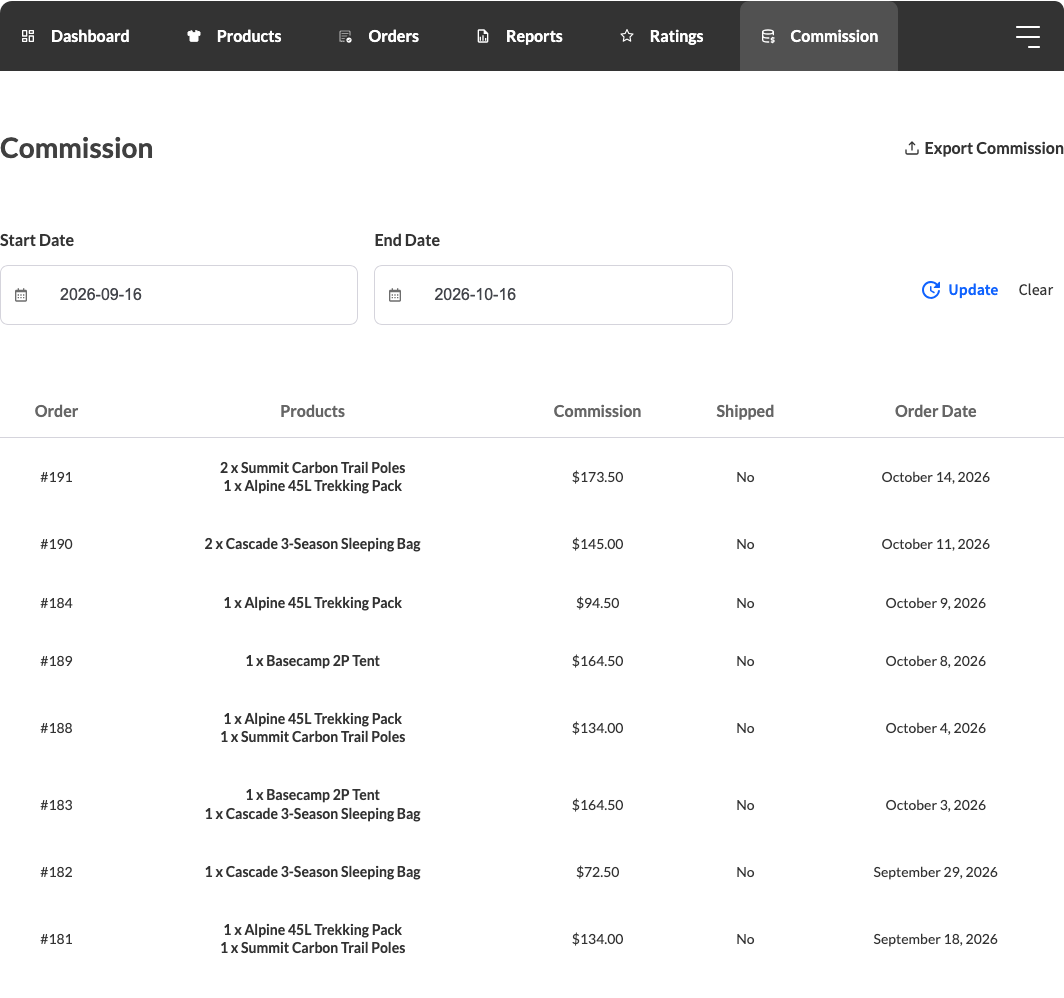
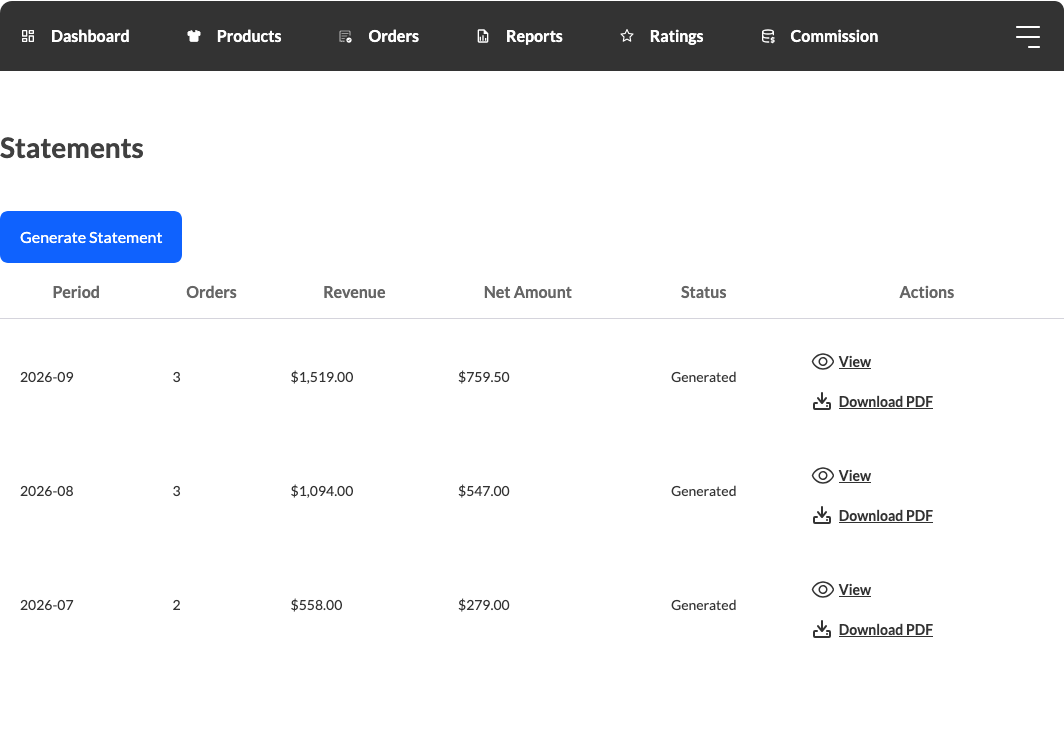
With WC Vendors Pro, the Commission tab lists the commission you earn on each order, with its shipped status and order date. The Statements tab shows your monthly statements, which you can view or download as a PDF. Your marketplace admin can turn statements off.
Coupons
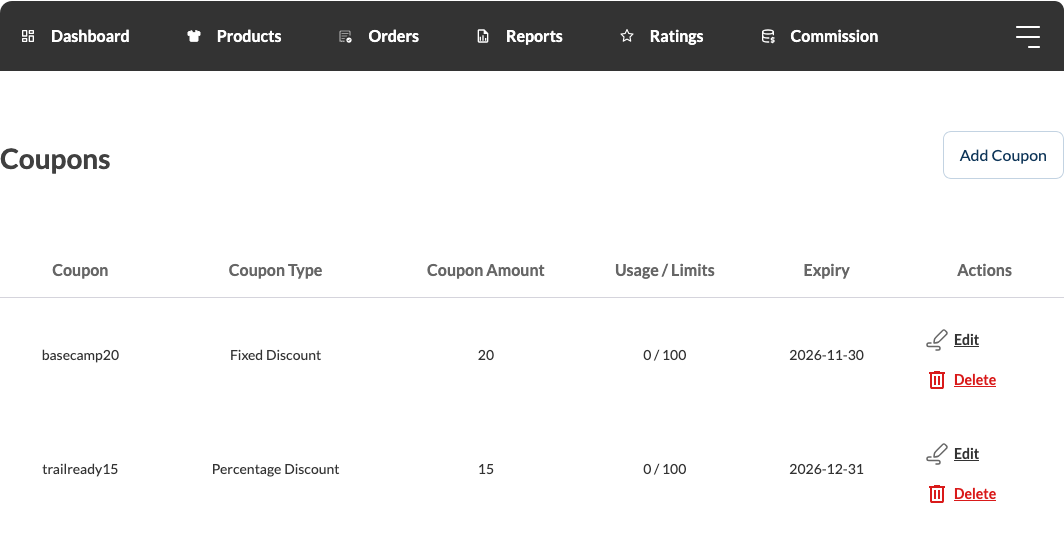
With WC Vendors Pro, you can create coupons for your products only. These coupons do not work on products from other vendors. Click Add Coupon, then pick a Percentage discount or a Fixed discount. You can apply the coupon to all your products, pick some products, or exclude some products. See how to manage coupons in WC Vendors Pro for each setting.
To tell shoppers about your coupons, go to Settings > Store, tick Enable store notice and enter your notice. Then click Save Changes. The notice shows on your store page and your product pages. If you do not see these fields, your marketplace admin has hidden them.
Refund requests
The Refund Requests tab shows only when your marketplace uses WC Vendors Stripe Connect. Here, you review the refund requests customers send for your orders. The tab does not show when the admin ticks Disable Refund in the Stripe Connect settings. For the full process, see how refund requests work.
Settings
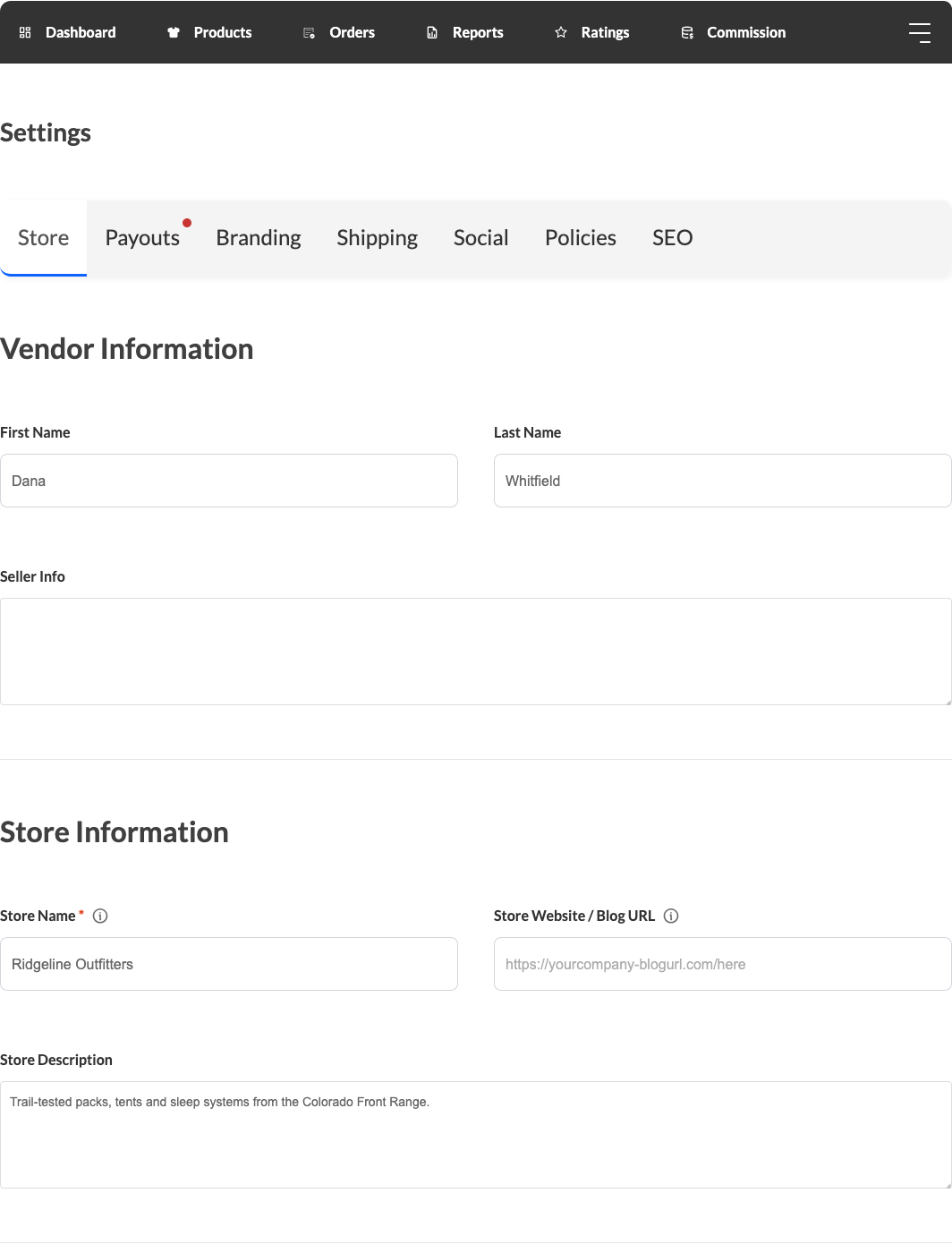
The Settings tab is where you set up your store. These tabs come with WC Vendors:
- Store: your name, store name, store description, phone and address.
- Payouts: your payout method and payout details.
- API: create an API credential so an outside app, like an inventory or shipping tool, can connect to your store data. You can have one credential at a time, and the secret shows only once. This tab shows only when your site allows application passwords.
With WC Vendors Pro, you also see Branding, Shipping, Social, Policies and SEO. The Shipping tab hides when the admin turns off vendor shipping. With WC Vendors Pro, the WC Vendors Tax add-on also adds a Tax tab. Click Save Changes when you finish.
View store and logout
Click View store to open your public store page and see it the way customers do. Your marketplace admin can hide this link. A Logout link shows only when the admin turns on Show logout link in WC Vendors Pro.
Related resources
These guides cover each part of the vendor dashboard in more detail:
- WC Vendors Pro: unlock ratings, coupons, commission statements and more for your store.
- Vendor Product Management: How To Add & Manage Products In WC Vendors: a full walkthrough of how vendors add, edit and manage products.
- Vendor Order Management: how vendors view, ship and manage orders.
- How the Reports tab in your vendor dashboard works: a full guide to the Reports tab.
- How to manage coupons in WC Vendors Pro: create and manage vendor coupons.
- How vendor ratings work in the vendor dashboard: read and respond to customer ratings.
Frequently asked questions
Why is a tab missing from my vendor dashboard?
Your marketplace admin can turn tabs off, and some tabs need WC Vendors Pro or an add-on. Check the table in the “Vendor dashboard tabs” section, then ask your marketplace admin.
Why don’t I see Total Refunded Sales in my Reports tab?
The row shows only when you have refunded items in the date range you picked. Change the start date and end date, then click Update.
Need help?
If you have a question or run into any issues, we’re here to help.
- Premium users: Open a support ticket
- Free users: Visit our community forum